Cluster Management
You can access the cluster management panel from the control panel:
Viewing Clusters
Once you open the cluster management panel, you will see the list of available clusters:
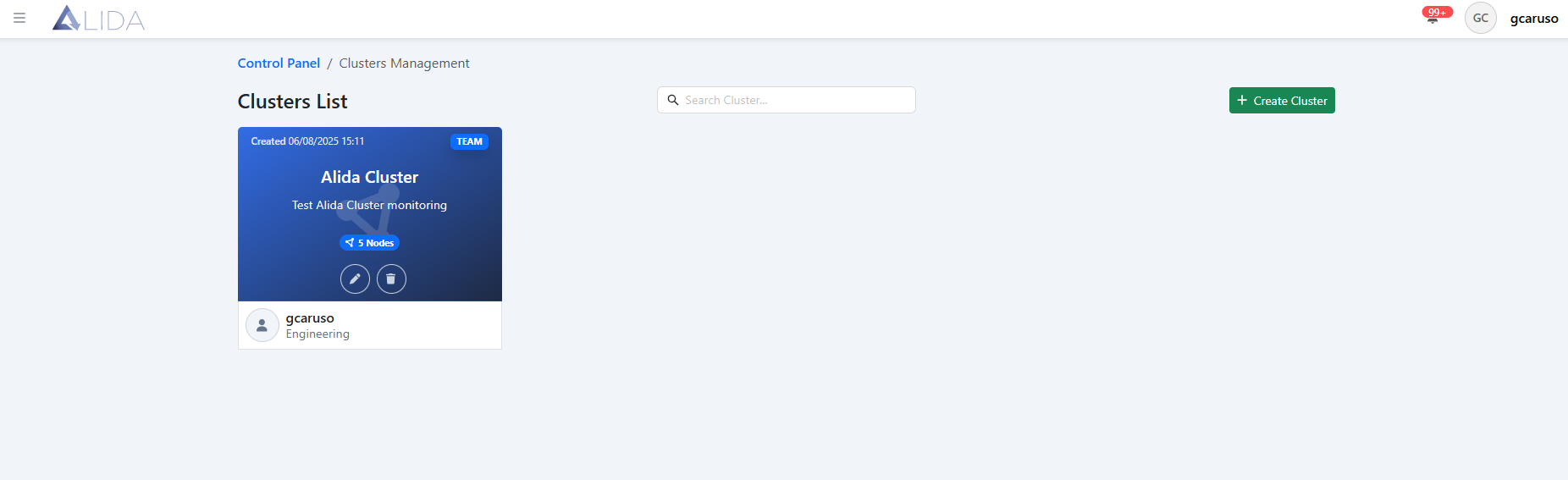
Registering a Cluster
By clicking on "Create Cluster" you can register a new cluster by entering its definition JSON.
This JSON can be obtained by running the command:
kubectl get nodes -o json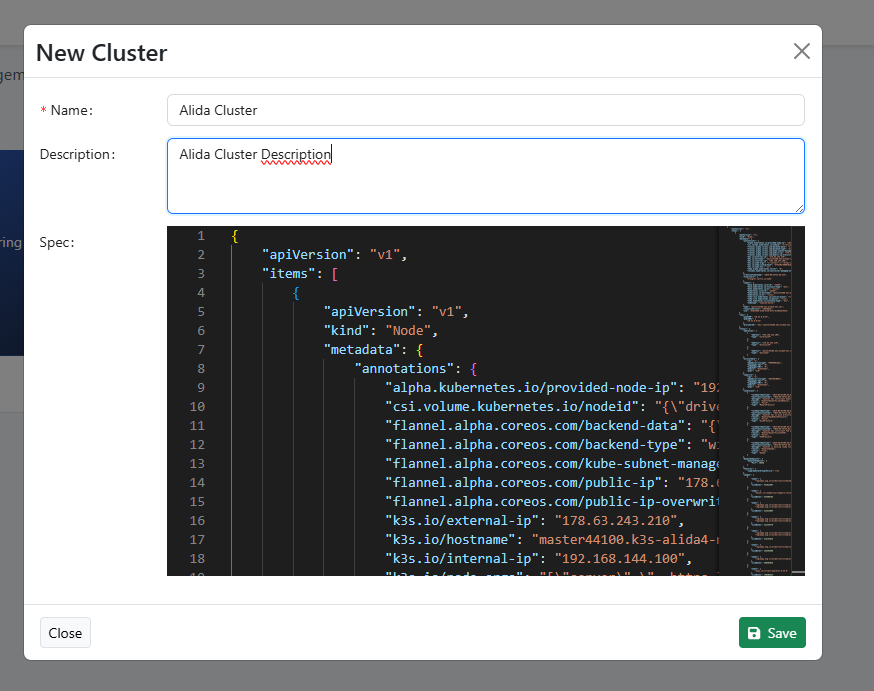
For each cluster you can:
| Function | Button |
|---|---|
| Edit it |  |
| Delete it |  |
| Access cluster details (click on the card) | 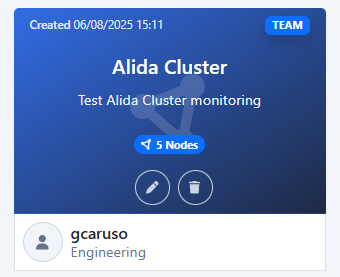 |
Cluster Details
By clicking on the cluster card, you will access the details page, with the basic information of the cluster and the list of nodes of that cluster, information taken from the cluster JSON loaded at the time of creation:
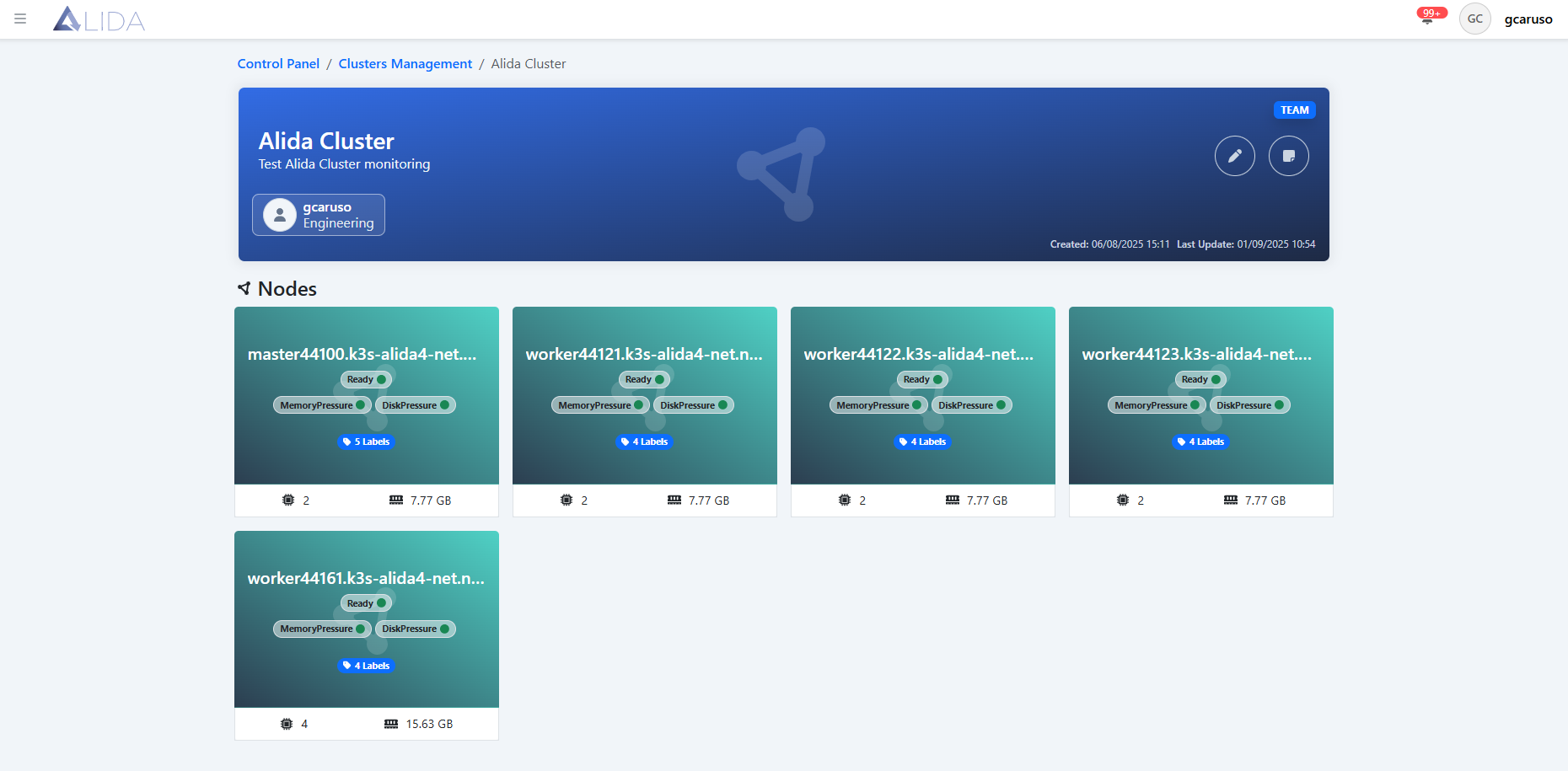
From here you can:
| Function | Button |
|---|---|
| Edit the cluster | |
| View the cluster notes |  |
Clicking on the card of a specific node, you can access the details page of the latter.
Node Cluster Details
From the node details page, you will see the information of the selected node:
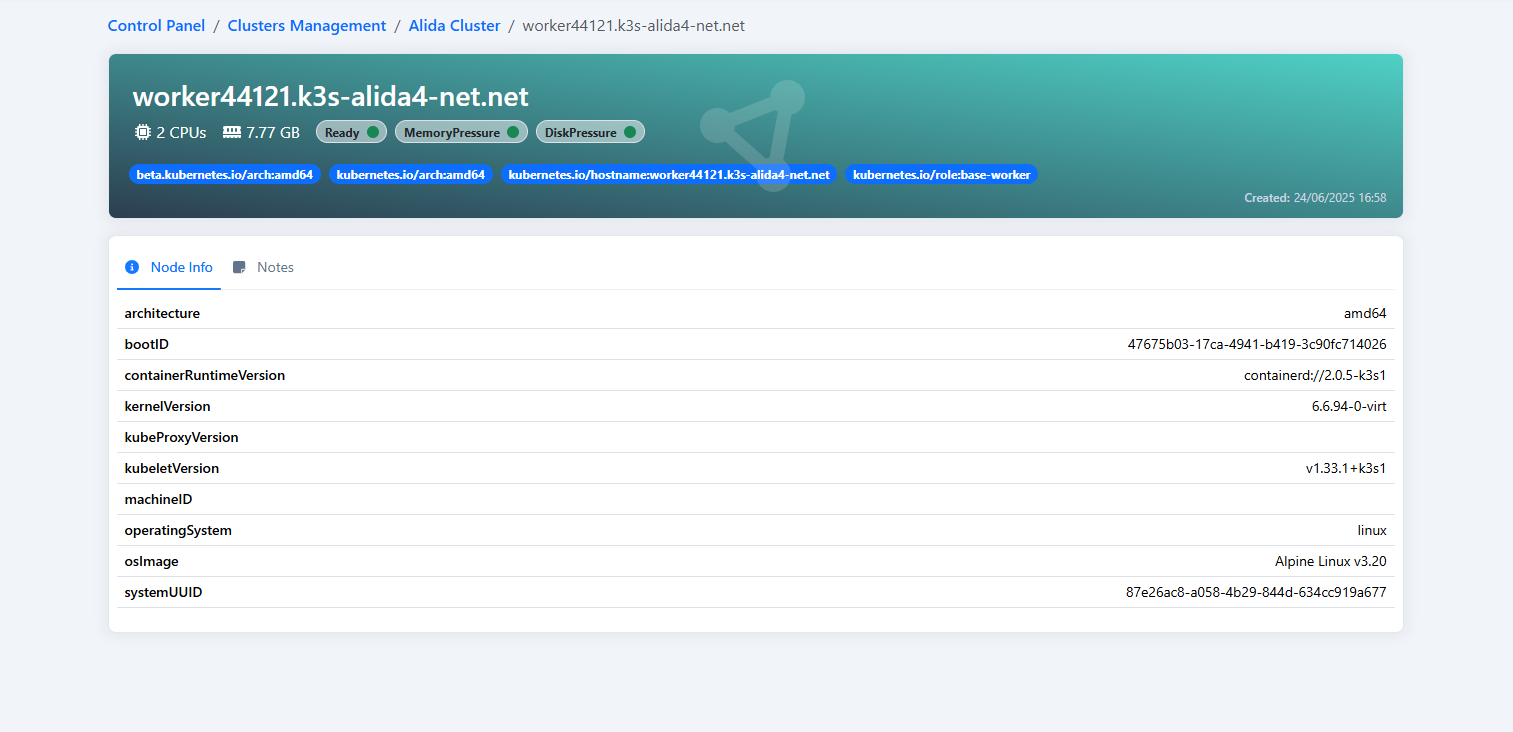
Notes
From the node details page, by selecting the "Notes" tab you will see the notes that have been entered for that cluster
Note
The notes present here are not the cluster annotations, recorded on Kubernetes
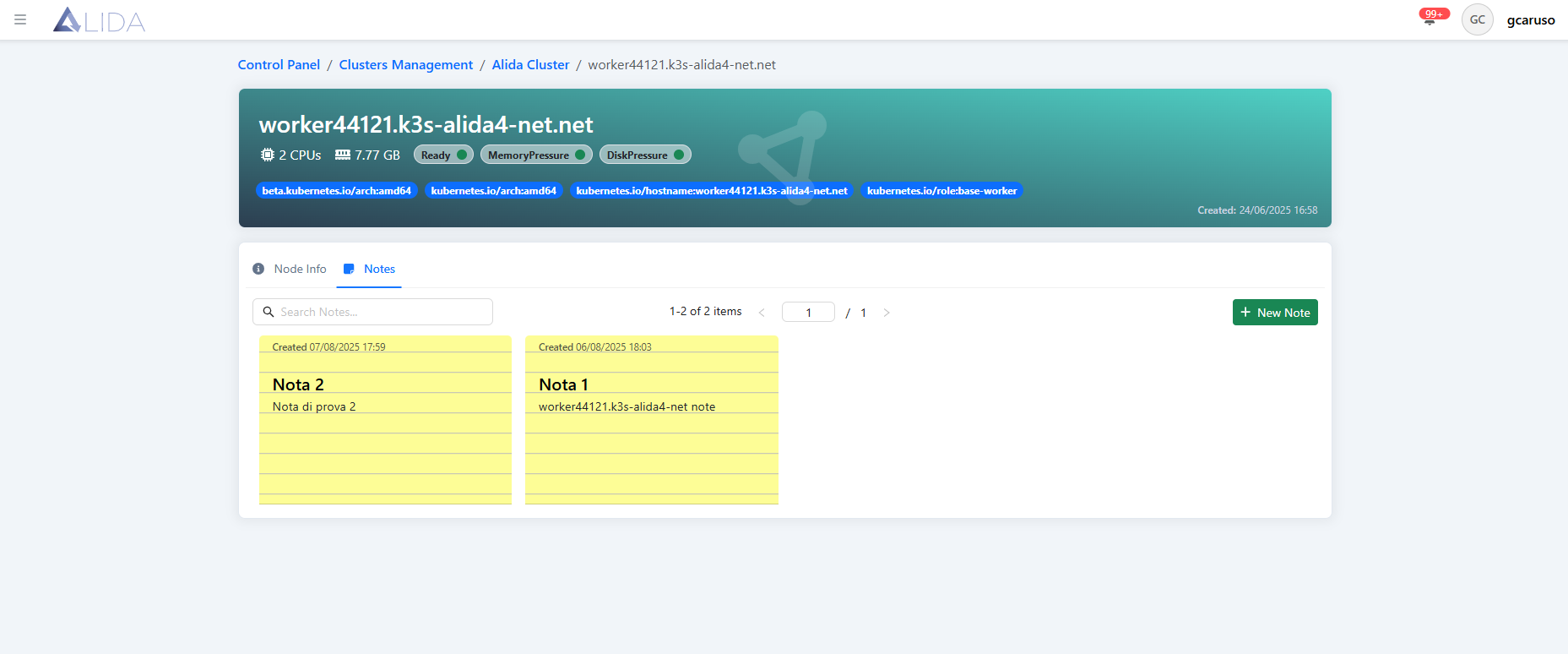
For each note you can:
| Function | Button |
|---|---|
| Access the edit form |  |
| Delete it |  |
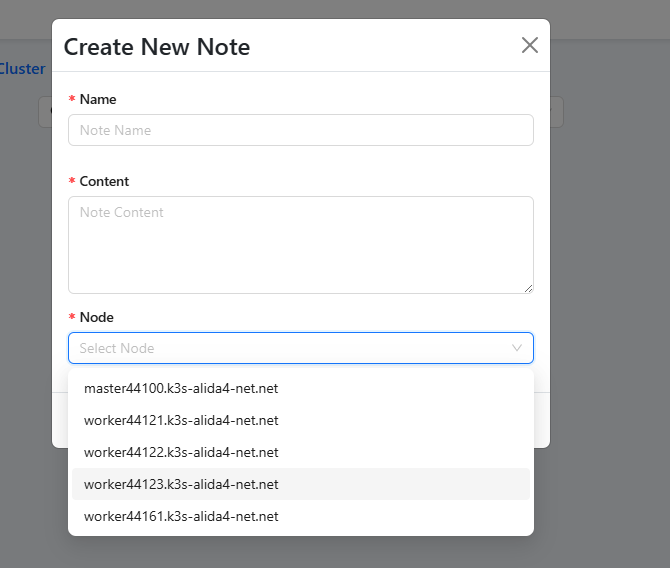
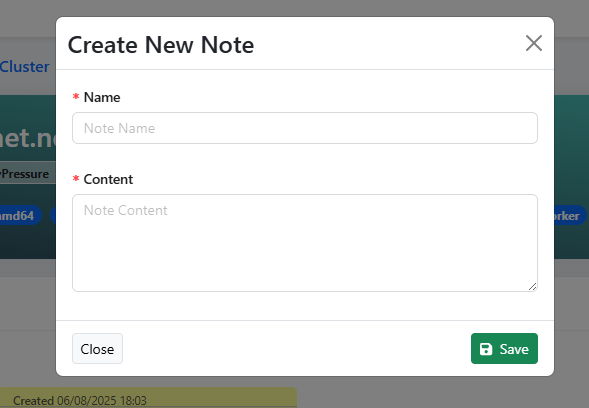
Note Creation / Editing
Cluster Notes
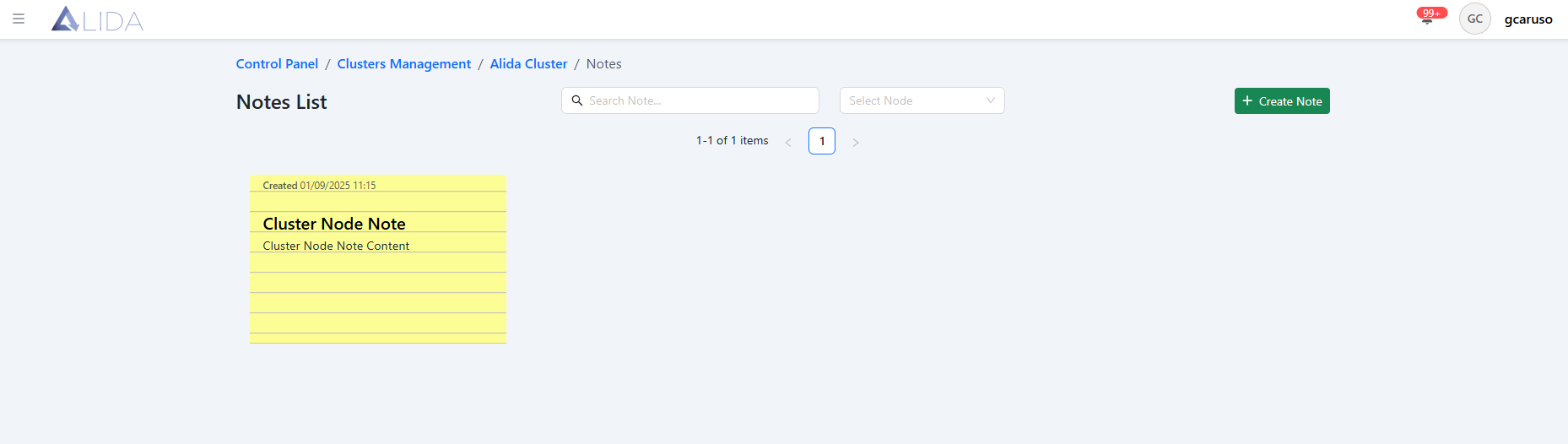
From the cluster notes page, you can see all the notes recorded for the cluster's nodes, filterable by title or by node
For each note you can:
| Function | Button |
|---|---|
| Access the edit form | |
| Delete it | |
Note Creation / Editing