Project
A Project is an organized workspace where the user can collect and manage all necessary ALIDA assets for a specific use case.
Managing Projects
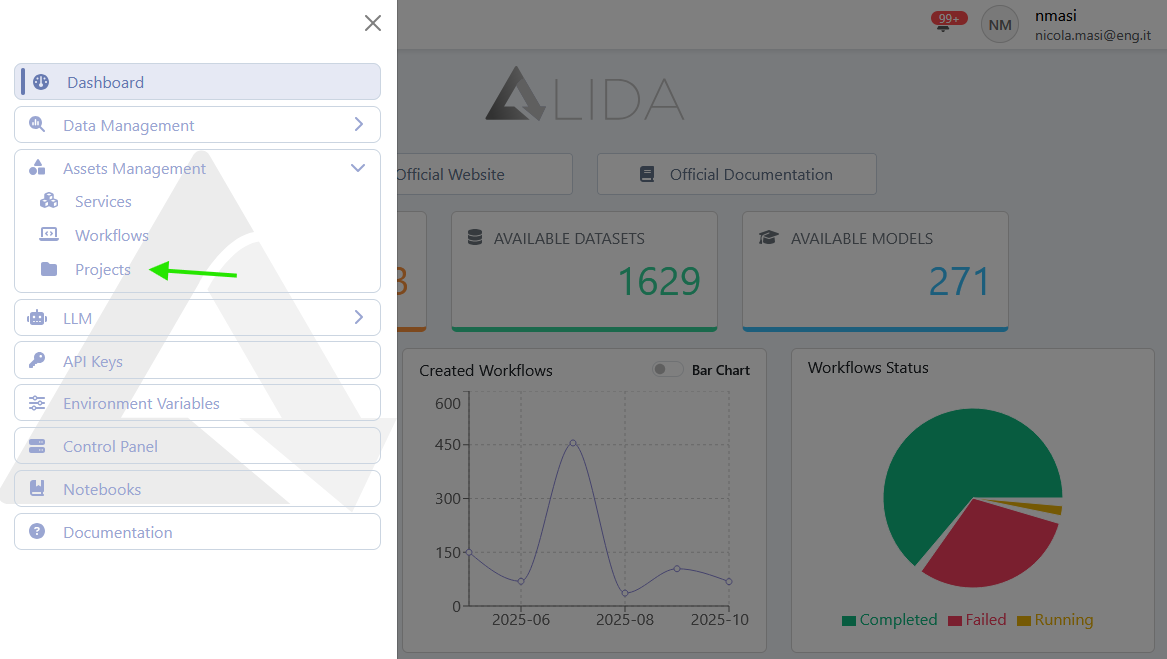
You can access the Project management page from the sidebar menu, as indicated in the figure:
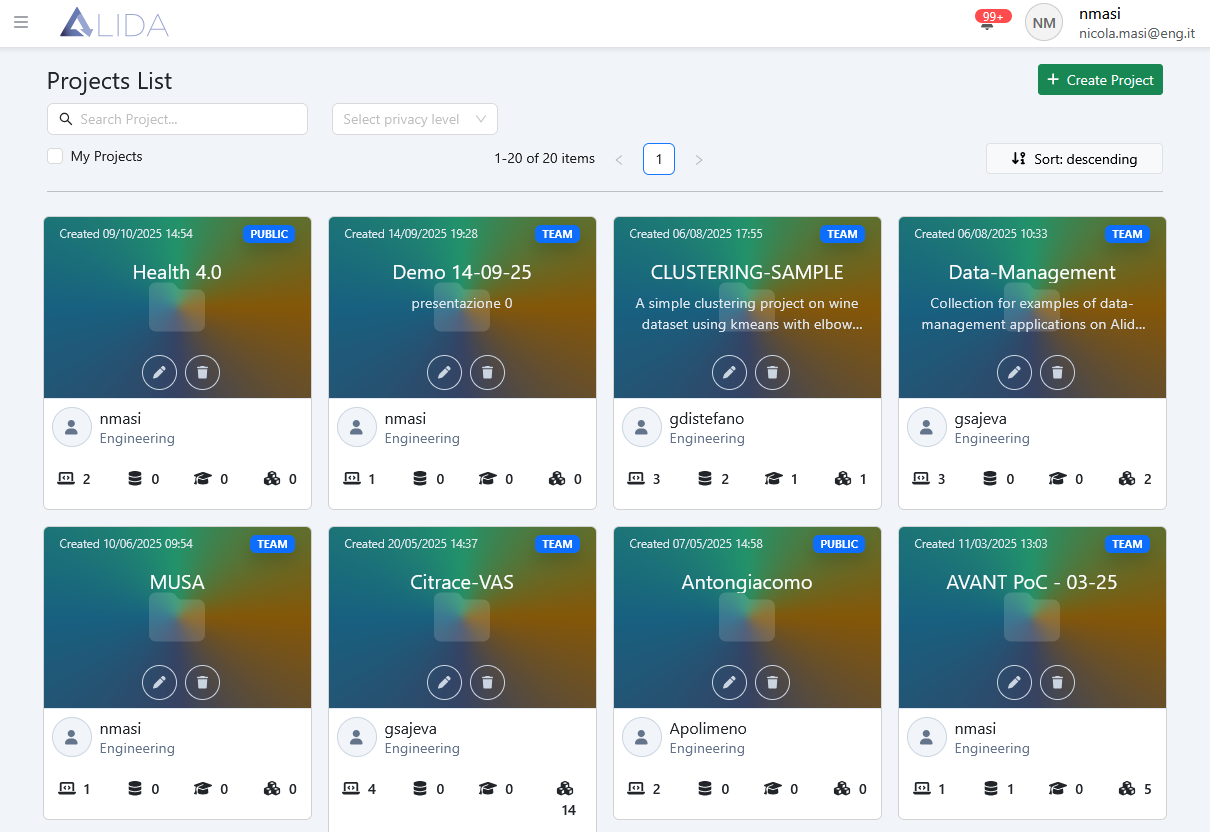
From the management page, you will be able to access the following functions:
| Function | Button |
|---|---|
| View Project details | (clicking on card) |
| Create new Project |  |
| Edit Project |  |
| Delete Project |  |
Viewing Project Details
Clicking on a Project card will allow you to view the set of Assets that belong to it:
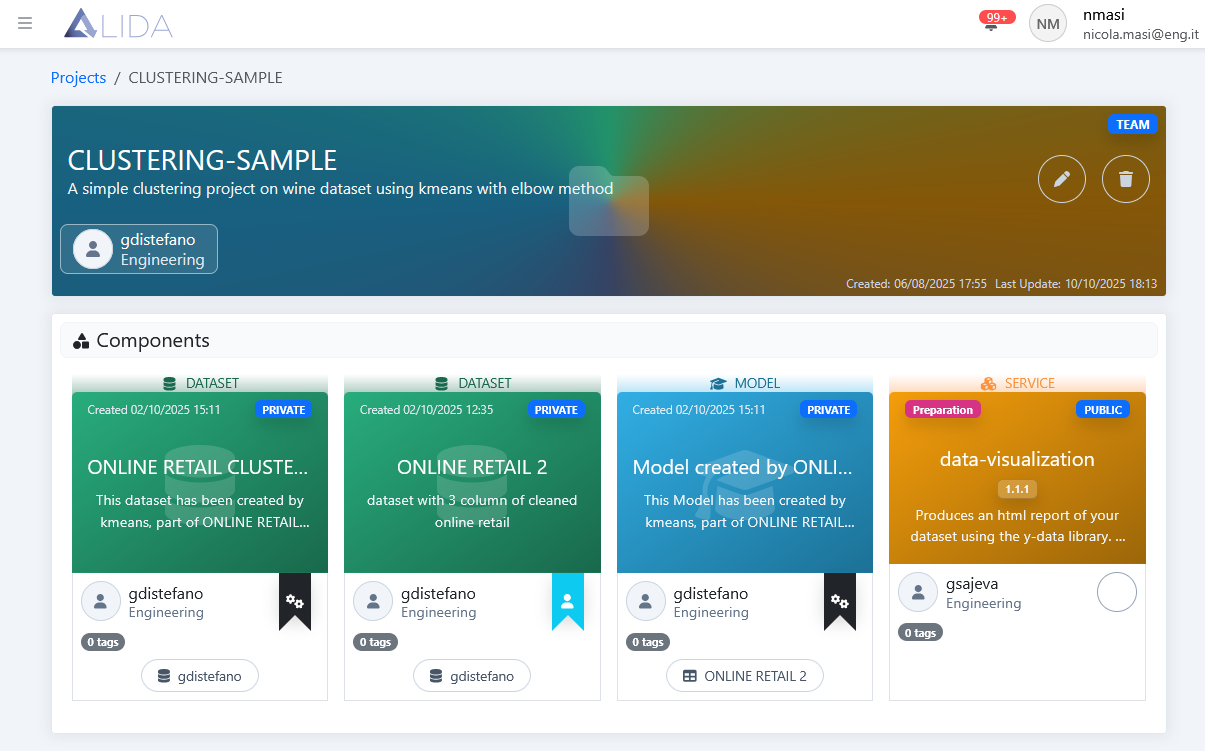
Here, clicking on the card of a specific Asset will open its details page.
Creating a New Project
Open the Project creation panel by clicking on , and enter the basic metadata:
- Name: name of the Project
- Description: description of the Project
- Privacy Level: visibility level of the Project
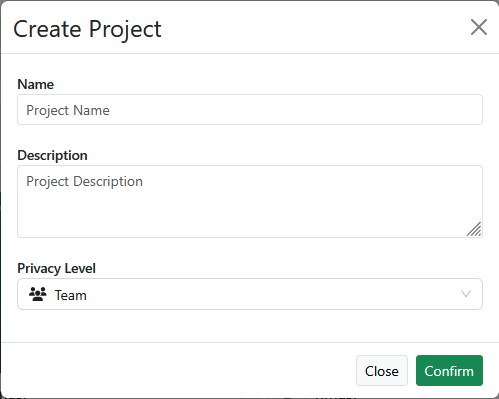
A new Project will then be created, to which Assets can be assigned through the edit panel (see below)
Editing a Project
To open the edit panel, click on :
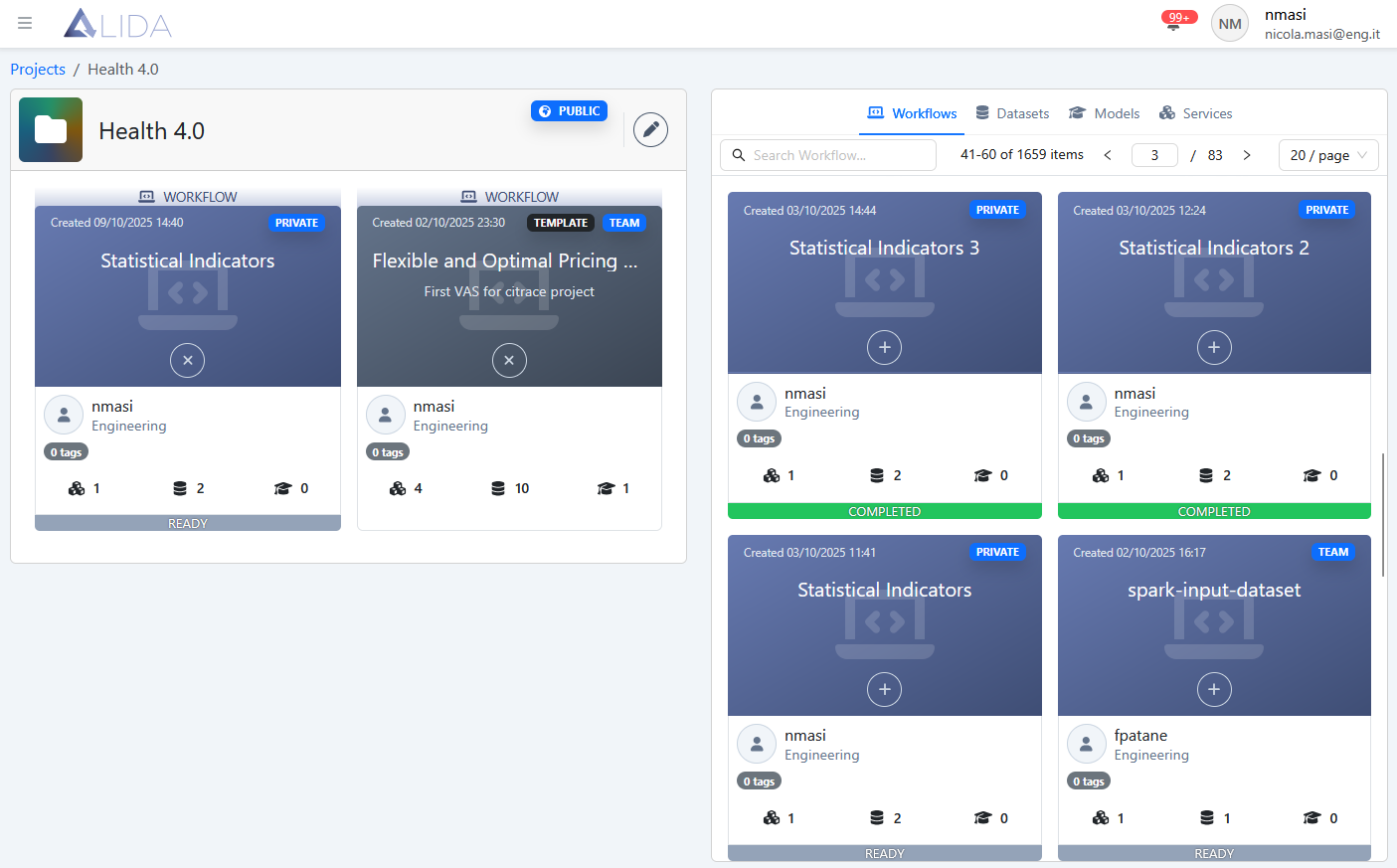
From here you can:
| Function | Button |
|---|---|
| Add an Asset to the Project |  |
| Remove Asset from the Project |  |
| Edit Project metadata |  |
Adding Assets to a Project
Clicking on the next to an Asset within the right-hand panel, will add the Asset to the Project
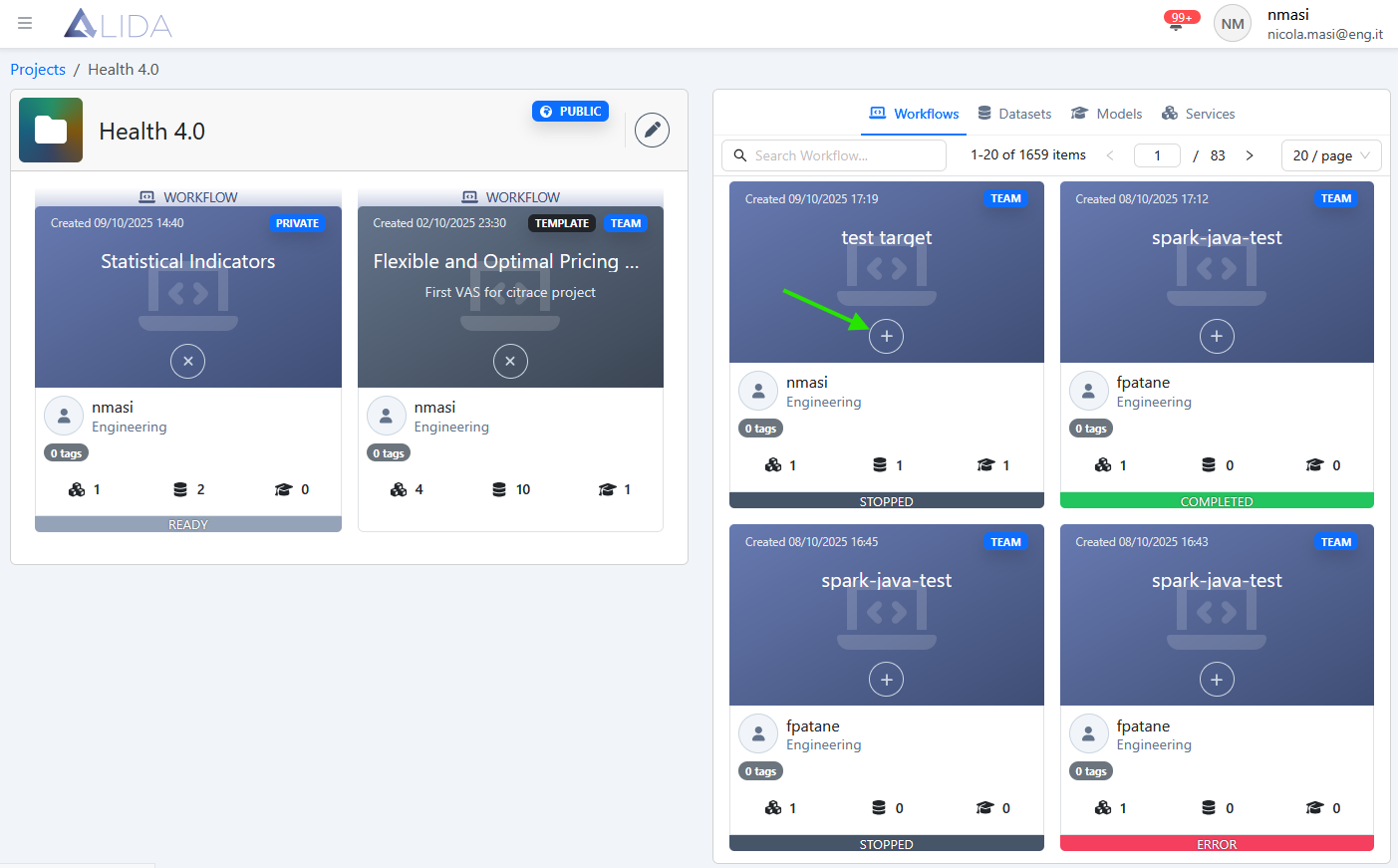
The Asset will appear alongside the other Assets belonging to the Project
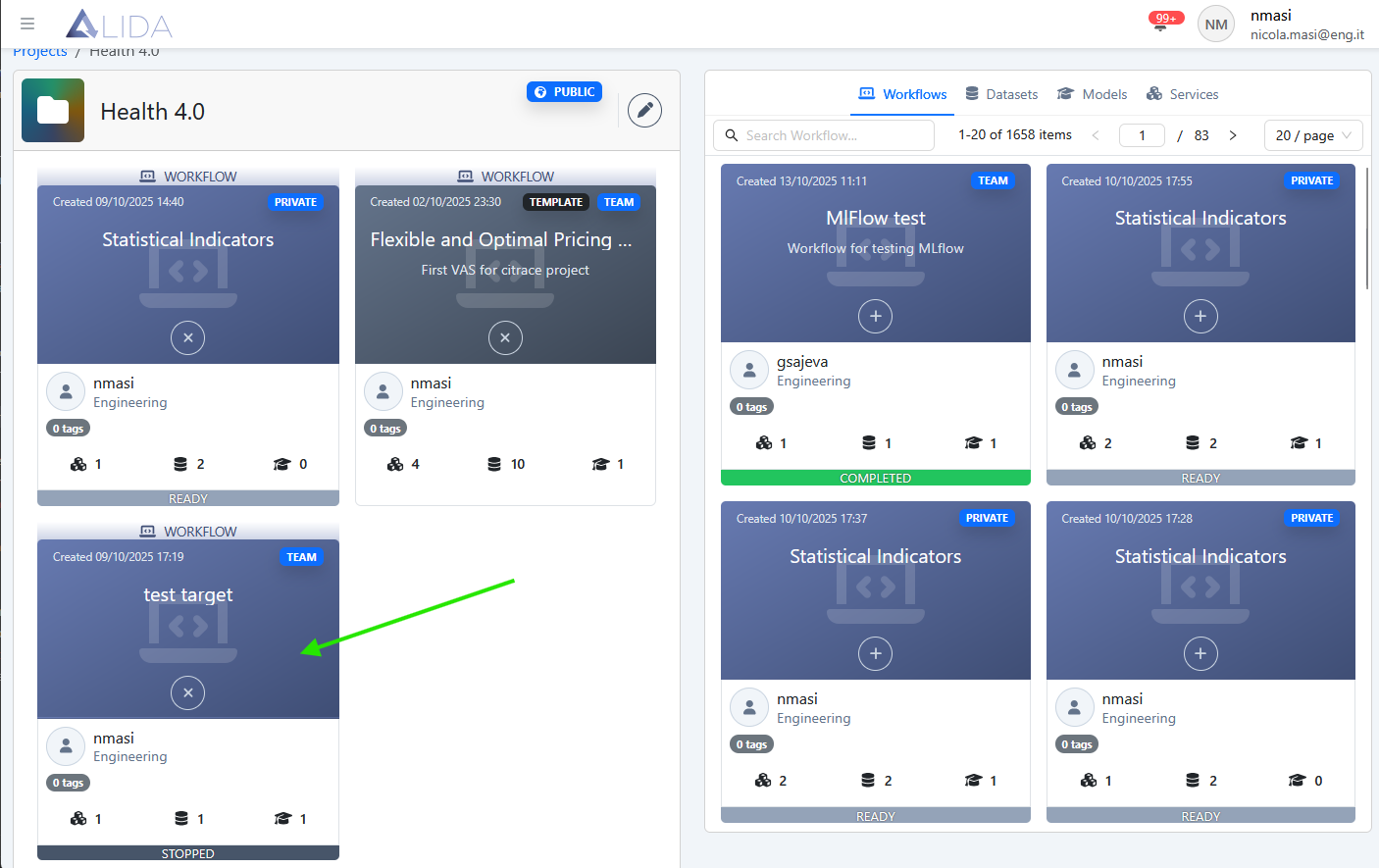
Removing Assets from a Project
Clicking on , the corresponding Asset will be removed from the Project
Editing Project Metadata
Clicking on will allow you to edit the basic metadata of the Project, such as:
- Name
- Description
- Privacy level
Deleting a Project
It is possible to delete a Project by clicking on