Service
A Service is an independent, Dockerized program capable of processing data. It can be of two types:
- Batch: It is started, processes data, and terminates its execution.
- Streaming: It is started and processes data for an indefinite period until the Workflow containing it is interrupted.
A Service is characterized by:
- I/O Ports
- User-configurable execution parameters
I/O Ports represent the input and output interfaces of the Service, and allow it to interact with other ALIDA Assets (Datasets, other Services, Models) within a Workflow.
Management of Services
The ALIDA catalog natively includes a series of ready-to-use Services for the creation of Workflows.
For information on how to create custom ones, visit Creation of a Service
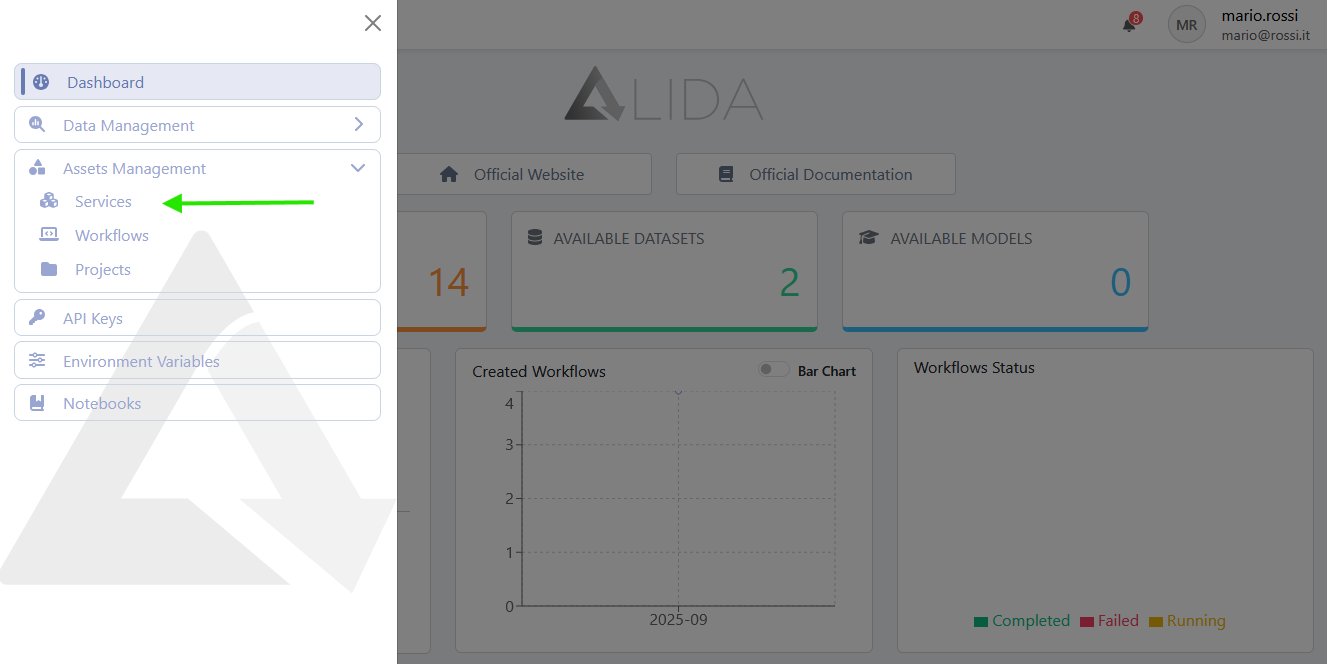
To access the Service management page, access it from the sidebar menu as shown in the following figure:
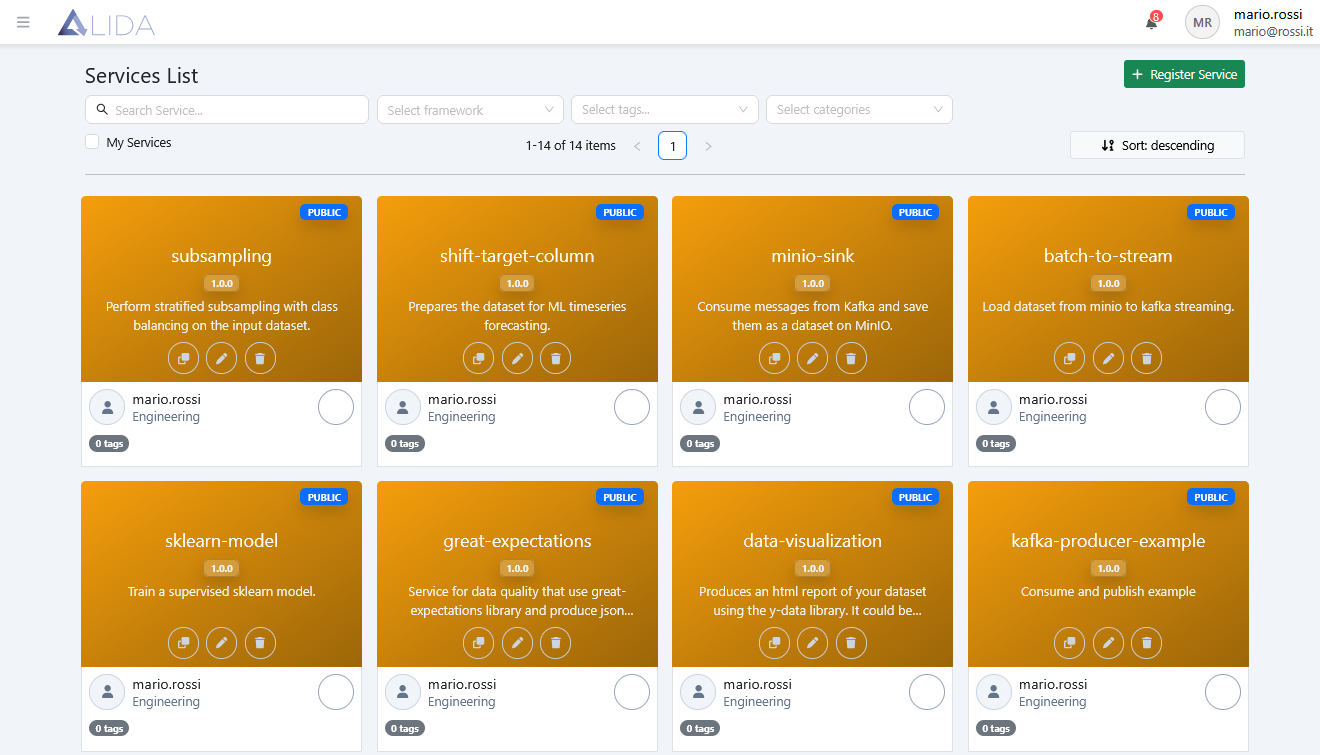
Once you have reached the page, you will find the list of Services.
From the top bar, it will be possible to:
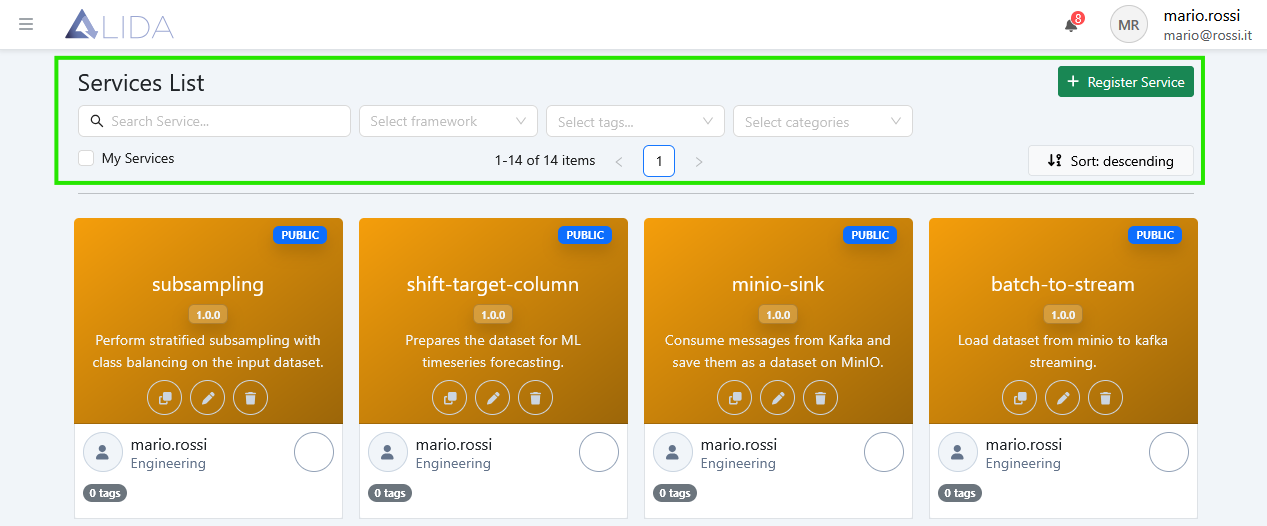
- Access the Service registration form
- Search for Services
- Filter by framework
- Filter by tag
- Filter by categories
- Show only "My Services"
- Sort the Services
- Change page
From each Service card, the following functions are also available:
Cloning a Service
Clicking on  will create an independent catalog copy of the
Service in question.
will create an independent catalog copy of the
Service in question.
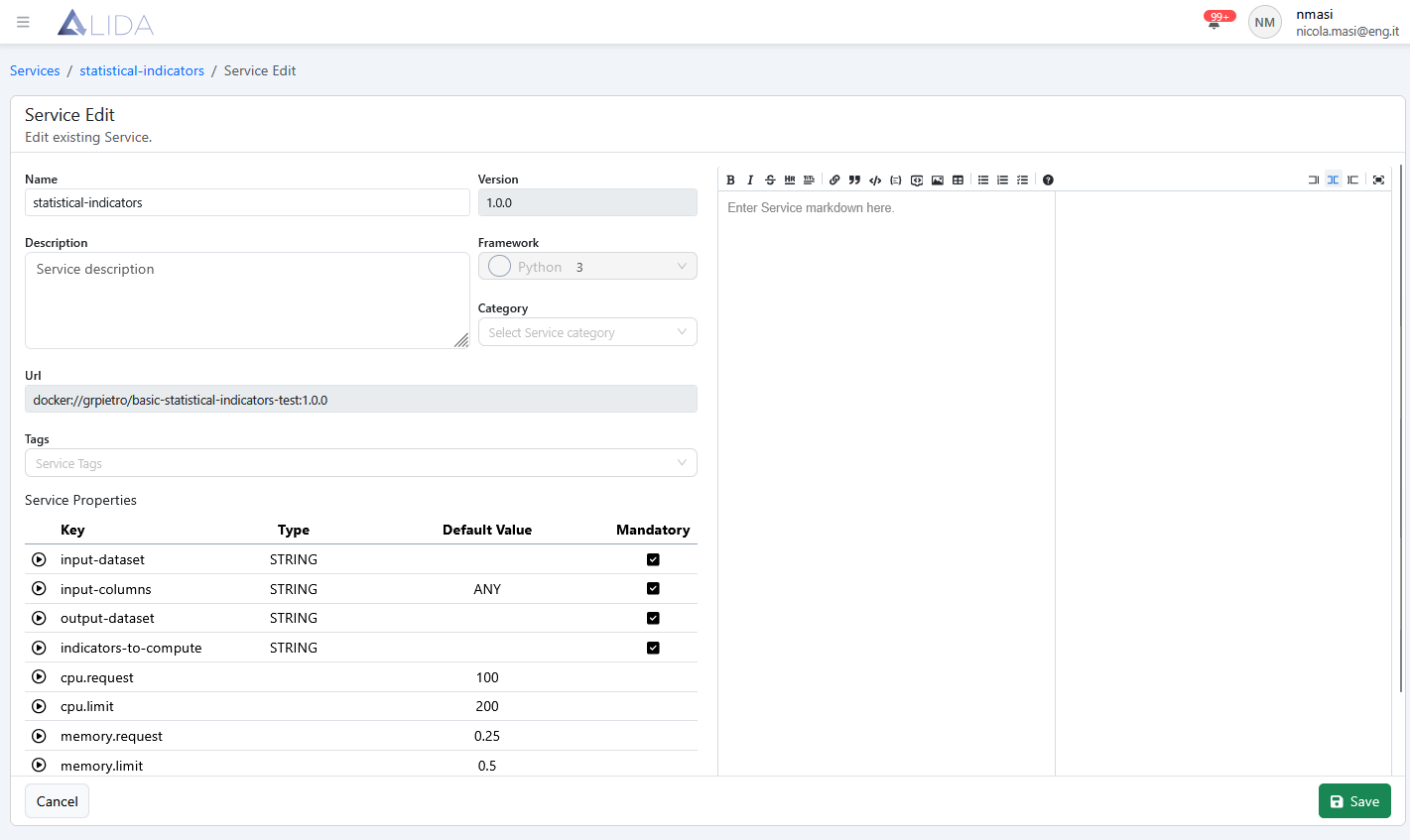
Editing a Service
Clicking on  will allow you to modify some of the metadata
of the Service, such as:
will allow you to modify some of the metadata
of the Service, such as:
- Name
- Description
- Category
- Service Tags
- Documentation in Markdown
Deleting a Service
Clicking on  will allow you to delete the Service
from the catalog.
will allow you to delete the Service
from the catalog.
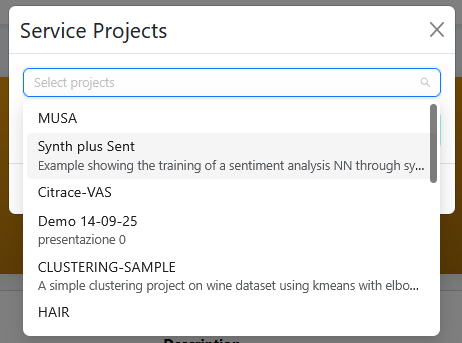
Assigning the Service to a Project
Clicking on the card of a Service will open its detail page, from which you can access the
Manage Projects function  .
.
A dropdown menu will open and you will be able to choose a Project to add the Service to.
Annotating Services
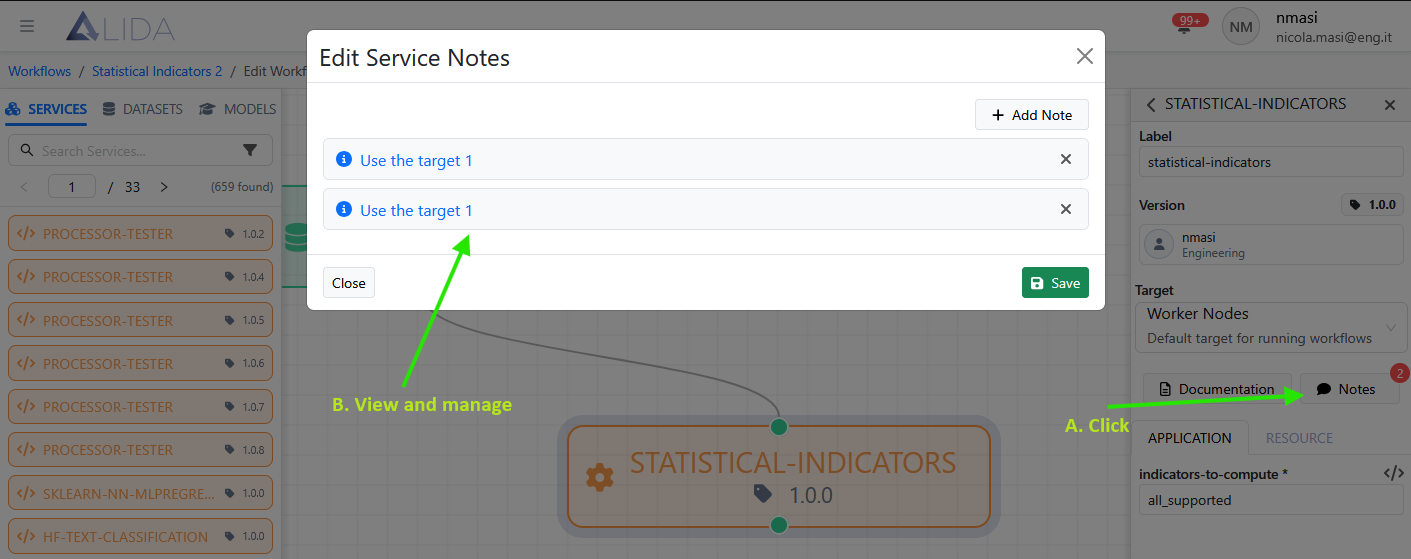
Within the Workflow Designer, it is possible to associate a set of structured annotations with each Service component of the Workflow.
These annotations must previously be defined by an administrator from the Control Panel (see Definition of Annotations)
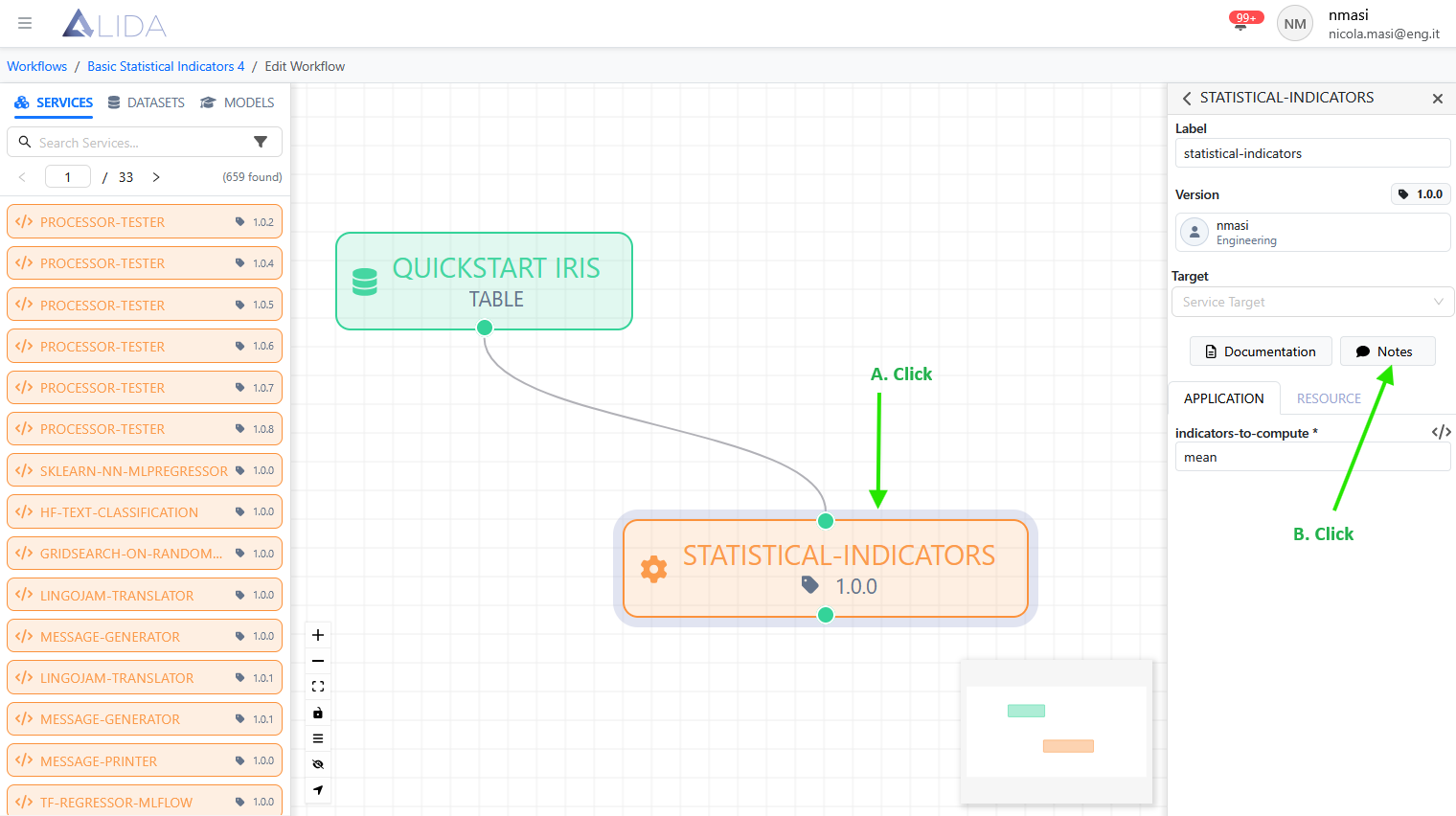
To annotate a Service:
- Open the Workflow Designer for the desired Workflow
-
Click on the Service to be annotated and then on Notes on the right
Choose service annotations from the Designer -
In the dialog that opens, click on
 and
select the desired annotations from the dropdown menus:
and
select the desired annotations from the dropdown menus:
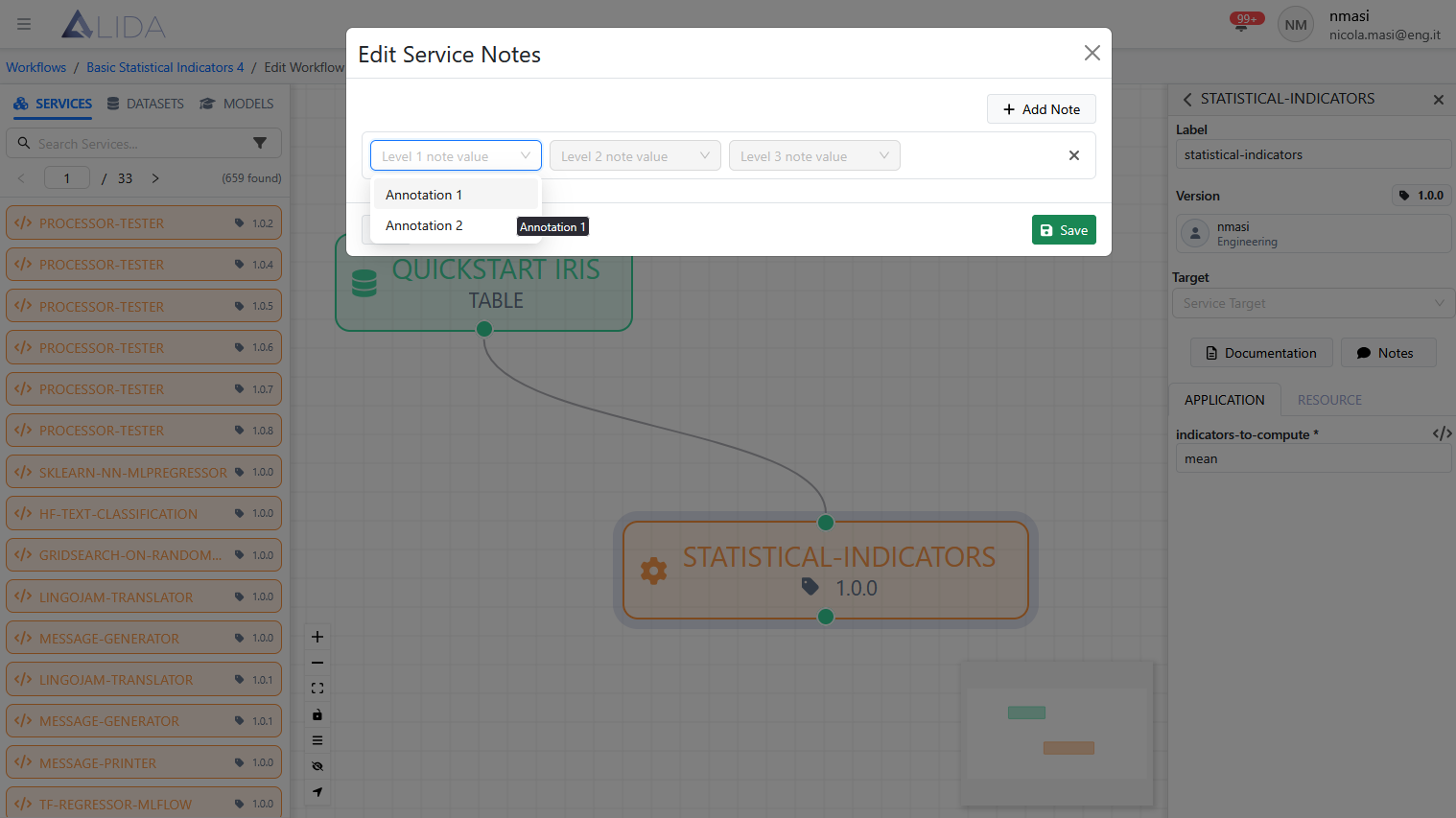
Assigning annotations -
Finish by clicking on Save
Once finished, it will be possible to:
- View the inserted annotations
- Delete them
- Add other annotations