Details Elements
This area of the Designer allows you to view information and modify the configuration parameters of the elements that make up the Workflow, including the Service ports.
If no element is clicked or if a blank area of the canvas is clicked, the information for the Workflow will be accessed:
- Name: The name of the Workflow
- Description: An optional text description
- Tags: Keywords useful for categorization
- Notes: Generic and structured annotations
- Access Level: The visibility level (e.g., Private, Team or Public)
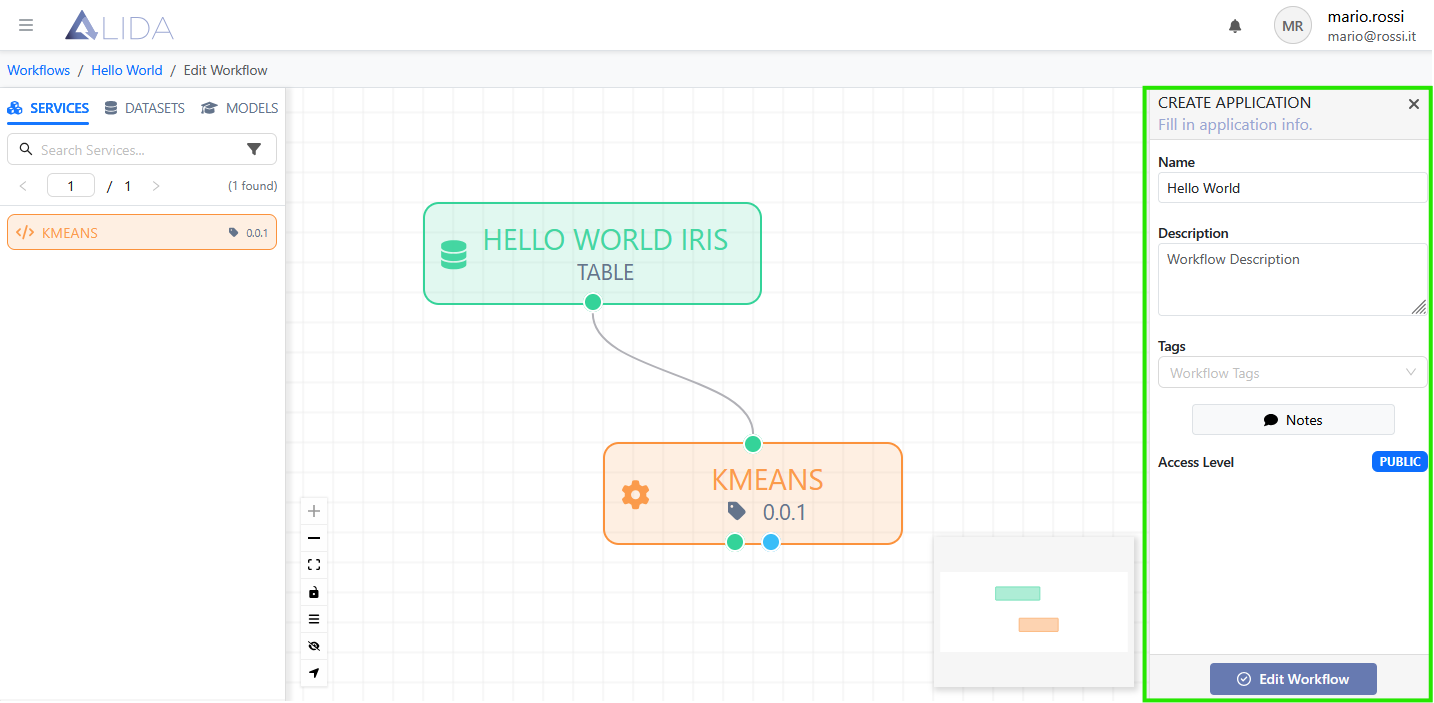
This information can be modified and saved by clicking on Create/Edit Workflow.
Clicking on one of the elements on the canvas, the Details Elements panel will load the specific information for the selected block (and dependent on its type).
Let's go into detail with some examples.
Dataset
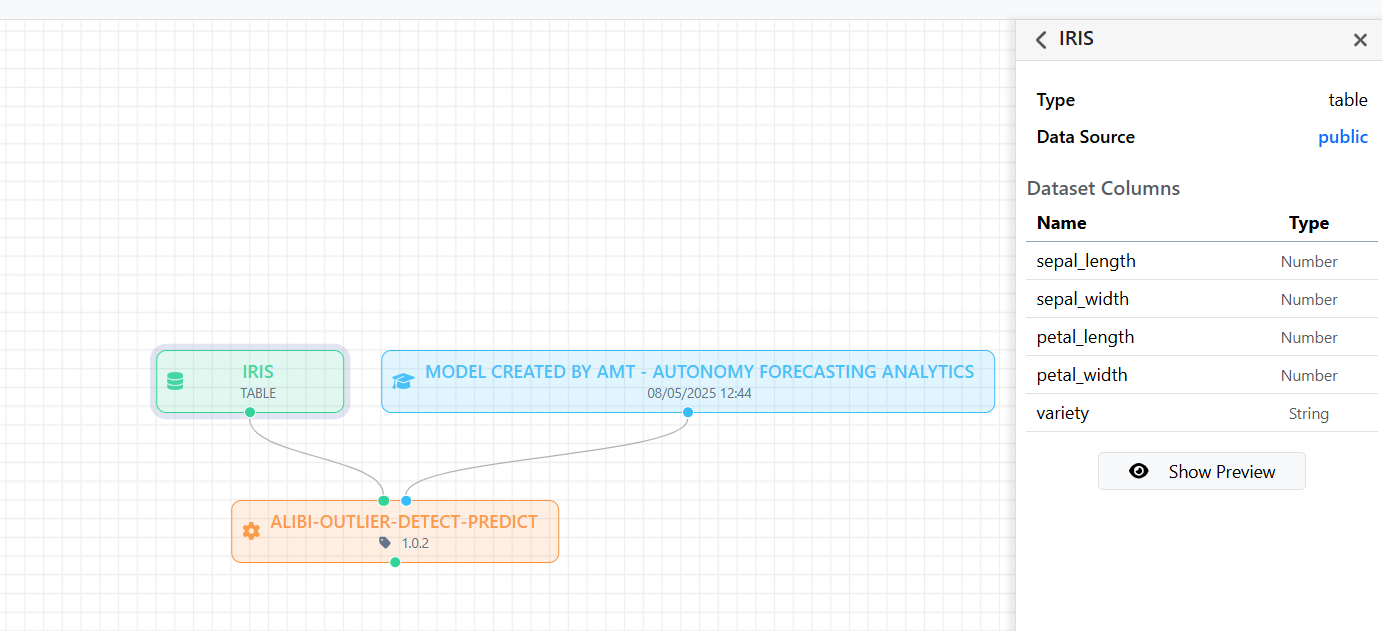
Clicking on a Dataset on the canvas, the Details Elements panel will show its related structural and functional details. This allows you to immediately understand the content and type of data available.
The panel shows the following information:
- Dataset Name: Displayed at the top in bold, for example:
IRIS - Type: Indicates the type of asset, in this case Type: table
- Data Source: Indicates the data source to which the dataset refers. In our example, public means that the dataset resides in a public data source, accessible to all authenticated users of ALIDA. Clicking on the Datasource name, you will be redirected to the Datasource detail page.
- Dataset Columns: In the case of a tabular dataset, it shows the list of dataset columns with their respective data types:
- Name: Column name
- Type: Data type (e.g.
Number,String, etc.)
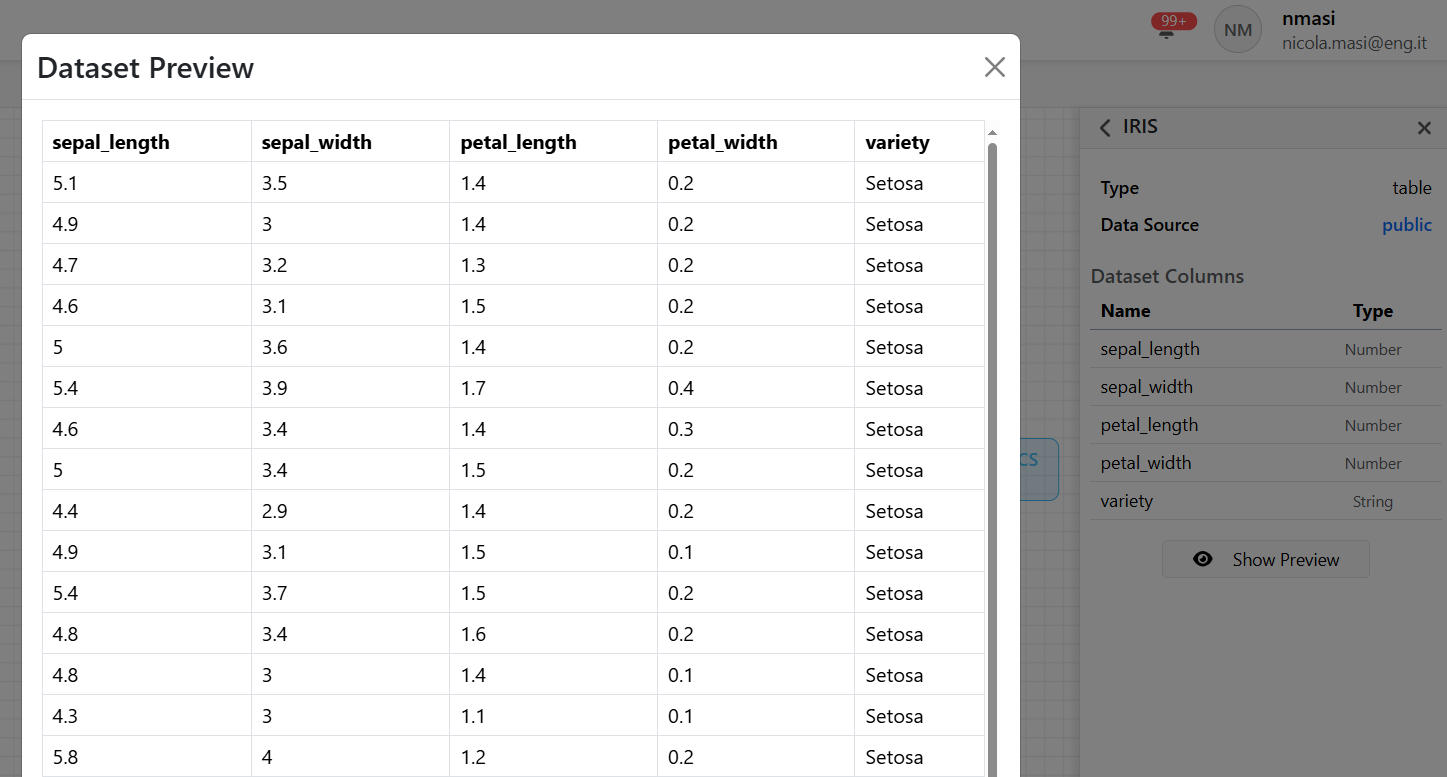
Finally, through the Show Preview button, it is possible to view a preview of the dataset:
Service
Clicking on a Service on the canvas (remembering that it is orange), the Details Elements panel will load its related configuration information.
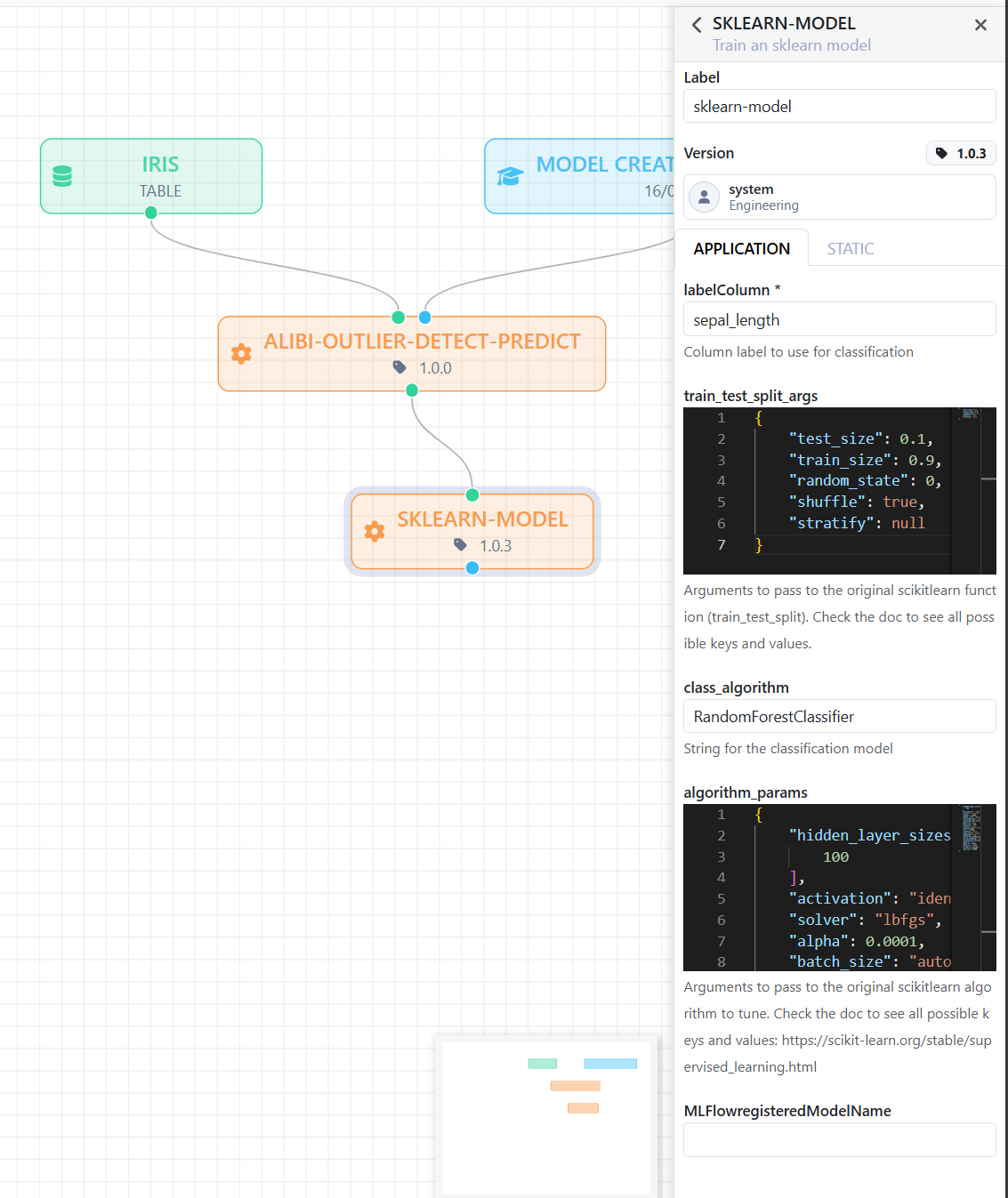
Through this view, the user can customize the execution of the service and understand how it works.
- Advanced configuration panel on the right: When you select a block (in this case a service
SKLEARN-MODEL), the right-hand sidebar does not only show general information, but allows you to configure the internal parameters of the service.
➔ You see, for example:
- The name of the classification label (
LabelColumn). - The chosen algorithm (
RandomForestClassifier). - The algorithm parameters (
algorithm_params) such as the number of trees, maximum depth, etc. - The dataset split parameters (
train_test_split_args).
General Features
- Parameters with flexible types: The parameters of the services can be of various types (strings, numbers, JSON, etc.) defined by the service creator, and are modifiable directly in the interface without the need to write external code.
- Mandatory and optional parameters: The service developer can specify which parameters are requirements (mandatory) and which are optional, thus guiding the user in the correct configuration.
- Point editing for each service: The Designer allows you to customize each individual block with very specific parameters without leaving the drawing canvas.
- Immediate visual feedback: As soon as you click on a node, you immediately see its details and can modify them. No reloads or external window openings are needed.
Note
The configurable parameters specific to the Service are divided into two tabs. The values belonging to the Application tab will be passed to the Service through args, while those belonging to the Static tab will be passed as global variables. The choice of how to divide the parameters depends on the considerations of those who developed and registered the Service.
Model
Clicking on one of the models on the canvas (remembering that it is blue), the Details Elements panel will load its related information. This will help the user understand the origin of the model, the data on which it was built, and the application context.
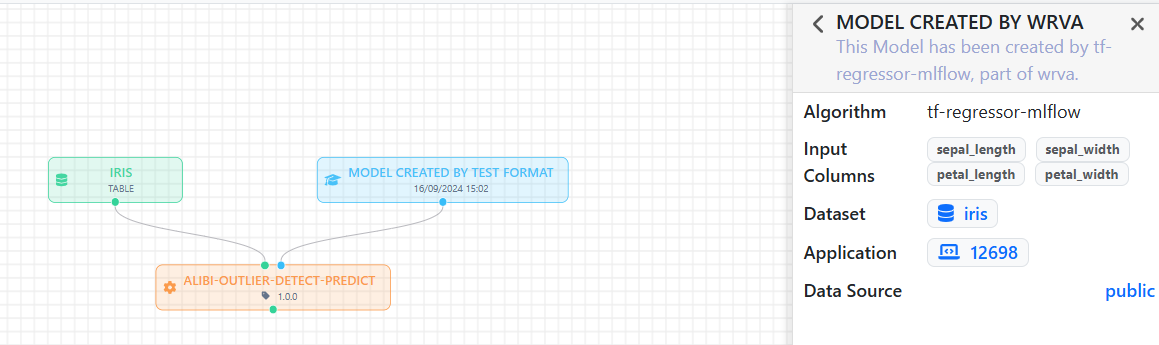
Here are the fields visible in the panel:
- Model Name: Displayed at the top in bold (e.g.
MODEL CREATED BY AMT – AUTONOMY FORECASTING ANALYTICS). It is accompanied by a brief explanatory description about the origin of the model, useful for the context. - Algorithm: Indicates the Machine Learning algorithm used to train the model.
- Input Columns: List of columns of the dataset given as input to the model.
- Dataset: Shows the name of the origin dataset used for training the model. Note: Clicking on it, you will be redirected to the related detail page.
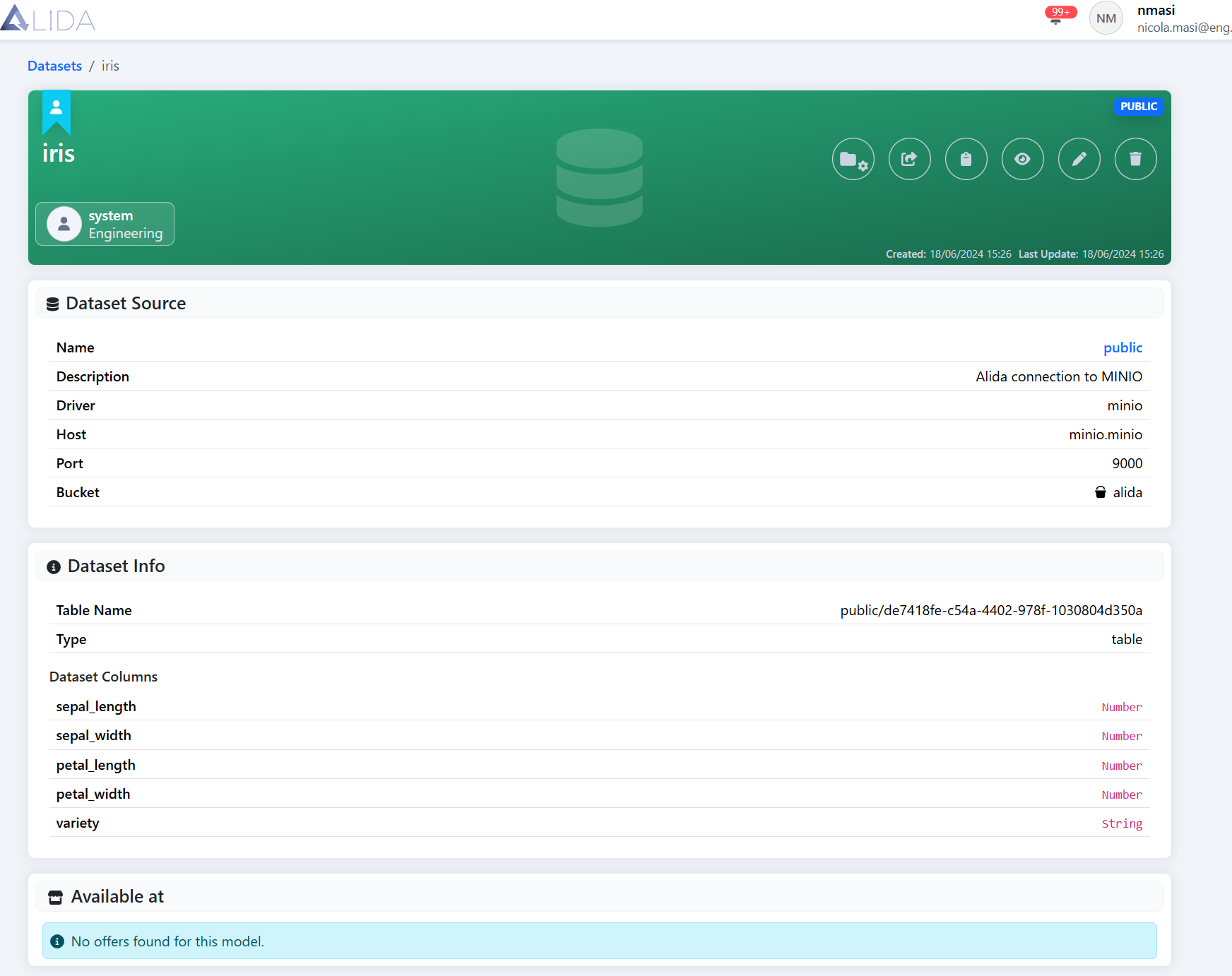
Dataset detail page - Workflow: ID of the original Workflow in which the model was created; clickable to access the Workflow detail page
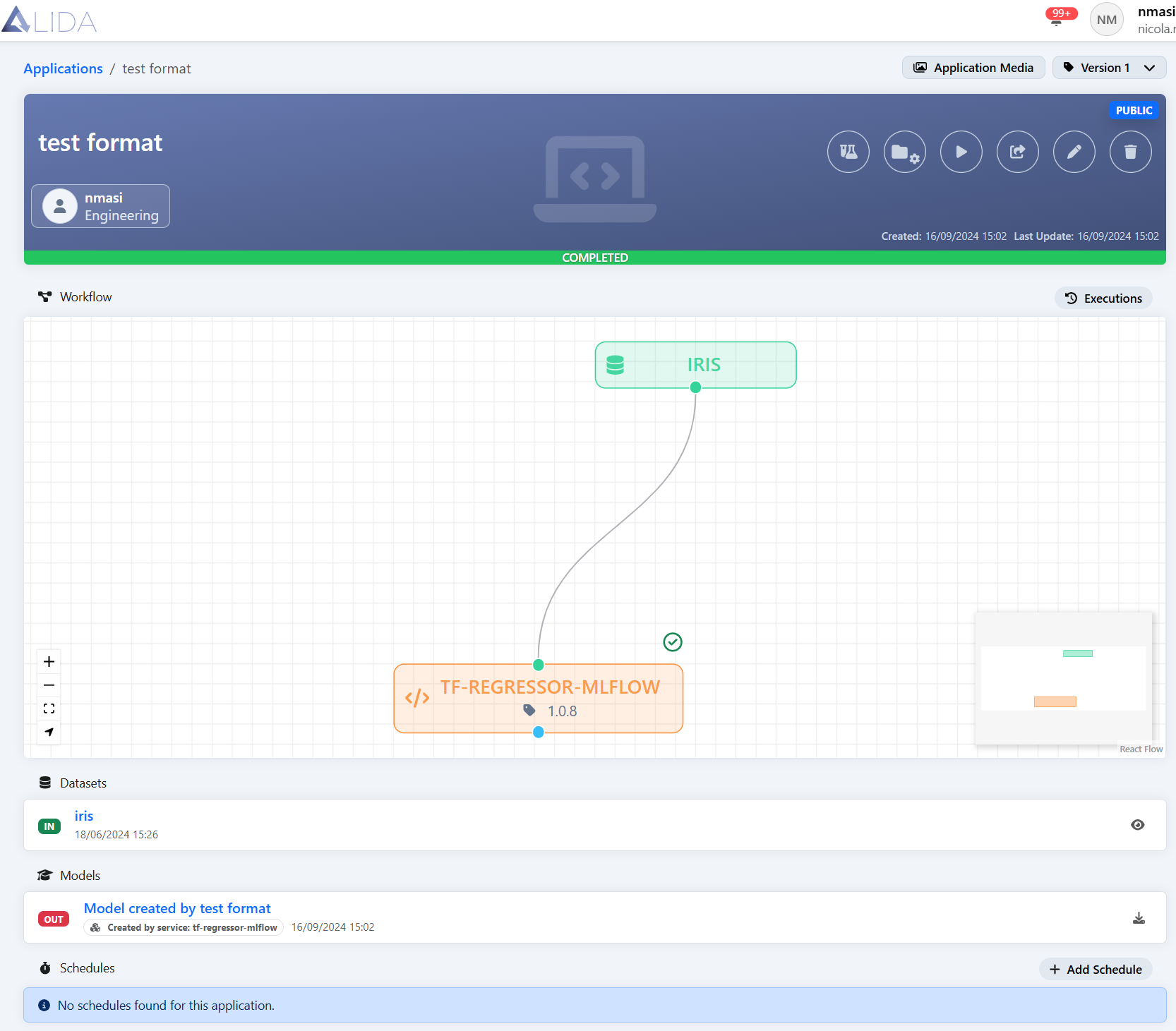
Workflow detail page - Data Source: Indicates the visibility of the data source hosting the model.