Creating a Service
Before continuing, if you haven’t already, consult the definition of Service
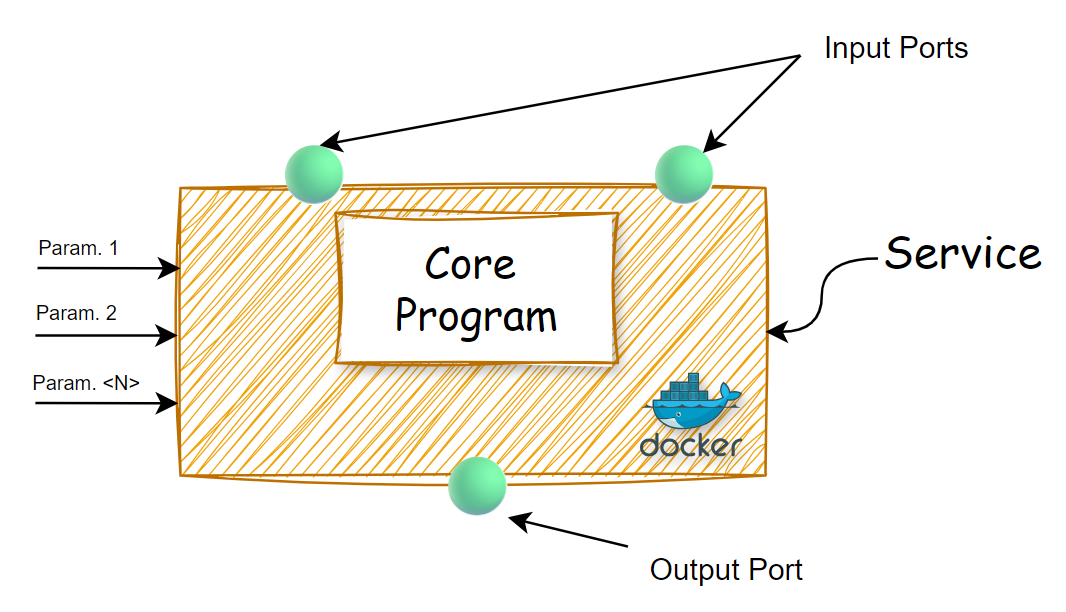
The following figure shows the simplified structure of a generic Service:
 | We will now step-by-step see how to create a simple Service from scratch until its registration on the platform.
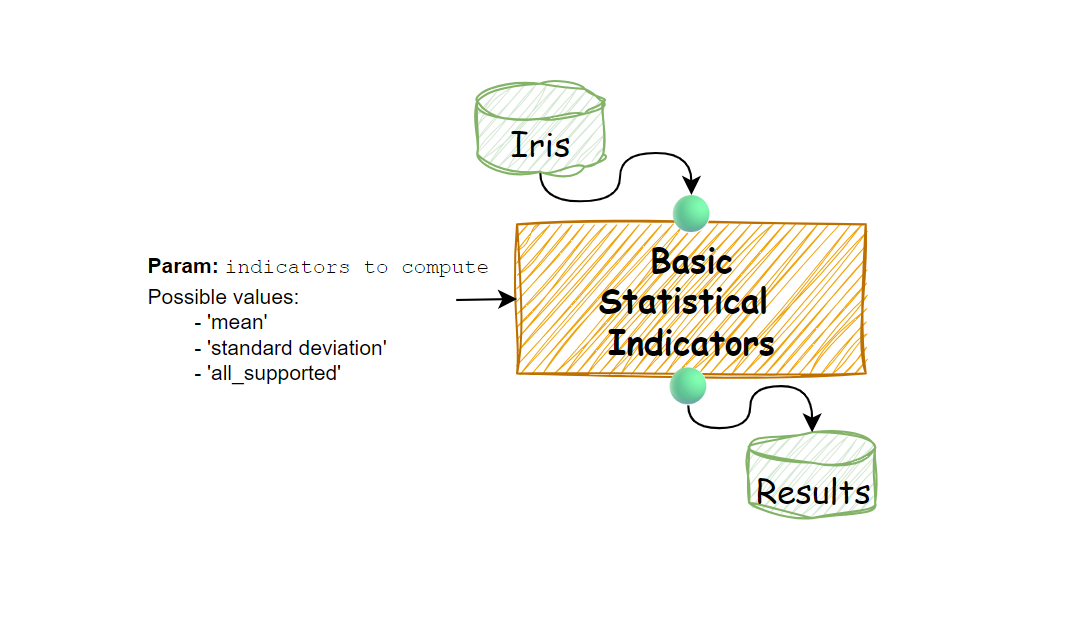
It will calculate simple statistical indicators such as mean and standard deviation for an input dataset, saving the results to an output dataset.
| We will now step-by-step see how to create a simple Service from scratch until its registration on the platform.
It will calculate simple statistical indicators such as mean and standard deviation for an input dataset, saving the results to an output dataset.
Input and output datasets will be read and written from/to s3 respectively.
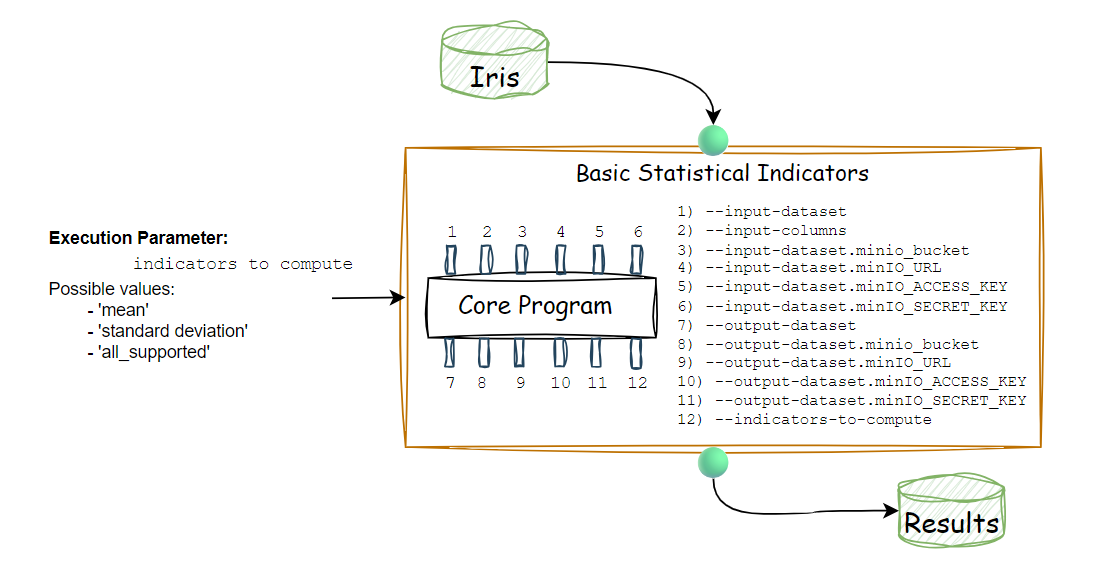
This Service will therefore have:
- An input port of type dataset
- An output port of type dataset
- A configurable execution parameter
as schematized in the figure:
Let's proceed then:
- Creating the core program containing the data processing logic
- Building a Docker image containing such program
- Uploading the built Docker image to a Docker Registry
- Registering the dockerized program on ALIDA thus promoting it to a Service
1. Creating the Core Program
Input Port
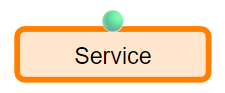
Let's prepare the Input Port for our Service adding the following command-line arguments to the core program:
--input-dataset--input-columns--input-dataset.s3_bucket--input-dataset.s3_URL--input-dataset.s3_ACCESS_KEY--input-dataset.s3_SECRET_KEY--input-dataset.s3_REGION
Here is the example code for these first arguments:
Argument Data Types
The values passed from ALIDA to the core program will always be strings or numbers, therefore it will be necessary to convert the value to the desired data type on the code side.
Python Example
- For booleans use
str2bool - For JSON use
str2json
import argparse
import pandas as pd
from minio import Minio
import os

parser = argparse.ArgumentParser(description="Basic Statistical Indicators")

# CLI Arguments for the Input dataset port
parser.add_argument('--input-dataset',
  dest='input_dataset',
  type=str,
  required=True
)

parser.add_argument('--input-columns',
  dest='input_columns',
  type=str,
  required=True
)

parser.add_argument('--input-dataset.s3_bucket',
  dest='input_dataset_s3_bucket',
  type=str,
  required=True
)

parser.add_argument('--input-dataset.s3_URL',
  dest='input_dataset_s3_url',
  type=str,
  required=True
)

parser.add_argument('--input-dataset.s3_ACCESS_KEY',
  dest='input_dataset_s3_access_key',
  type=str,
  required=True
)

parser.add_argument('--input-dataset.s3_SECRET_KEY',
  dest='input_dataset_s3_secret_key',
  type=str,
  required=True
)

parser.add_argument('--input-dataset.s3_REGION',
  dest='input_dataset_s3_region_name',
  type=str,
  required=True
)

# ... see next step ...
Output Port
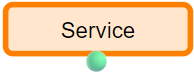
Let's now prepare the Output Port for our Service adding the following command-line arguments to the core program:
--output-dataset--output-dataset.s3_bucket--output-dataset.s3_URL--output-dataset.s3_ACCESS_KEY--output-dataset.s3_SECRET_KEY
Here is the example code for these further arguments:
# ... omitted - see previous step ...

# CLI Arguments for the Output dataset port
parser.add_argument('--output-dataset',
  dest='output_dataset',
  type=str,
  required=True
)

parser.add_argument('--output-dataset.s3_bucket',
  dest='output_dataset_s3_bucket',
  type=str,
  required=True
)

parser.add_argument('--output-dataset.s3_URL',
  dest='output_dataset_s3_url',
  type=str,
  required=True
)

parser.add_argument('--output-dataset.s3_ACCESS_KEY',
  dest='output_dataset_s3_access_key',
  type=str,
  required=True
)

parser.add_argument('--output-dataset.s3_SECRET_KEY',
  dest='output_dataset_s3_secret_key',
  type=str,
  required=True
)

parser.add_argument('--output-dataset.s3_REGION',
  dest='output_dataset_s3_region_name',
  type=str,
  required=True
)

# ... see next step ...
Configurable User Execution Parameter
Let's now prepare the port for a user-configurable auxiliary parameter. This will allow the user to specify the statistical indicator to be calculated on the UI side.
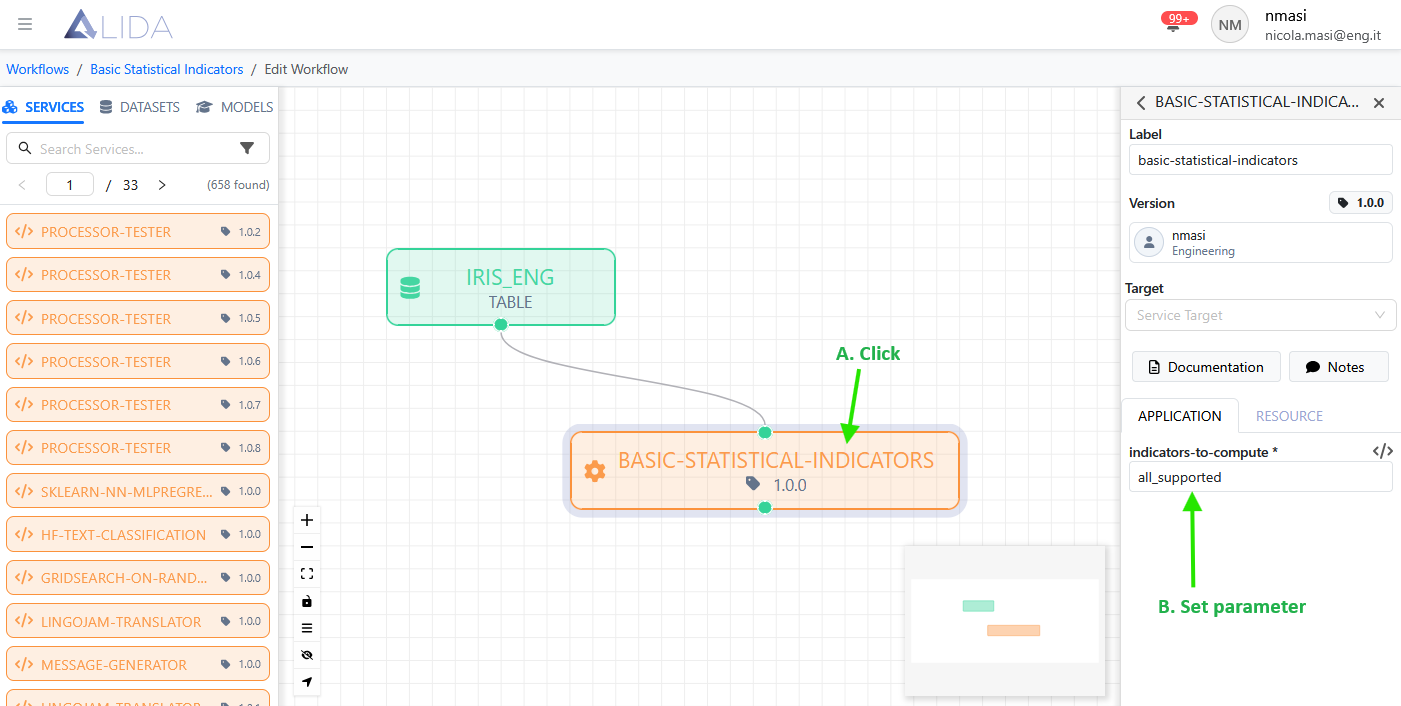
Let's add the following command-line argument to the core program:
--indicators-to-compute
Here is the example code for this further argument:
# ... omitted - see previous steps ...

# CLI Argument for user-configurable execution parameter
parser.add_argument(
  '--indicators-to-compute',
  dest='indicators_to_compute',
  type=str,
  required=True,
  choices=['mean', 'standard_deviation', 'all_supported']
)

# parse_known_args allows us to ignore the other invocation arguments coming in
# from ALIDA
args, unknowns = parser.parse_known_args()

# ... see next step ...
Here is schematized our core program with all the desired arguments:
Execution Logic
Having added all the command-line arguments, let's complete the program with the calculation logic for the statistical indicators. Here is the complete code.
Complete Core Program Code
import argparse
import pandas as pd
from minio import Minio
import os

parser = argparse.ArgumentParser(description="Basic Statistical Indicators")

# CLI Arguments for the Input dataset port
parser.add_argument('--input-dataset',
  dest='input_dataset',
  type=str,
  required=True
)

parser.add_argument('--input-columns',
  dest='input_columns',
  type=str,
  required=True
)

parser.add_argument('--input-dataset.s3_bucket',
  dest='input_dataset_s3_bucket',
  type=str,
  required=True
)

parser.add_argument('--input-dataset.s3_URL',
  dest='input_dataset_s3_url',
  type=str,
  required=True
)

parser.add_argument('--input-dataset.s3_ACCESS_KEY',
  dest='input_dataset_s3_access_key',
  type=str,
  required=True
)

parser.add_argument('--input-dataset.s3_SECRET_KEY',
  dest='input_dataset_s3_secret_key',
  type=str,
  required=True
)

parser.add_argument('--output-dataset.s3_REGION',
dest='output_dataset_s3_region_name',
type=str,
required=True
)

# CLI Arguments for the Output dataset port
parser.add_argument('--output-dataset',
  dest='output_dataset',
  type=str,
  required=True
)

parser.add_argument('--output-dataset.s3_bucket',
  dest='output_dataset_s3_bucket',
  type=str,
  required=True
)

parser.add_argument('--output-dataset.s3_URL',
  dest='output_dataset_s3_url',
  type=str,
  required=True
)

parser.add_argument('--output-dataset.s3_ACCESS_KEY',
  dest='output_dataset_s3_access_key',
  type=str,
  required=True
)

parser.add_argument('--output-dataset.s3_SECRET_KEY',
  dest='output_dataset_s3_secret_key',
  type=str,
  required=True
)

parser.add_argument('--output-dataset.s3_REGION',
dest='output_dataset_s3_region_name',
type=str,
required=True
)

# CLI Argument for user-configurable execution parameter
parser.add_argument(
  '--indicators-to-compute',
  dest='indicators_to_compute',
  type=str,
  required=True,
  choices=['mean', 'standard_deviation', 'all_supported']
)

# parse_known_args allows us to ignore the other invocation arguments coming in
# from ALIDA
args, unknowns = parser.parse_known_args()

minio_client = Minio(
    args.input_dataset_s3_url.replace("http://", "").replace("https://", ""),
    access_key=args.input_dataset_s3_access_key,
    secret_key=args.input_dataset_s3_secret_key,
    region=args.input_dataset_region_name,
    secure=False
)

objects = list(
    minio_client.list_objects(
        args.input_dataset_s3_bucket,
        prefix=args.input_dataset,
        recursive=True
    )
)

if not objects:
  raise FileNotFoundError("No files found in the given s3 folder path.")

# Assume only one CSV file
csv_object = objects[0]
csv_filename = os.path.basename(csv_object.object_name)

"""
Since the program is designed to read from s3, we need to handle
connection to such an object storage
"""
connection_details = {
    'key': args.input_dataset_s3_access_key,
    'secret': args.input_dataset_s3_secret_key,
    'region': args.input_dataset_region_name,
    'client_kwargs': {
        'endpoint_url': f'{args.input_dataset_s3_url}'
    }
}

file_path = f"s3://{args.input_dataset_s3_bucket}/{args.input_dataset}/{csv_filename}"

try:
    # Read
    df = pd.read_csv(file_path, storage_options=connection_details, sep=None, engine='python')
    columns = args.input_columns
    if columns is not None and columns.strip() != '*':
        df_selected = df[[c.strip() for c in columns.split(",")]]
        df = df_selected.copy()
    numeric_cols_df = df.select_dtypes(include='number')

    # Compute
    operation = args.indicators_to_compute
    if operation == 'mean':
        result = numeric_cols_df.mean().to_frame(name='mean').T
        result["ResultType"] = "Mean"
    elif operation == 'standard_deviation':
        result = numeric_cols_df.std().to_frame(name='std').T
        result["ResultType"] = "Standard Deviation"
    elif operation == 'all_supported':
        mean_df = numeric_cols_df.mean().to_frame(name='mean').T
        mean_df["ResultType"] = "Mean"

        std_df = numeric_cols_df.std().to_frame(name='std').T
        std_df["ResultType"] = "Standard Deviation"
        result = pd.concat([mean_df, std_df])
    else:
        raise ValueError(
            "Operation must be 'mean', " \
            "'standard_deviation', or " \
            "'all_supported'." \
            "")

    # Save
    csv_filename = 'basic_statistical_indicators_results.csv'
    file_path = f"s3://{args.output_dataset_s3_bucket}/{args.output_dataset}/{csv_filename}"

    result.to_csv(
      file_path,
      index=False,
      storage_options={
        'key': args.output_dataset_s3_access_key,
        'secret': args.output_dataset_s3_secret_key,
        'region': args.output_dataset_region_name,
        'client_kwargs': {
            'endpoint_url': f'{args.output_dataset_s3_url}'
        }
      }
    )

except Exception as e:
    print(f"Error: {e}")
2/3. Build and Upload Docker Image
Let's proceed to create the Docker image encapsulating the core program.
Note
During the execution of the Service, ALIDA will instantiate this image passing it the command-line arguments. The Docker container instantiated will therefore pass the arguments to the core program. For this to happen, the Docker image must have an appropriate ENTRYPOINT.
For our Service here is the Dockerfile (note the entrypoint):
FROM python:3.13.7-alpine3.22

RUN pip install pandas==2.3.2 \
                minio==7.2.18 \
                fsspec==2025.9.0 \
                s3fs==2025.9.0

COPY . .

ENTRYPOINT ["python", "main.py", "$@"]
The arguments passed from ALIDA to the Docker container will be replaced with $@.
Other Languages
In the case of other languages, the entrypoint will take forms such as:
ENTRYPOINT ["./main", "$@"]ENTRYPOINT ["java", "Main", "$@"]ENTRYPOINT ["julia", "main.jl", "$@"]- etc ...
Let's proceed to build and push the Docker image executing the following commands.
The Docker registry can be of two types:
- Use a publicly accessible registry
- Use a registry accessible from the ALIDA platform, in which case you need to contact the administrator.
docker build -t <docker-registry-domain>:<port>/<image-path>:<tag> .

docker login <docker-registry-domain>:<port> -u <docker_username>

docker push <docker-registry-domain>:<port>/<image-path>:<tag>
4. Registering the Service
With the image uploaded to the registry, it is possible to register the corresponding Service on ALIDA thus making it available in the catalog for creating Workflows.
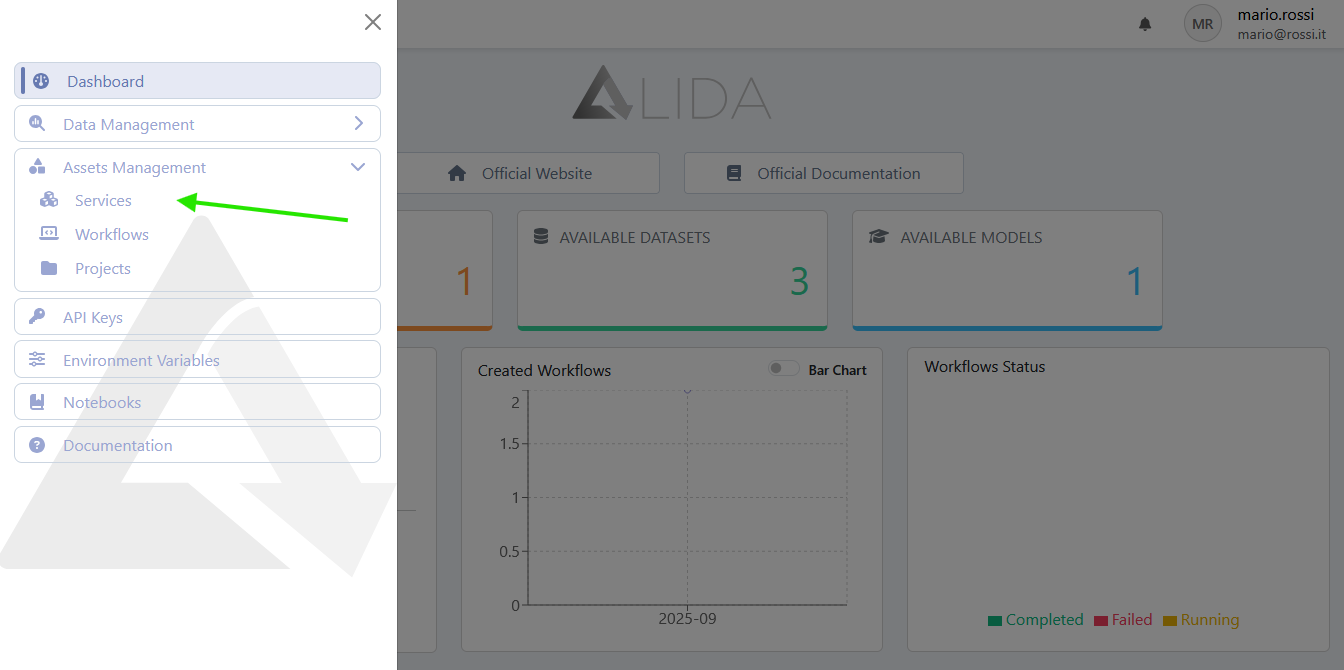
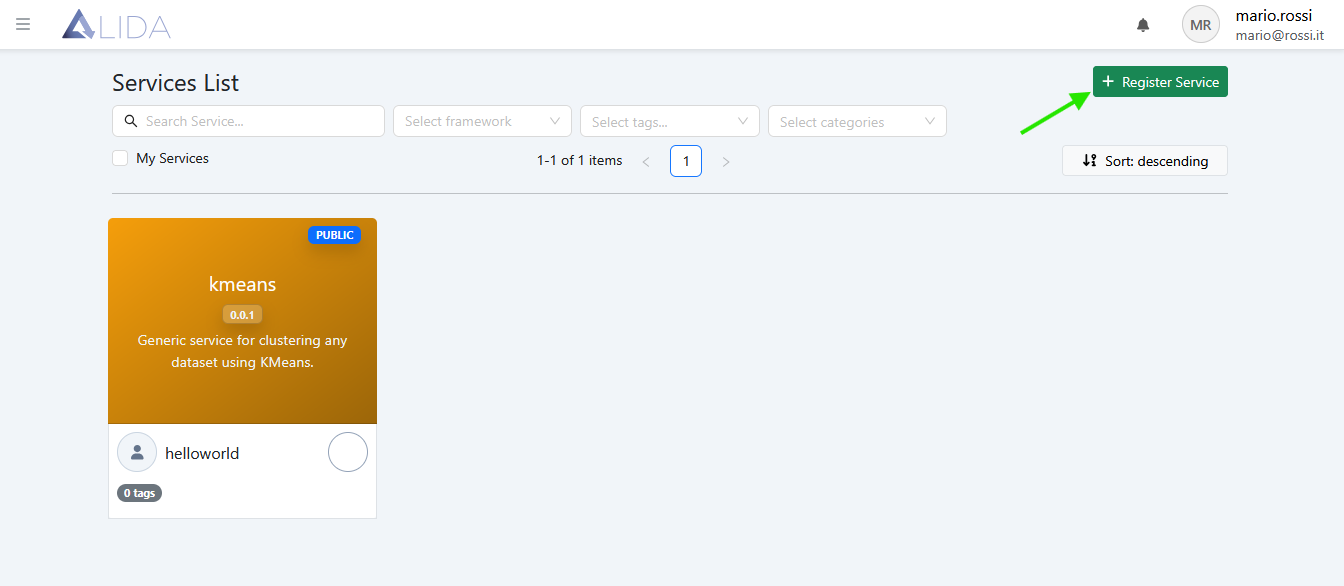
Access the Service registration form as follows:
- Access the management page of Services from the sidebar
- Click on + Register Service in the upper right
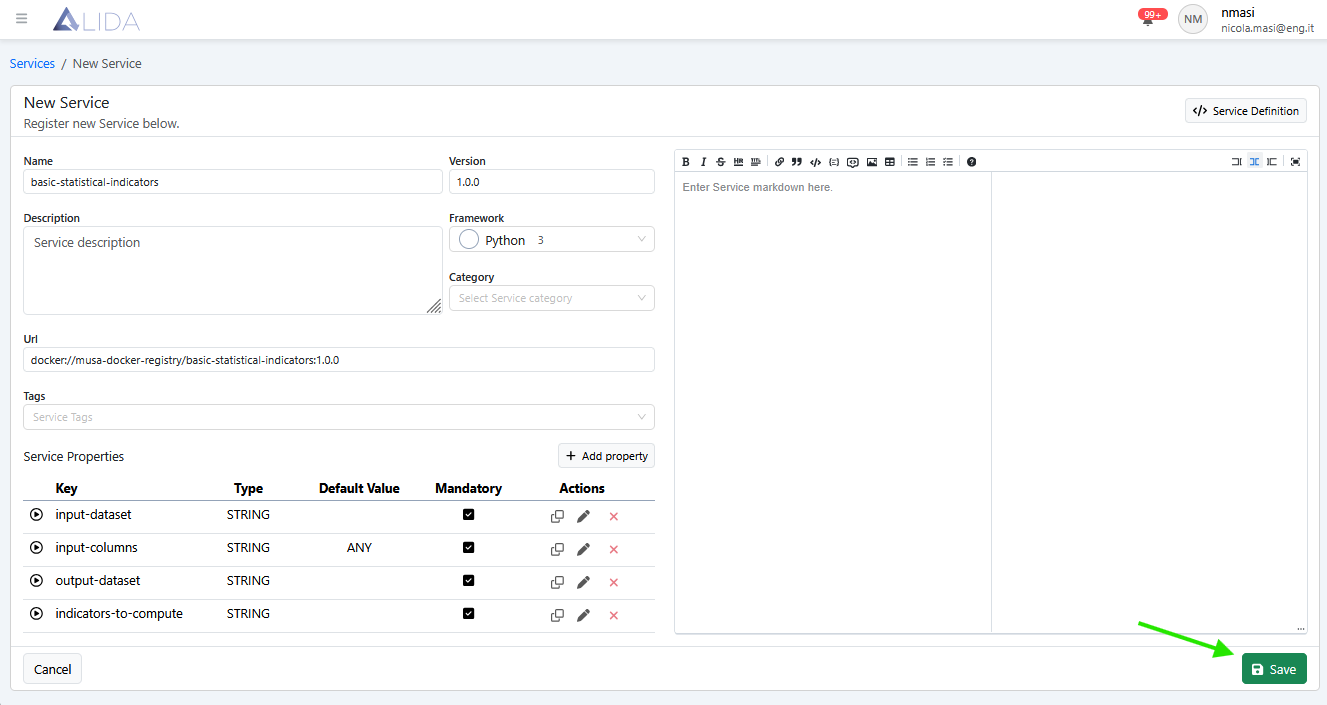
The Service registration form will open:
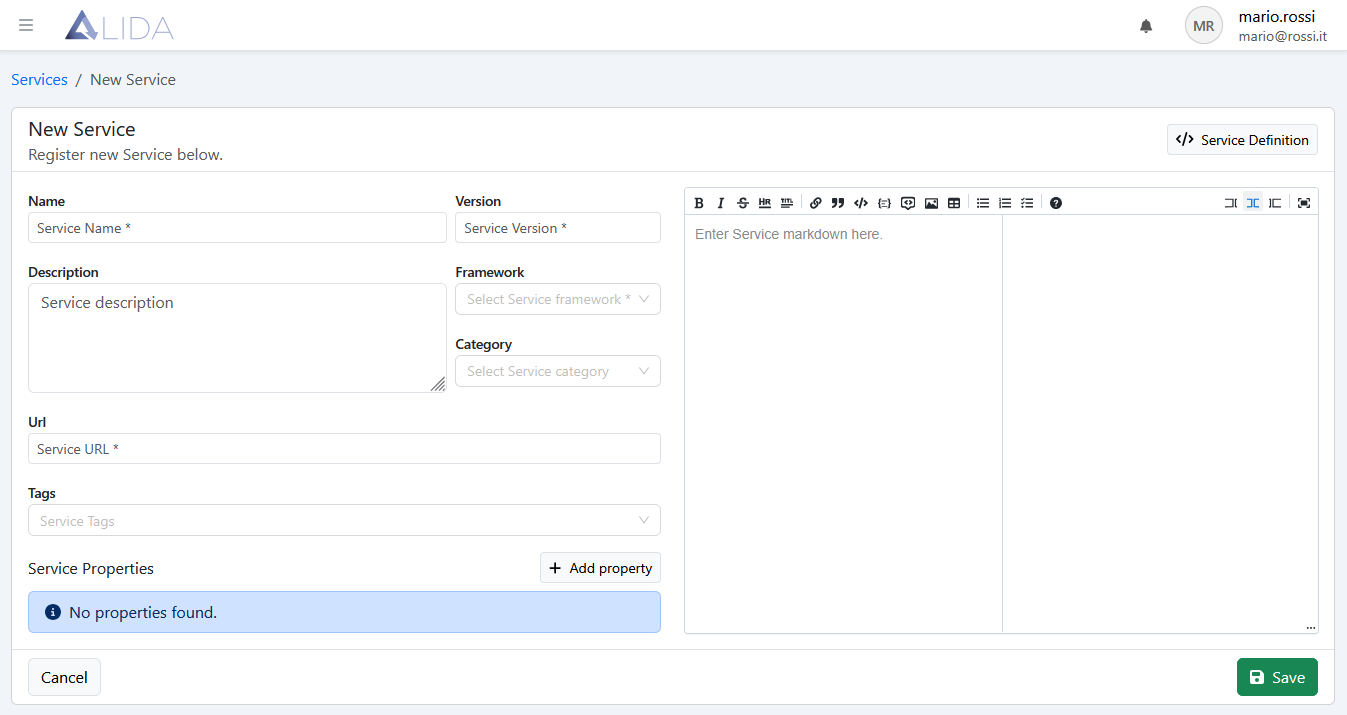
Here we set the basic metadata for the Service:
- Name:
basic-statistical-indicators - Version:
1.0.0 - URL:
docker://<your-docker-registry-domain>:<port>/<image-path>:<tag>
Versioning of Services
The Version field allows you to set a version for the Service you are registering.
Note how different versions of the same Service having the same Docker image can be defined. This allows creating multiple versions of the same Service that are different from each other, for example for description, documentation or associated categories.
All versions of a Service will appear in the catalog and consequently on the Workflow Designer palette.
Having done this, let's move on to the Service Properties. These communicate to ALIDA which are the I/O Ports and the Configurable Parameters of the Service that it must value before execution.
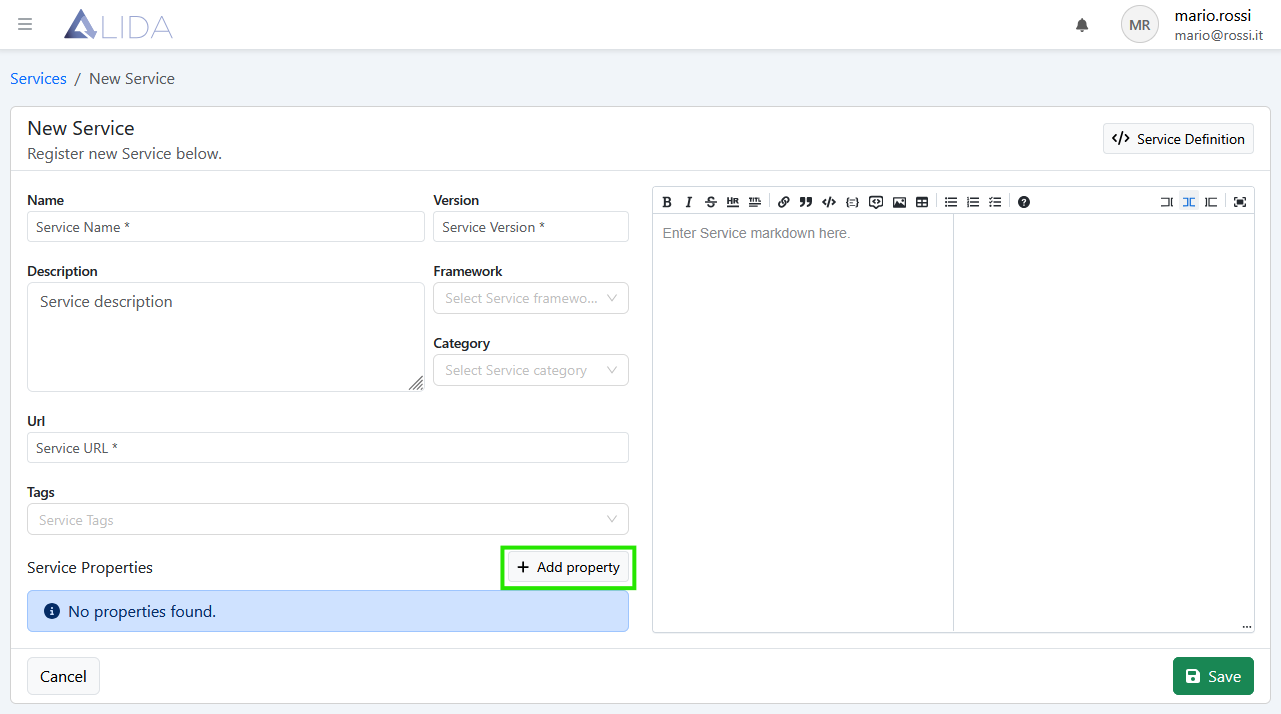
Let's add the first Service Property to our Service for the input port: --input-dataset
Click on + Add Property to open the insertion form:
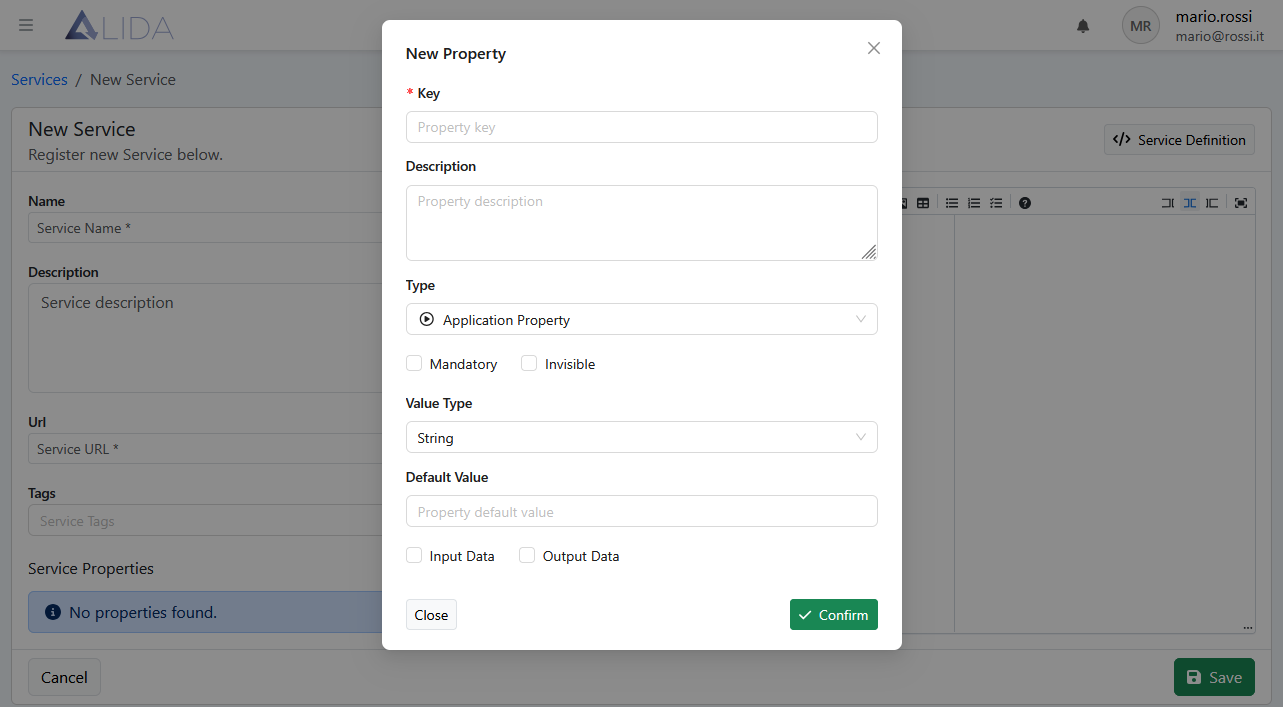
And fill in the form as --input-dataset:
- Key:
input-dataset - Description: leave blank
- Type:
Application Property - Mandatory:
ticked - Invisible:
ticked - Value Type:
String - Default Value: leave blank
- Data Type:
Input Data - Streaming:
unticked
and click on Confirm
Similarly, create the remaining Service Properties:
-
For
--input-columns:- Key:
input-columns - Description: leave blank
- Type:
Application Property - Mandatory:
ticked - Invisible:
ticked - Value Type:
String - Default Value:
ANY - Data Type:
Input Data - Streaming:
unticked
- Key:
-
For
--output-dataset:- Key:
output-dataset - Description: leave blank
- Type:
Application Property - Mandatory:
ticked - Invisible:
ticked - Value Type:
String - Default Value: leave blank
- Data Type:
Output Data - Streaming:
unticked
- Key:
-
For
--indicators-to-compute:- Key:
indicators-to-compute - Description: leave blank
- Type:
Application Property - Mandatory:
ticked - Invisible:
unticked - Value Type:
String - Default Value: leave blank
- Data Type:
Input Data - Streaming:
unticked
- Key:
Finally we will have the following Service Properties:
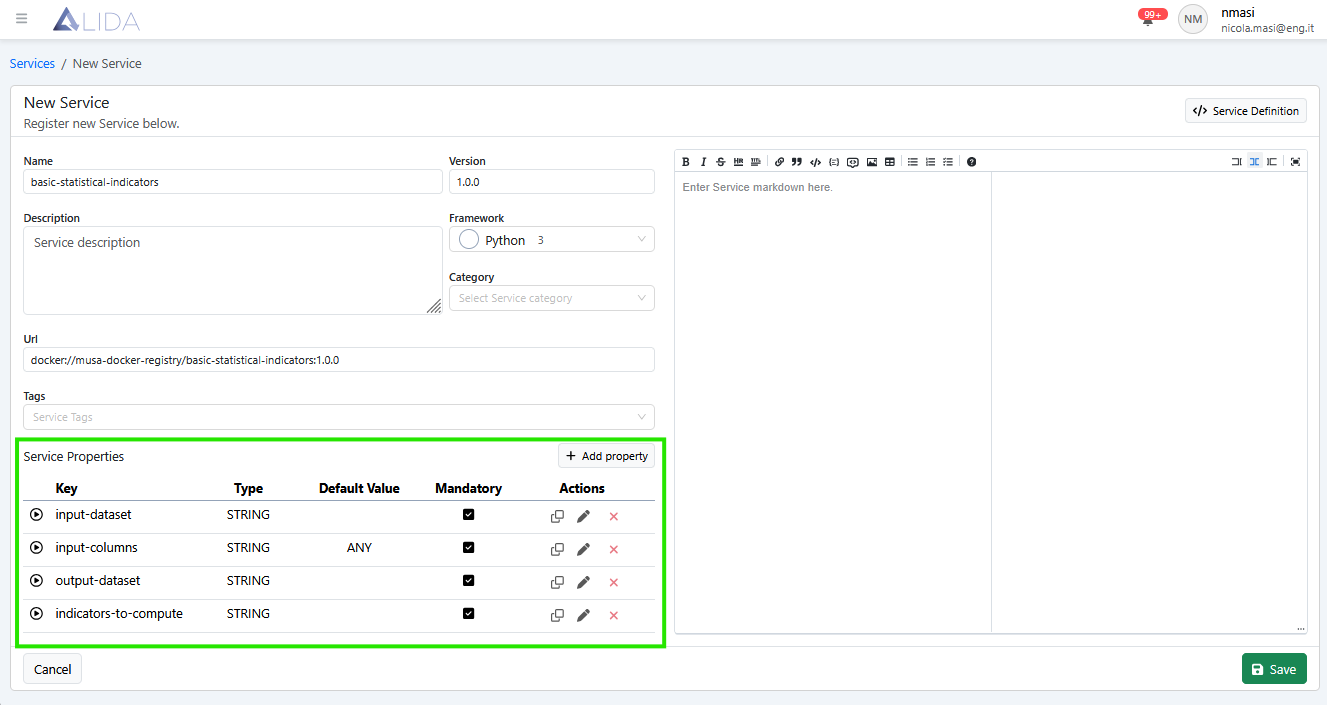
Register the complete Service by clicking Save in the lower right:
Once saved, the detail page of the Service will appear:
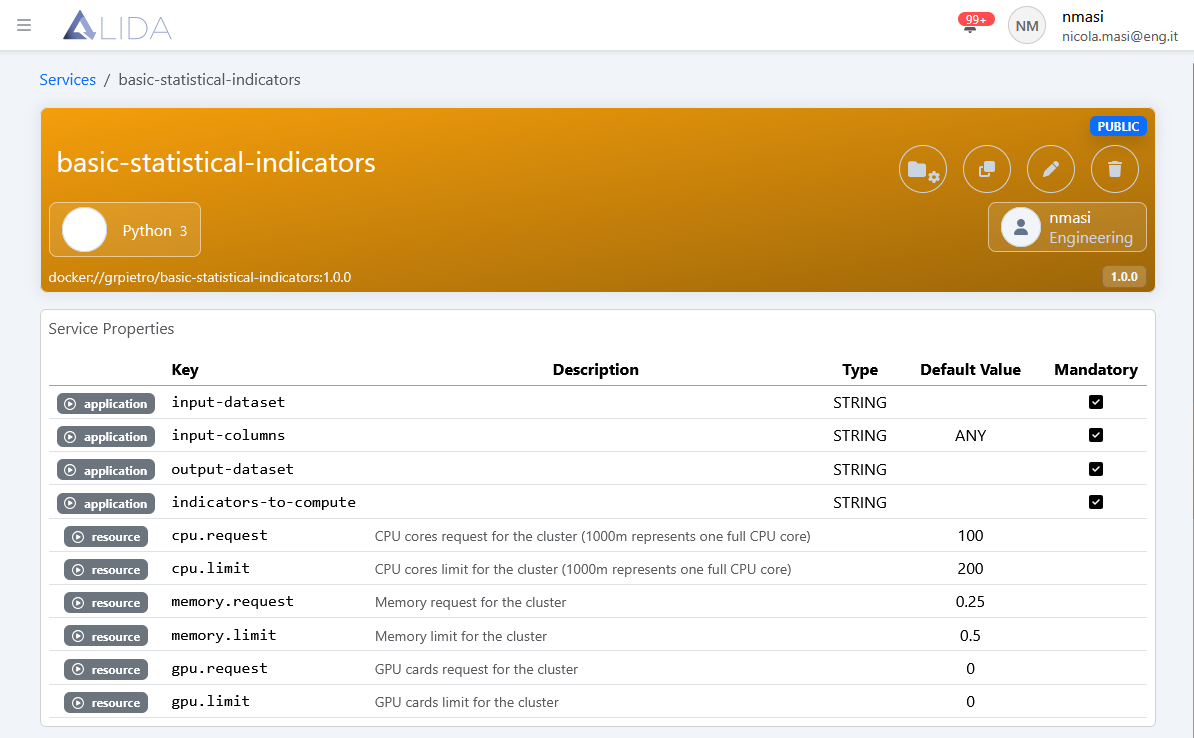
The Service is now available in the catalog and can be used to create a Workflow
Next steps
- Use the newly created Service in a Workflow (as seen in Getting Started)
- Visit the sections: