Registration of the Service
Definition of basic metadata
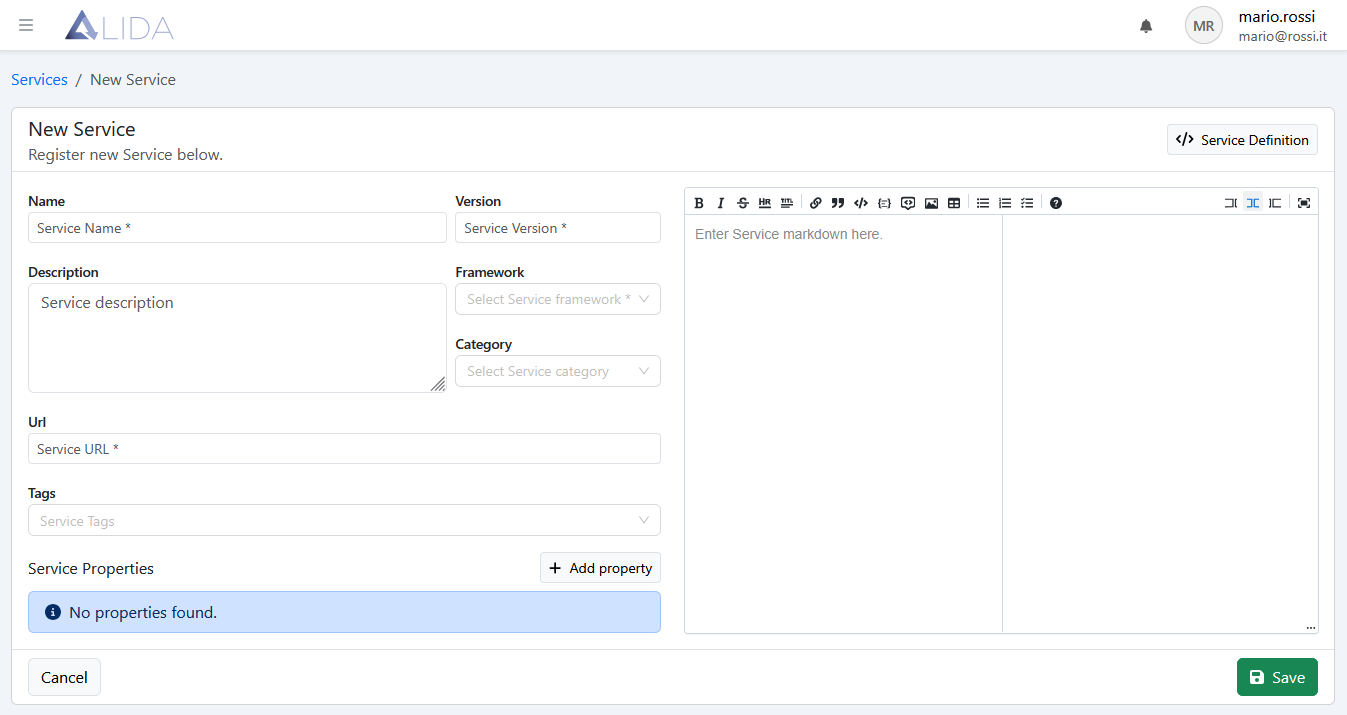
Once the Service registration form is opened by clicking on + Register Service, it will be possible to enter the basic metadata:
- Name*: Service name
- Version*: Service version
- URL*:
docker://<your-registry-docker-domain>:<port>/<image-path>:<tag>
as well as:
- Category
- Tags
both useful for categorizing the Services
Documenting a Service
On the right is instead available an editor for entering the documentation of the Service in Markdown format.
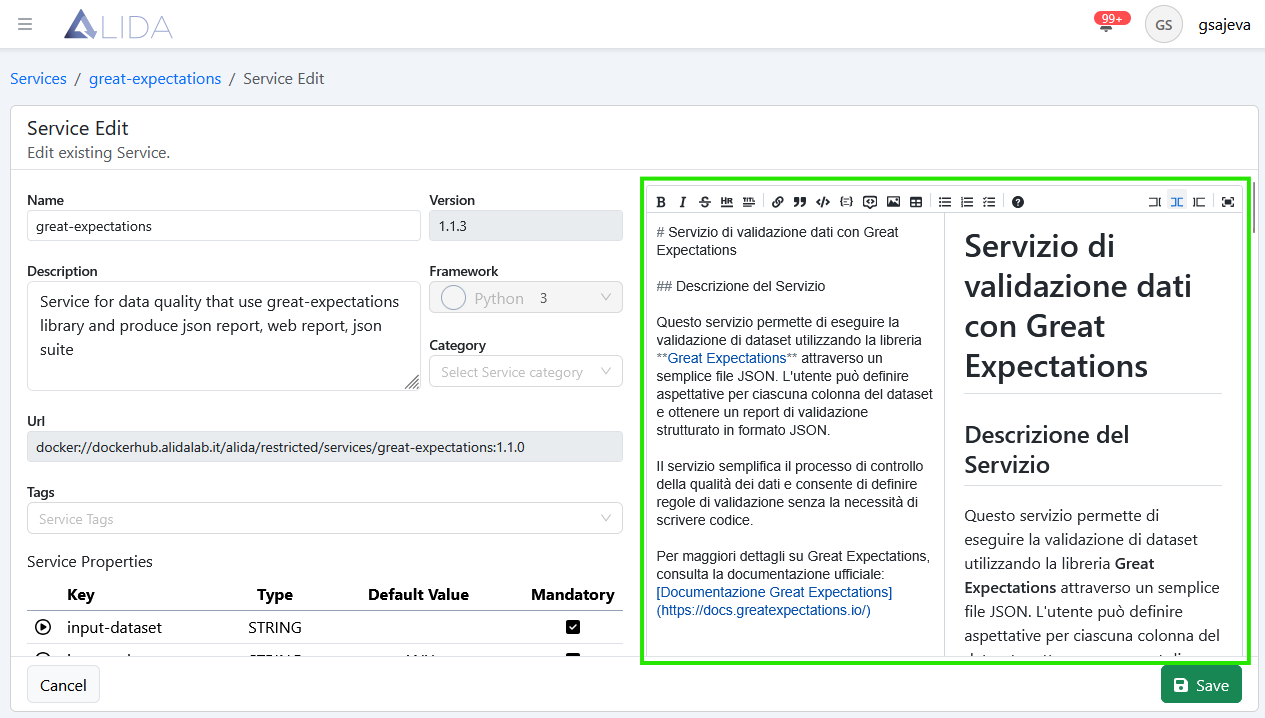
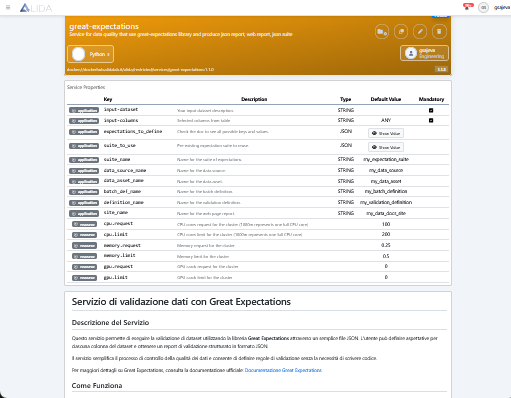
The entered documentation will be accessible to the Data Scientist user of the Service through:
- Service detail page
-
Workflow Designer
Clicking on the Service of interest and then on Documentation
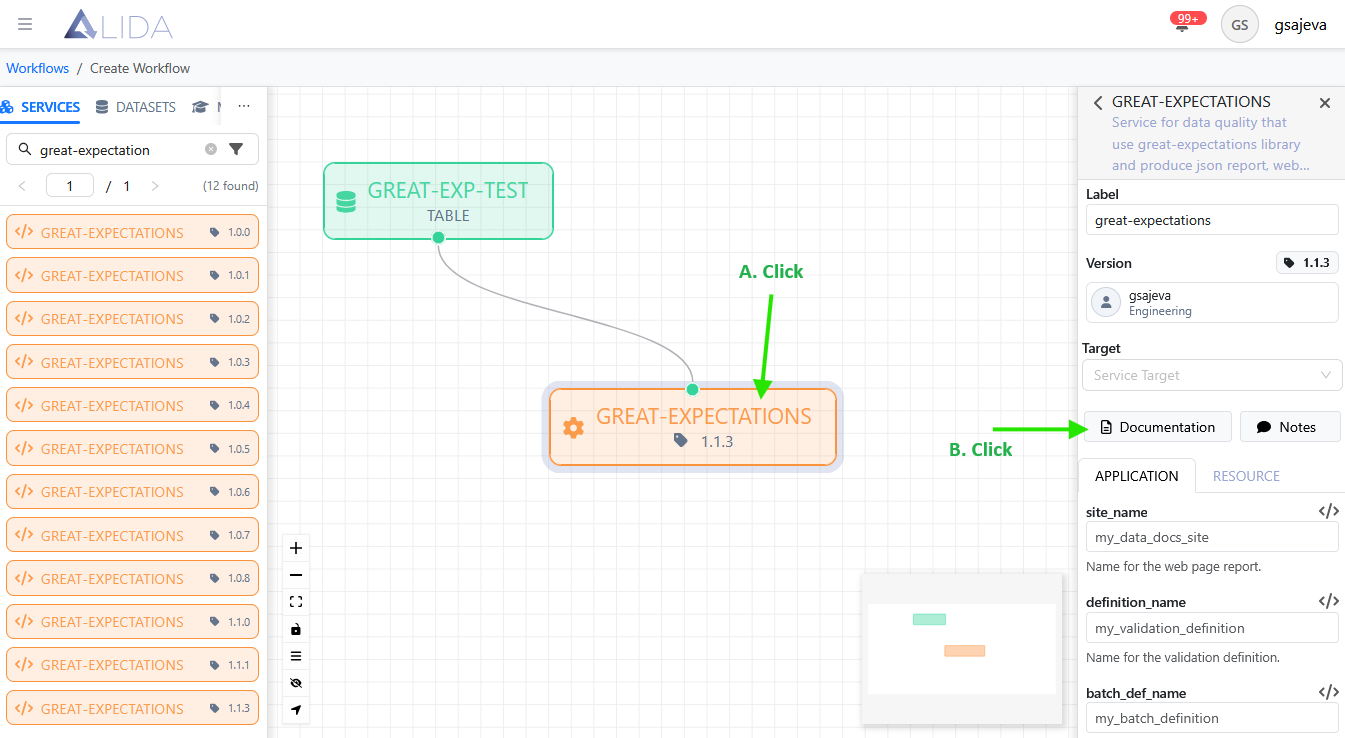
Workflow Designer - View documentation 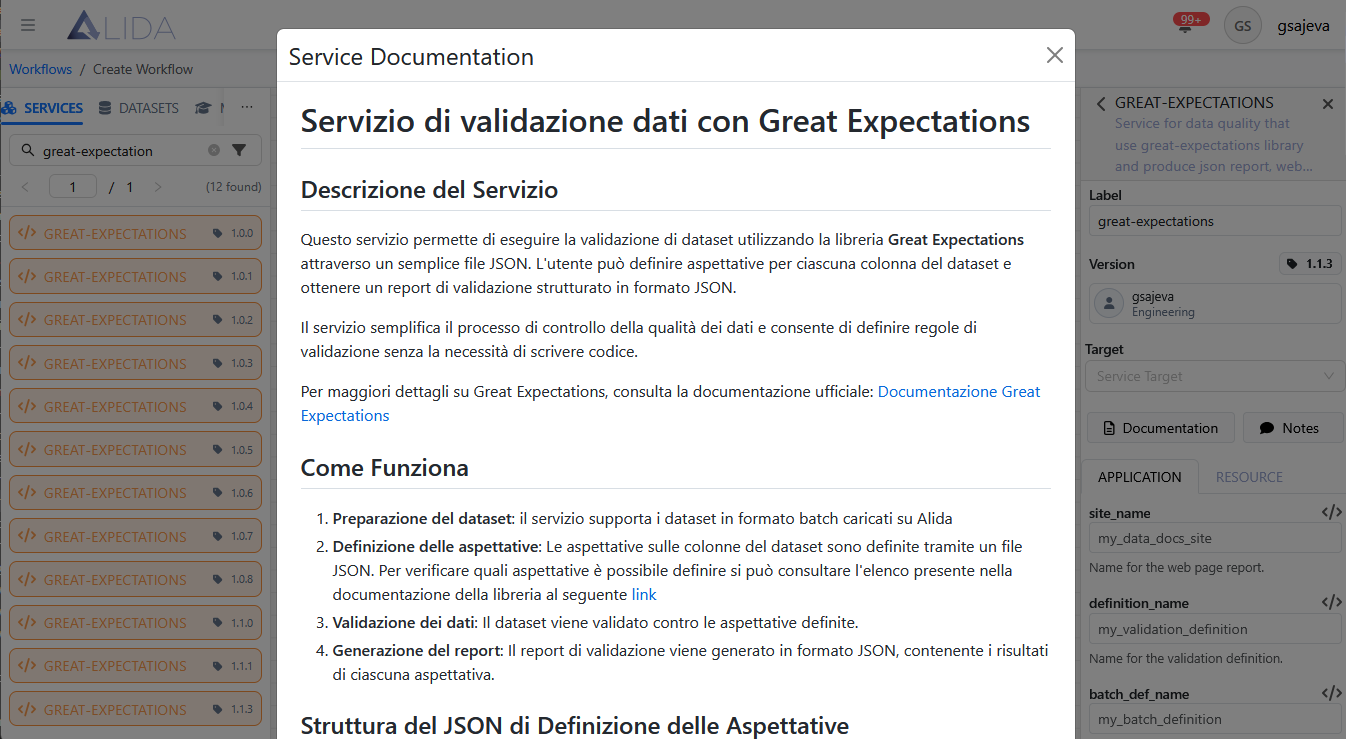
Documentation detail
Definition of Service Properties
In the I/O Ports section, we have seen which command-line arguments to define at the core program level. Now, we will show how to communicate to ALIDA the presence of these arguments, so that the platform can valorize them and pass them correctly.
In particular, there must be a Service Property for each base command-line argument of the core program. You will not need to create those for the command-line arguments specific to the Datasource.
The Service Properties can be of four types:
- Application
- Static
- Tuning
- Resource
Application Type
To define I/O Ports and Configurable execution parameters, it is necessary to register Service Properties of type Application.
Those corresponding to the base arguments seen in the I/O Ports section must be registered.
Dataset, Model and Streaming Type Ports
For each of the base arguments of these port types, summarized here:
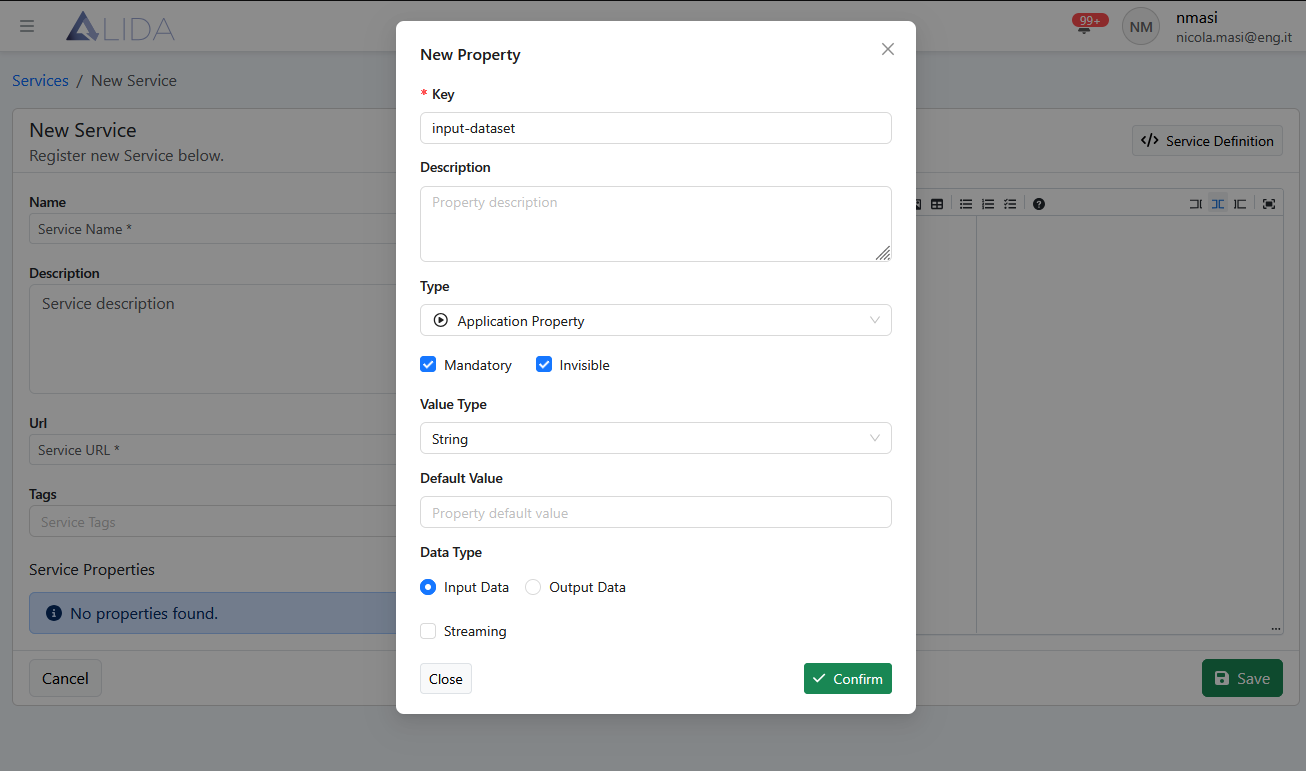
a Service Property must be created according to the following rules:
- Key:
argument name (without '--')(e.g.--input-dataset=>input-dataset) - Description: optional
- Type:
Application Property - Mandatory:
ticked - Invisible:
ticked - Value Type:
String - Default Value: empty |
ANY(in the case of--input-columns) - Data Type:
Input Data - Streaming:
unticked
Example for --input-dataset
Generic I/O Type Port
For a Generic type port, the Service Property is defined as follows:
- Key:
assets - Description: optional
- Type:
Application Property - Mandatory:
ticked - Invisible:
ticked - Value Type:
JSON - Default Value:
- Data Type:
Input Data - Streaming:
unticked
In this way, inside the container of the corresponding Service, two empty volumes accessible by the core program within the container will be mounted under /inputs and /outputs.
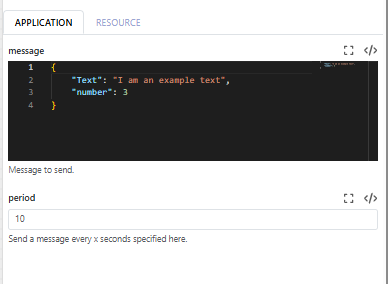
Note: While creating the workflow, the variable entry editor will change depending on the property type, description, and default values entered. Here is an example for two variables: message (JSON type) and period (string type):
REST API Type Port
The relative Service Property is as follows:
- Key:
portsToExpose - Description: optional
- Type:
Application Property - Mandatory:
ticked - Invisible:
unticked - Value Type:
JSON - Default Value:
- Data Type:
Input Data - Streaming:
unticked
If this property is included, once the Service has been saved and loaded into a Workflow, it will allow us to expose it on the network and contact it through a URL provided by Alida at runtime:
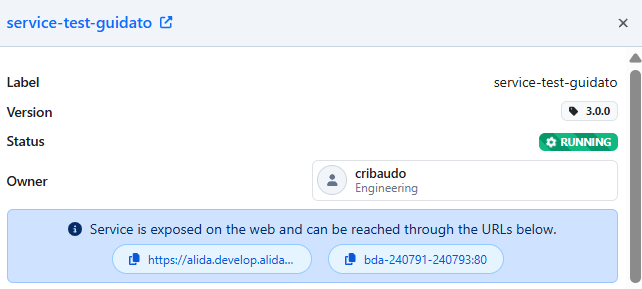
Configurable execution parameter
For the definition of execution parameters configurable by the user through the Workflow Designer UI:
- Key:
command line argument name(e.g.--my-param=>my-param) - Description: optional
- Type:
Application Property - Mandatory:
ticked - Invisible:
unticked - Value Type: all possible
- Default Value: optional
- Data Type:
Input Data - Streaming:
unticked
Static Type
Static type Service Properties allow passing values to the Service as global variables to the container and therefore to the core program.
- Key:
global variable name - Description: optional
- Type:
Static - Mandatory:
ticked|unticked - Invisible:
unticked - Value Type: all possible
- Default Value: optional
- Data Type:
Input Data - Streaming:
unticked
Resource Type
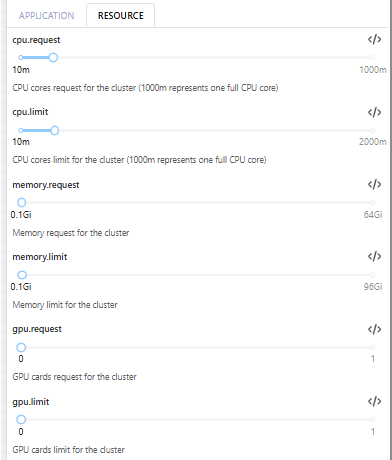
Resource type Service Properties define the runtime resource quotas requested for the Service (Kubernetes), and are all optional parameters. If the runtime cannot satisfy the request, the resources actually allocated will be lower.
Allowed metrics are:
- CPU: expressed in millicores (e.g.
100m,1000m= 1 CPU). - Memory: expressed in
MiorGi. - GPU: whole units (
0,1). - AllowedRange: allowed range.
For both application and static, when entering the parameters required by the Service, it is possible to call and insert global variables available on the platform with the syntax {{variableName}}.
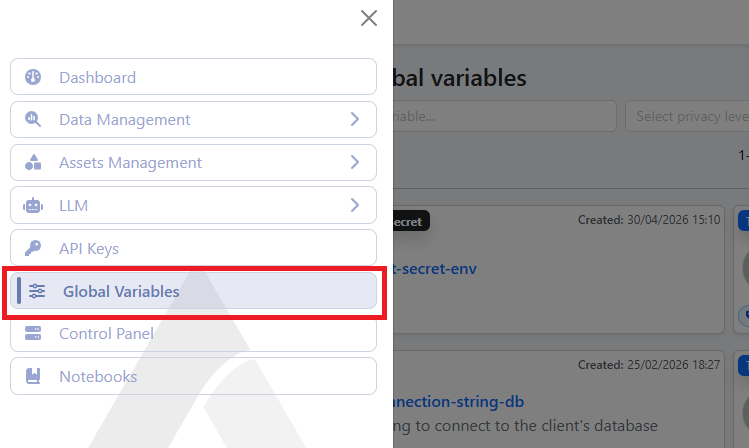
The available global variables are present in the "Global variables" section, accessible via the hamburger menu button in the top left: