User, Organization, and Permission Management
User Management
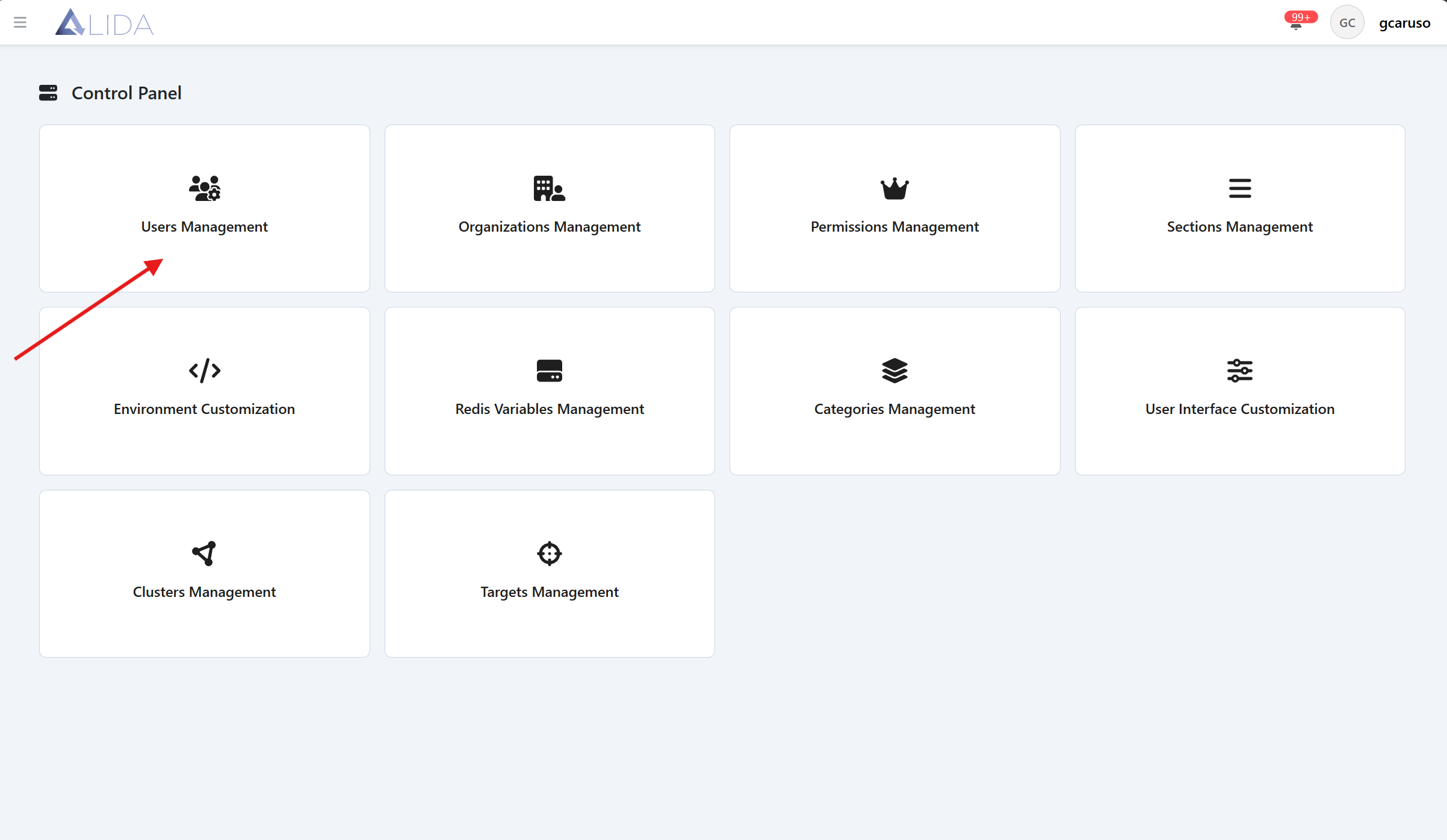
You can access the user management panel from the control panel page:
Viewing Users
Once you open the user management panel, you will see the list of registered users in a tabular format
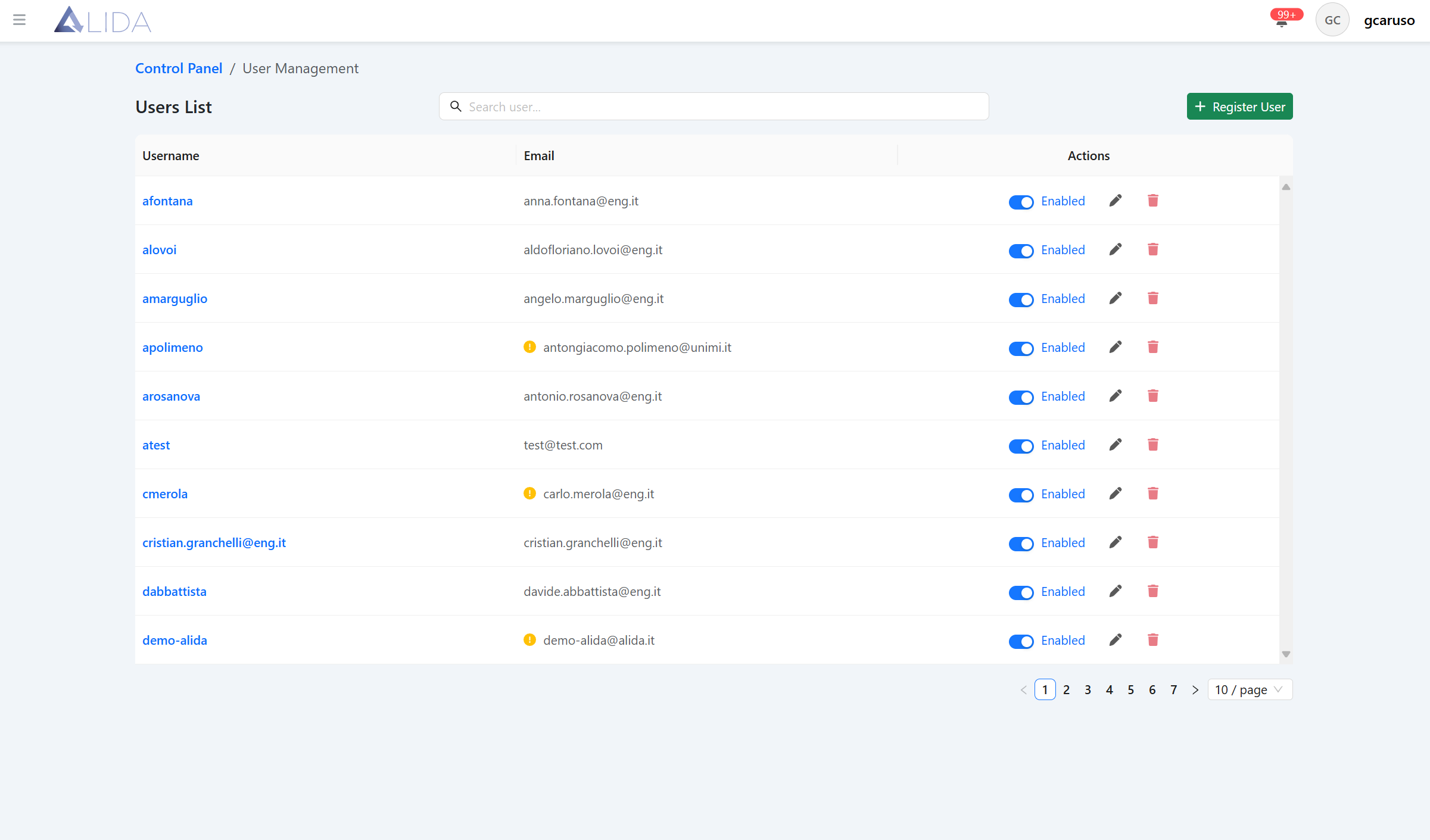
For each user, you can:
| Function | Button |
|---|---|
| Access the edit form |  |
| Delete them |  |
| Enable/Disable them |  |
User Creation/Modification
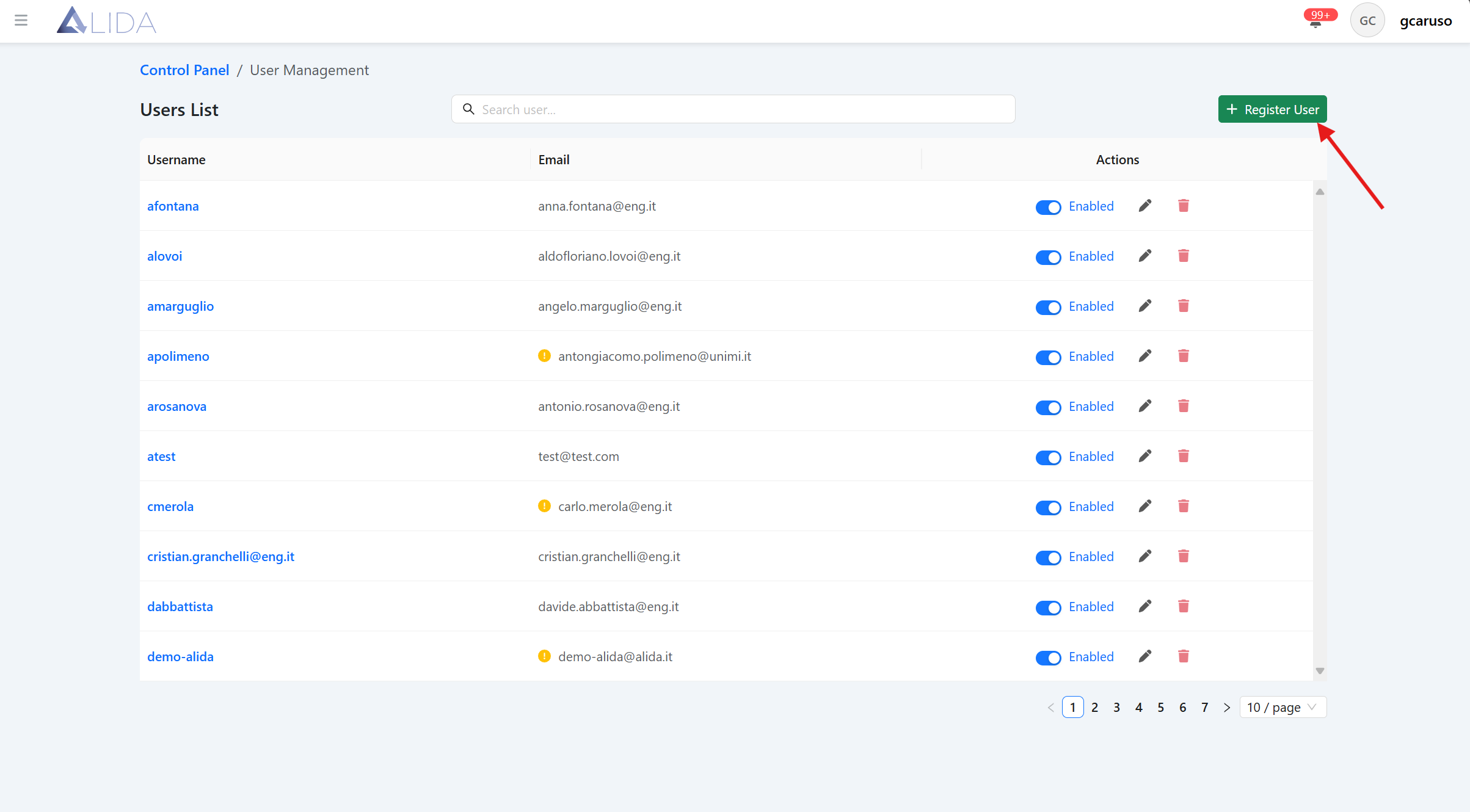
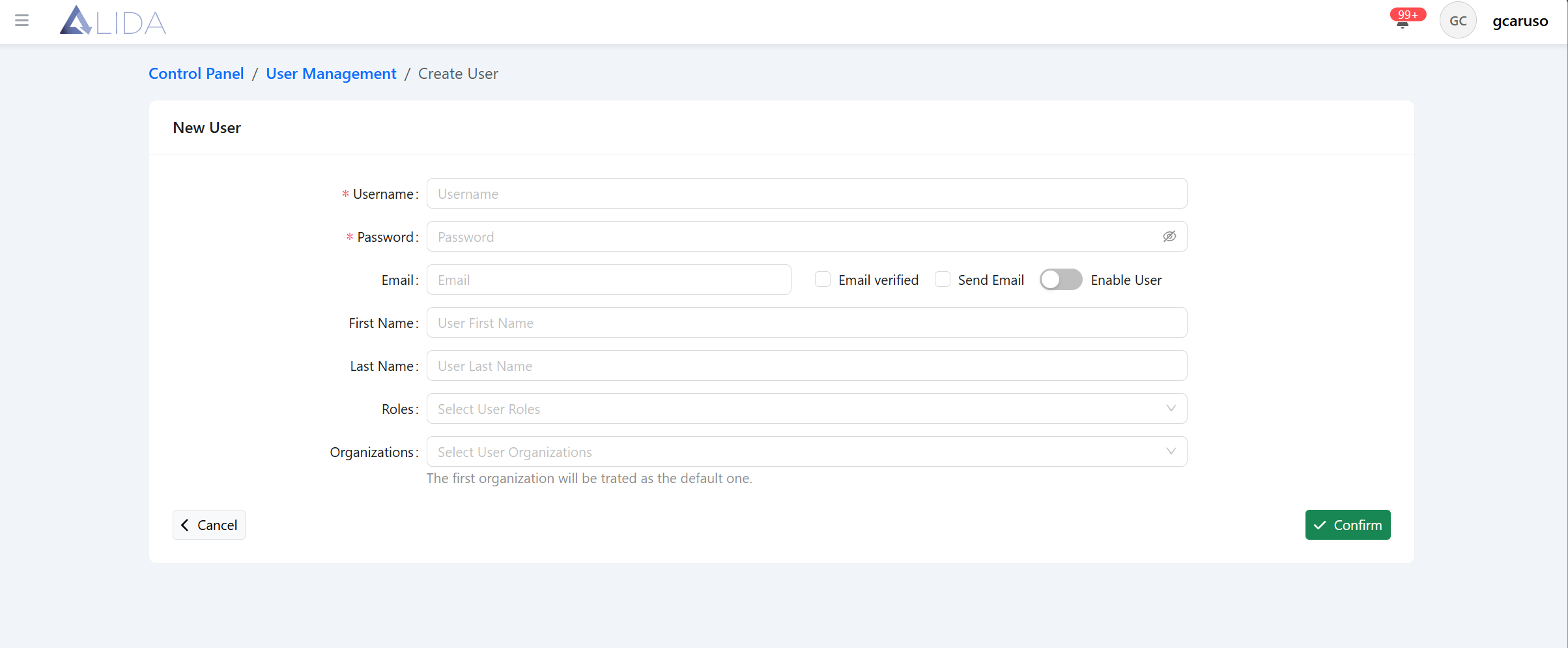
By clicking the "Register User" button, you will be redirected to the user creation page, where you must enter the necessary information:
The role that can be assigned to the user will be:
- Base: They will have read-only permissions on Alida resources and can view the items of their interest;
- Pro: They will have high-level permissions on Alida resources and on the Control Panel, with the ability to modify/delete resources except for services;
- Data scientist: Same permissions as the Pro user, but with the ability to create/modify/delete services;
- Admin: Maximum permissions also on Control Panel elements
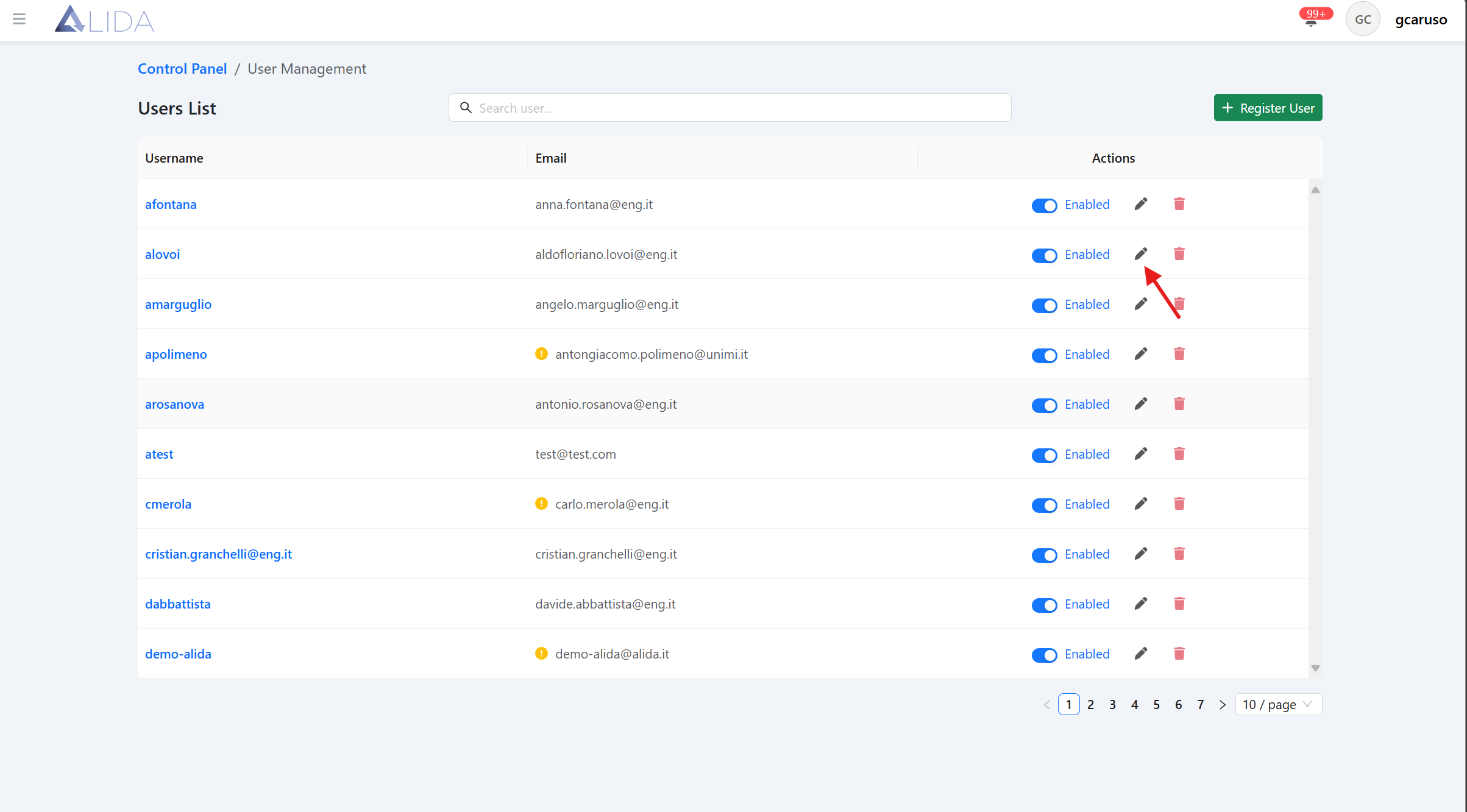
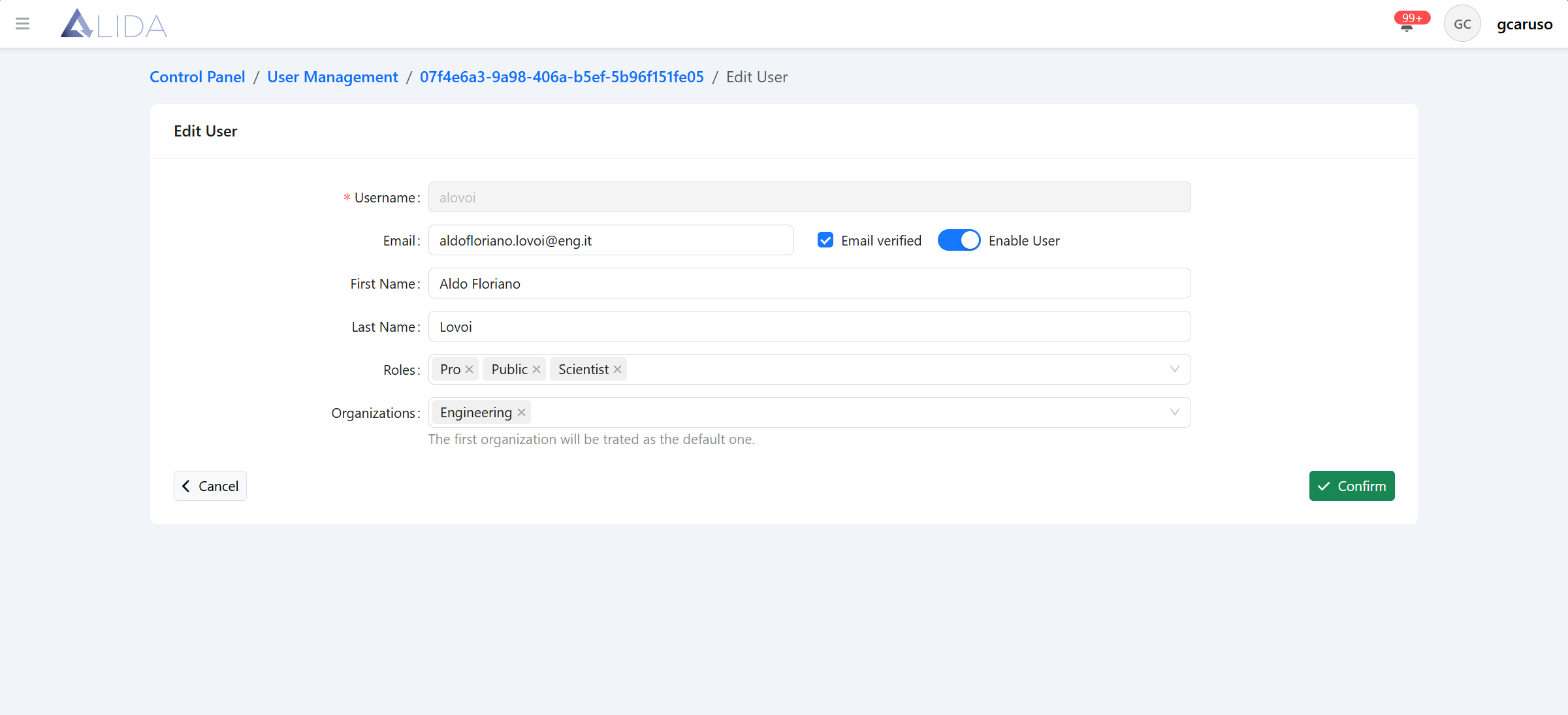
To modify user data, you must click the edit button located in the "action" field of each record, and you will be redirected to the user edit page
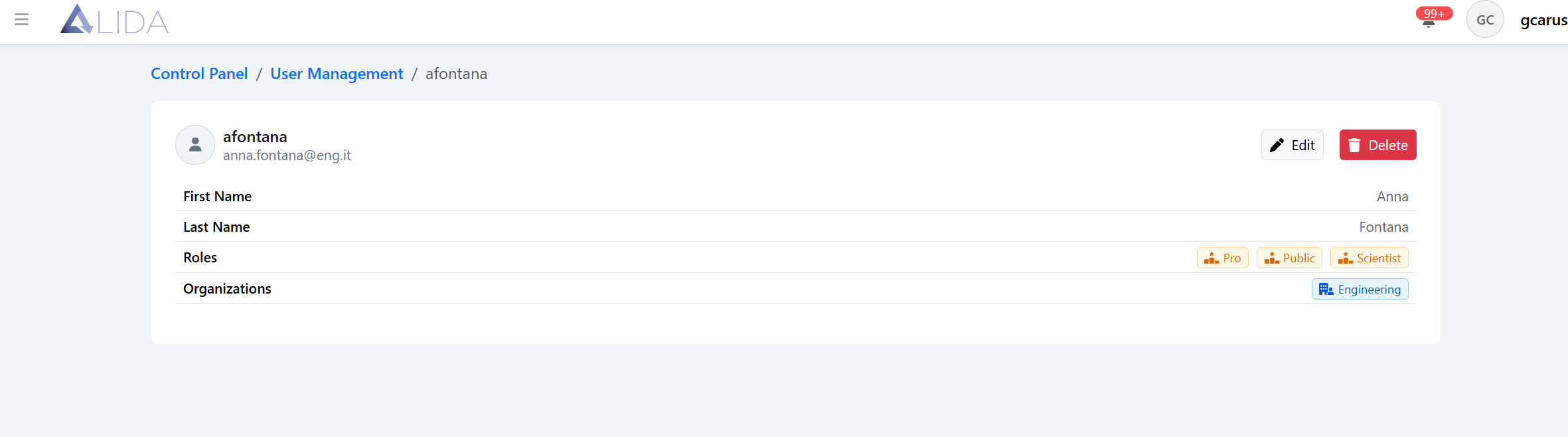
Viewing User Details
To view user details, you must click the link included in each user's username from the list:
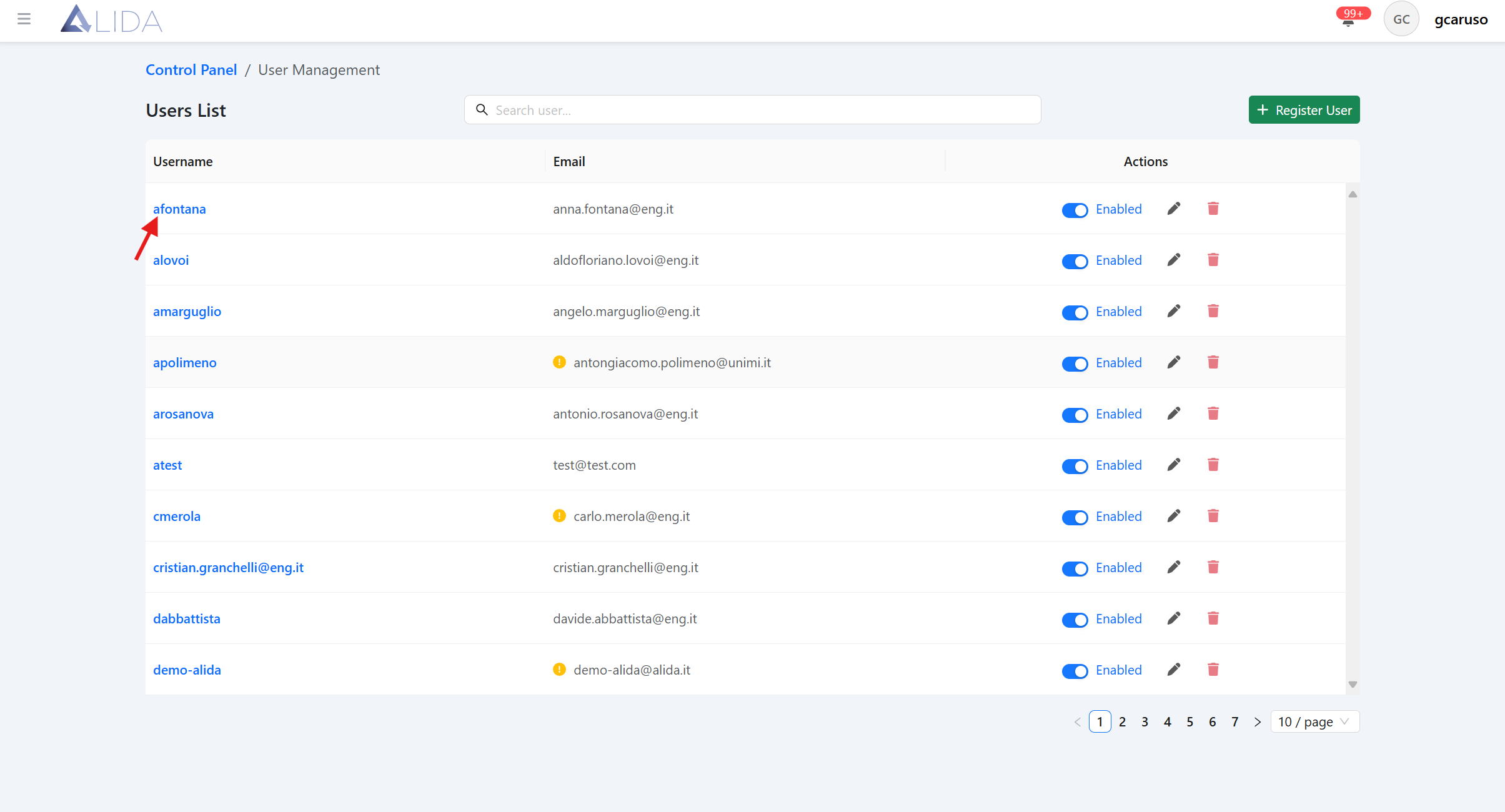
You will access the page with the user's details and the "Edit" and "Delete" buttons that will allow you to open the user edit page and delete the user, respectively.
Organization Management
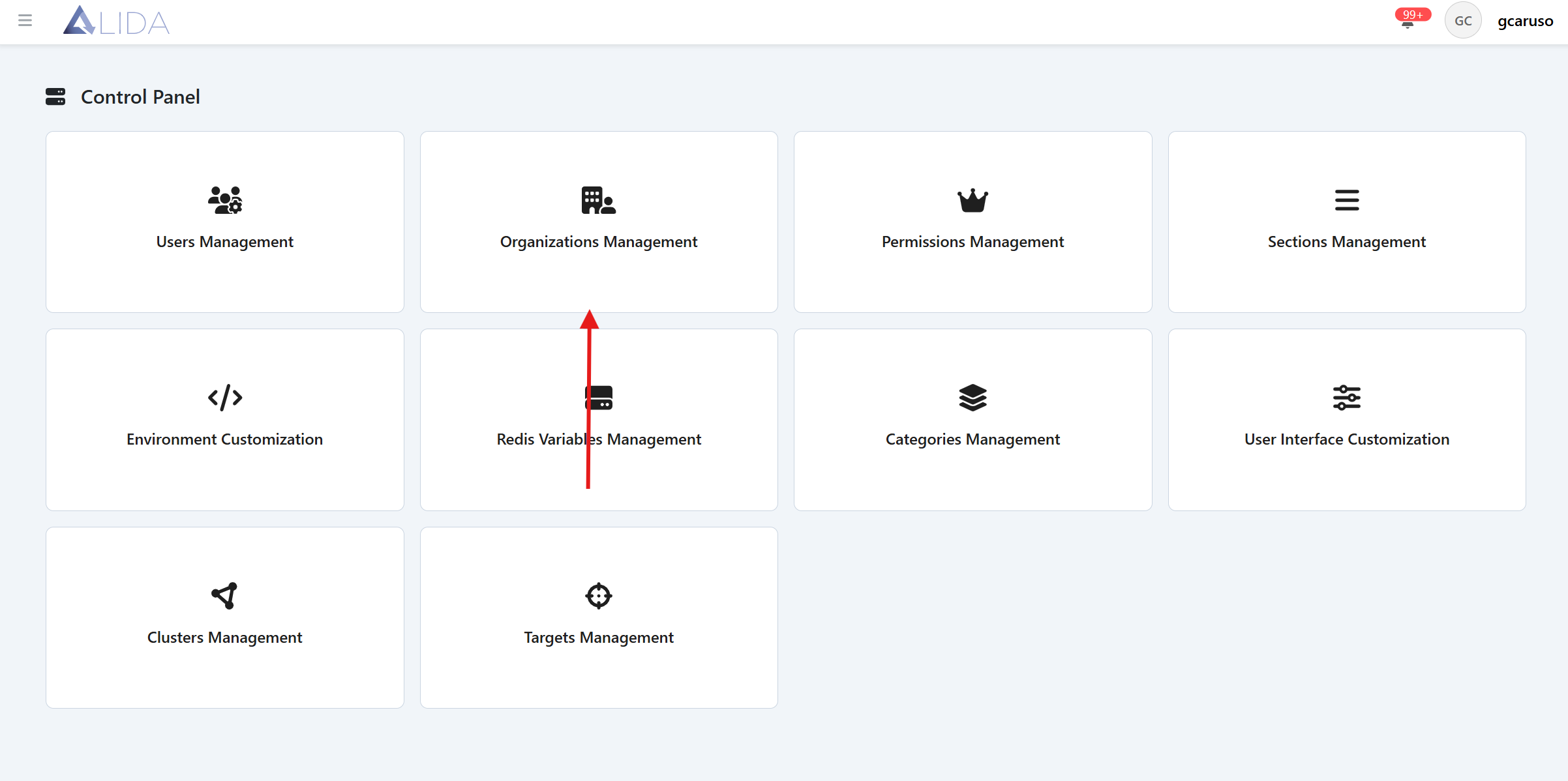
You can access the organization management panel from the control panel page:
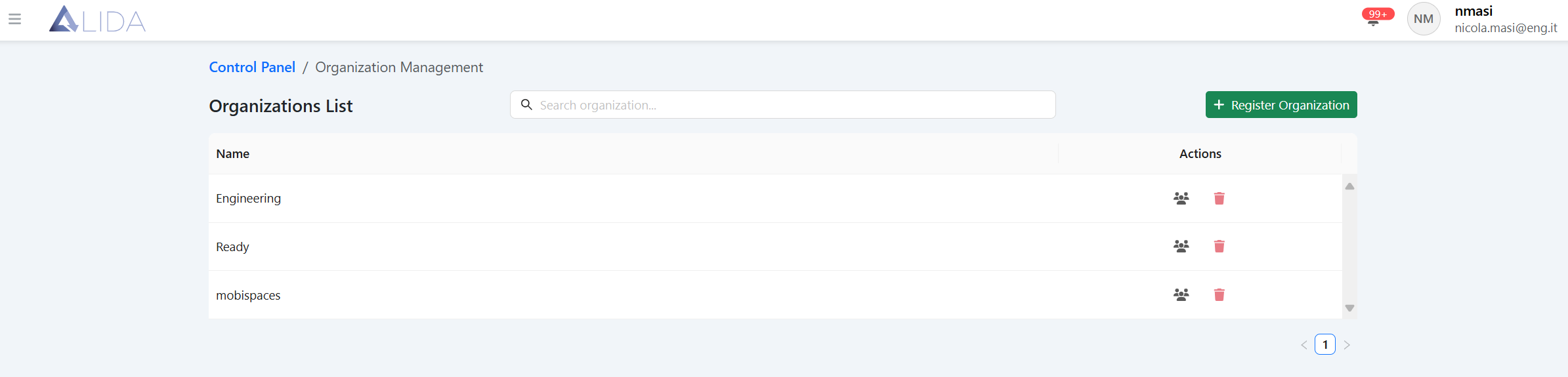
Viewing Organizations
Once you open the organization management panel, you will see the list of registered organizations in a tabular format
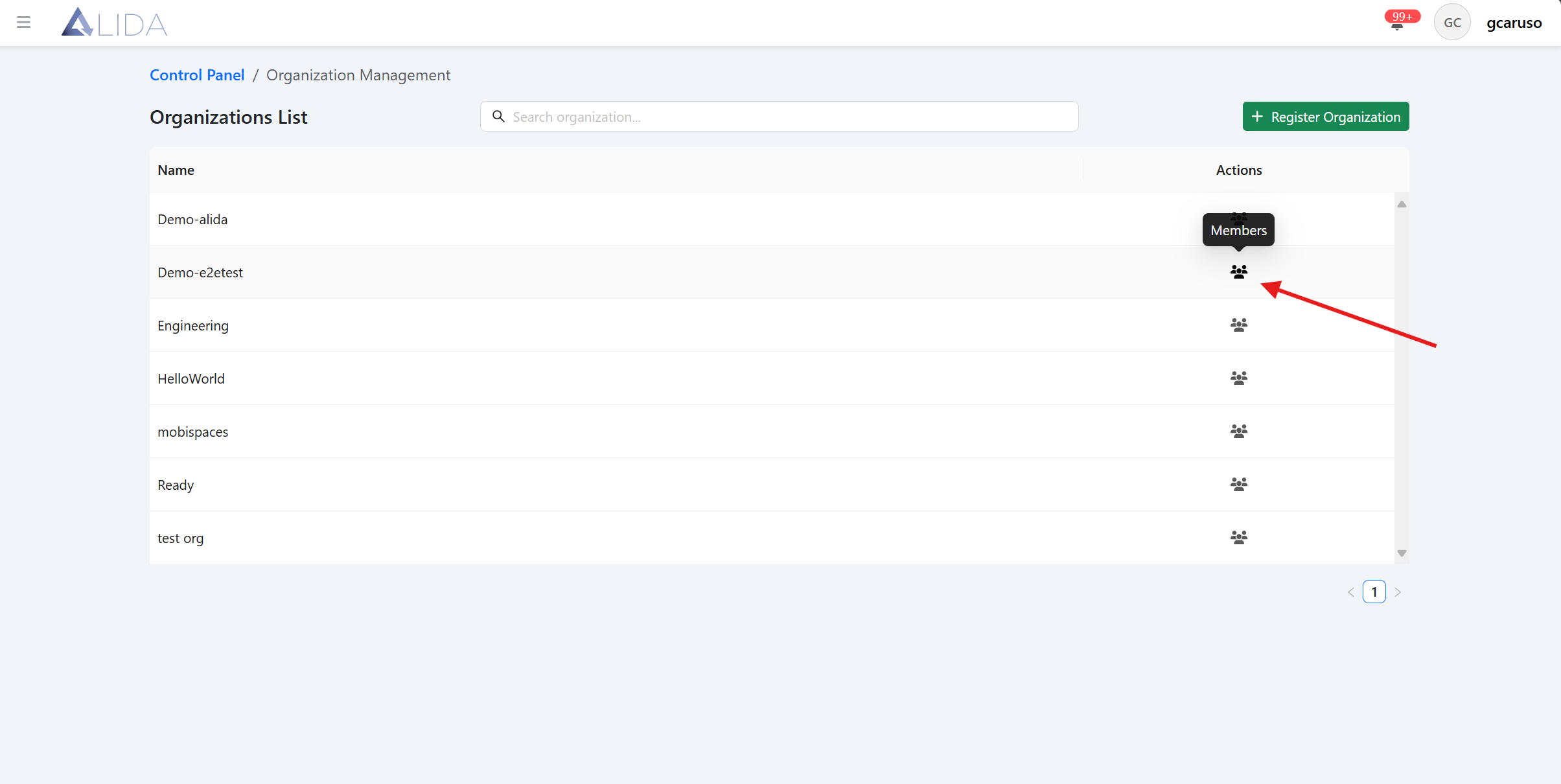
For each organization you can see the members through the dedicated button:
Member Management
By clicking the aforementioned button, you will access the organization's members page:
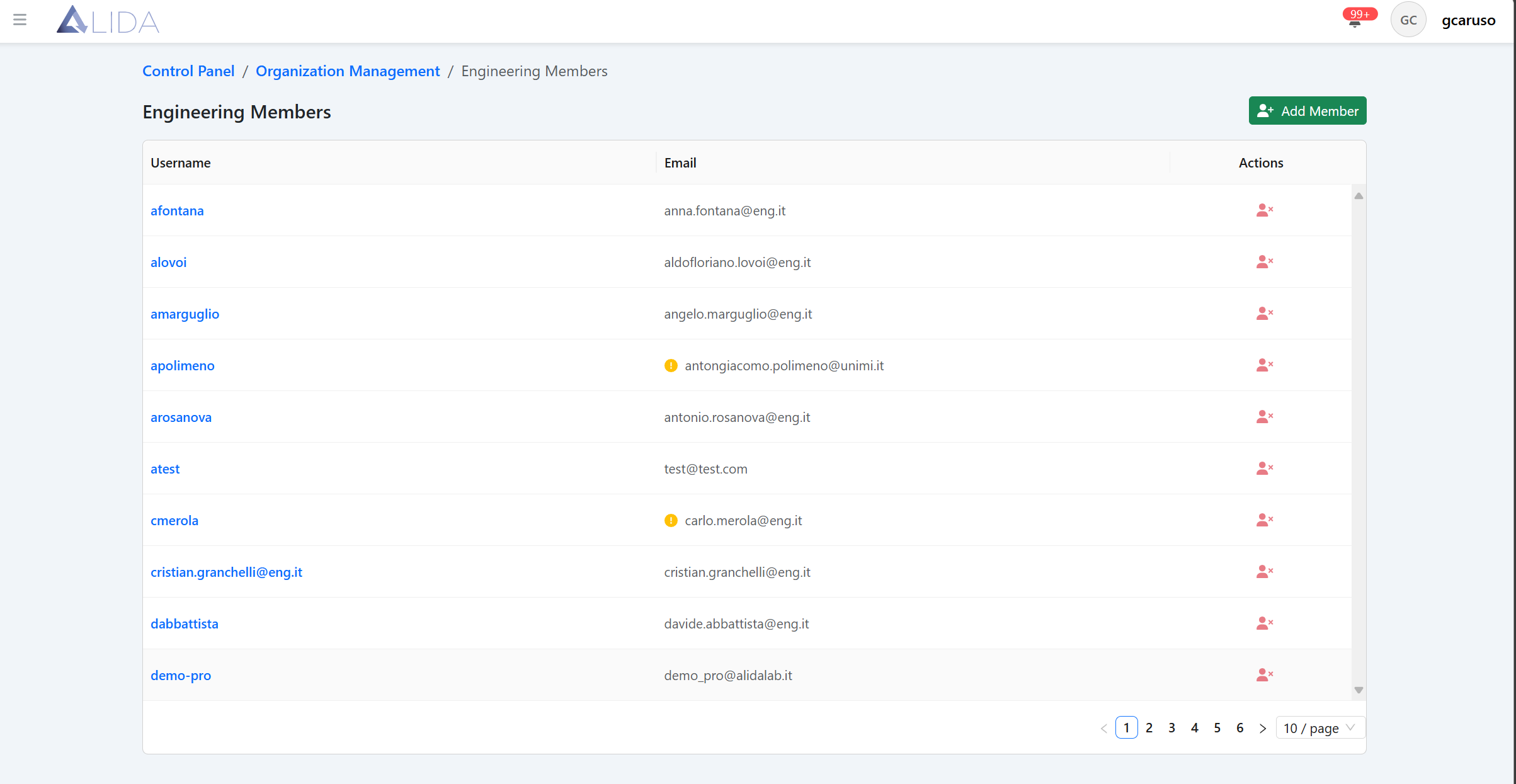
For each member, you can:
| Function | Button |
|---|---|
| View their details |  |
| Remove them from the organization |  |
The button to view the member's details will redirect to the user details page.
Permission Management
You can access the permission management panel from the control panel page:
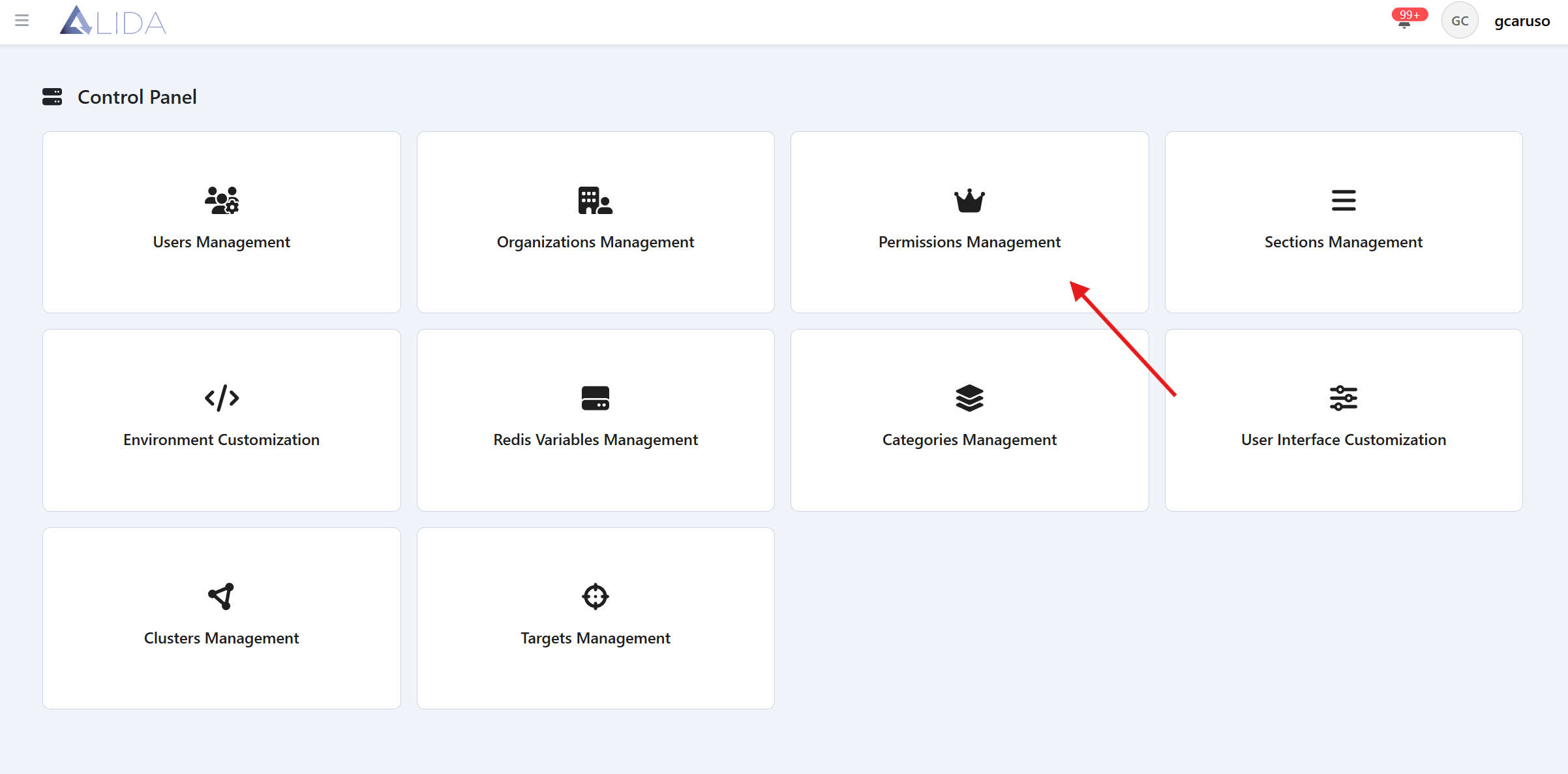
Once you open the permission management panel, you will see the list of assignable permissions to users in a tabular format
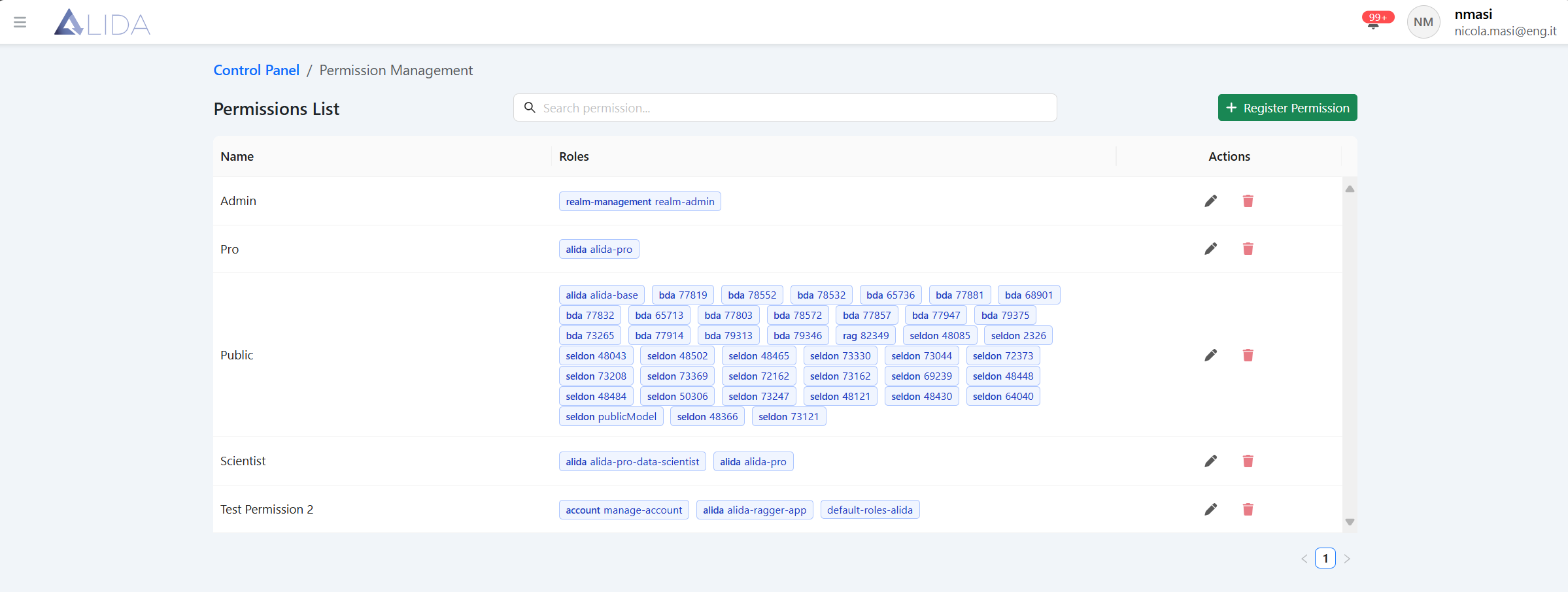
For each permission, you can:
| Function | Button |
|---|---|
| Modify it |  |
| Delete it |  |
Permission Creation/Modification
By clicking the "Register Permission" button in the upper right corner, the form for creating a new permission will open, which you must complete with the required fields:
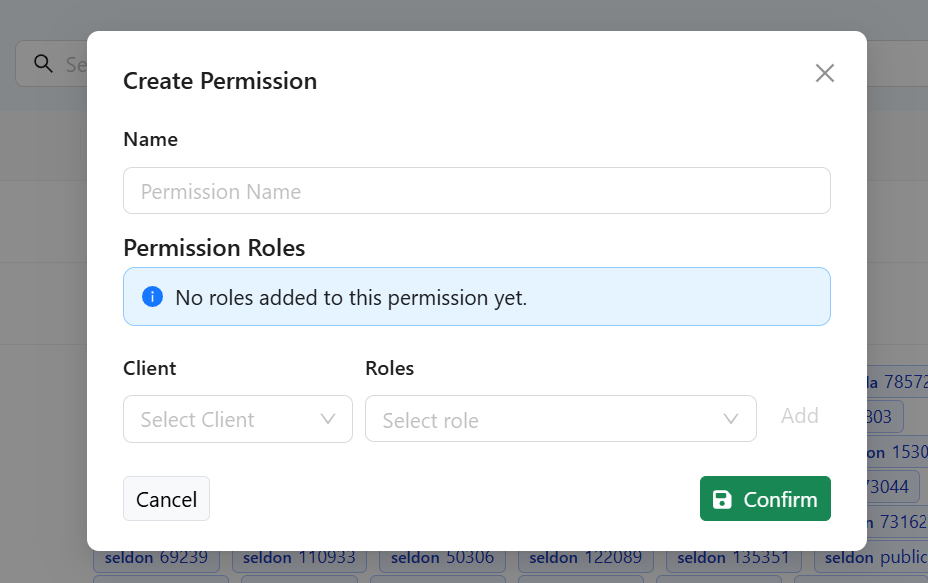
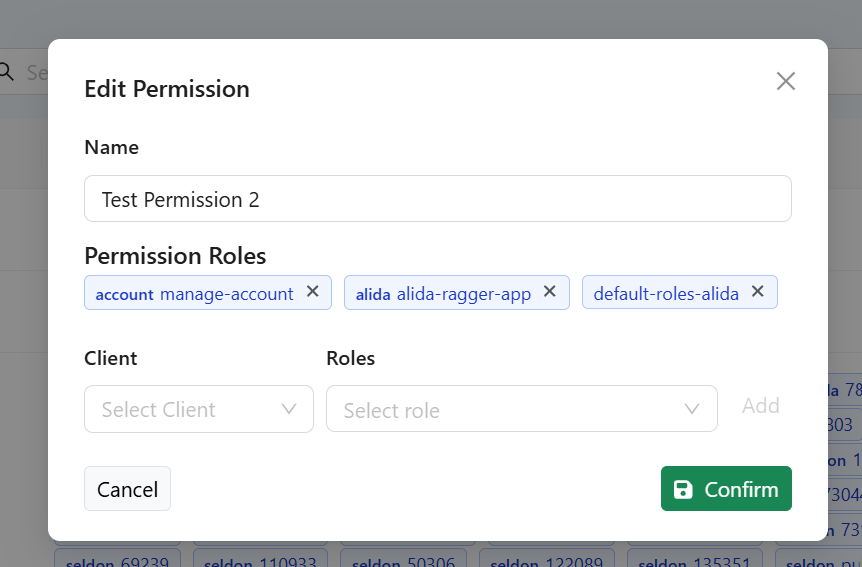
You can also modify an existing permission by clicking the button indicated previously, present on each row of the permission table. Here too, the form will open, with the required fields pre-filled with the data of the permission in question: