First Steps | 
In this tutorial, you will create a simple Workflow to familiarize yourself with ALIDA. Specifically:
- You will upload a new Dataset
- You will create a Workflow that will read the Dataset and apply the K-means algorithm to it
- You will run the Workflow
- You will view the results obtained
1. Login
First, log in using the credentials provided to you by the administrator
2. Dataset Upload
Next, proceed to upload the Dataset. In ALIDA, a Dataset is a reference to a specific location within a Datasource. A Datasource is a reference to a storage service; such as an S3 Object Store.
2.1 Download the Iris dataset in CSV format to your computer from the following URL:
2.2 Access the Dataset registration page as indicated in the following figures:
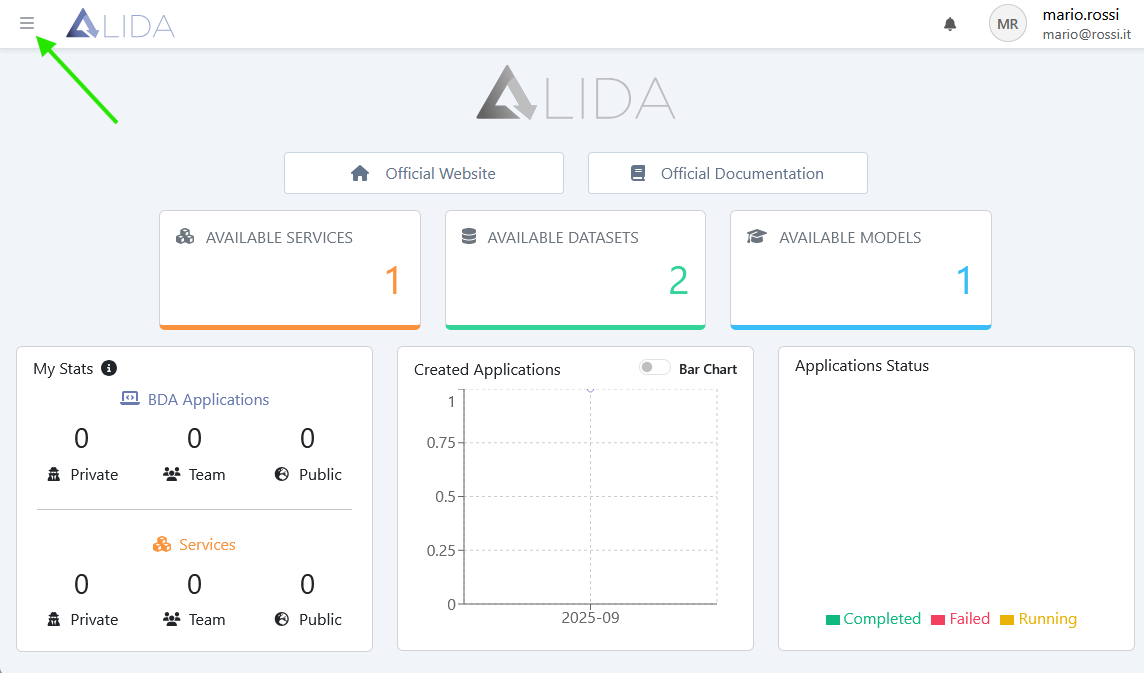
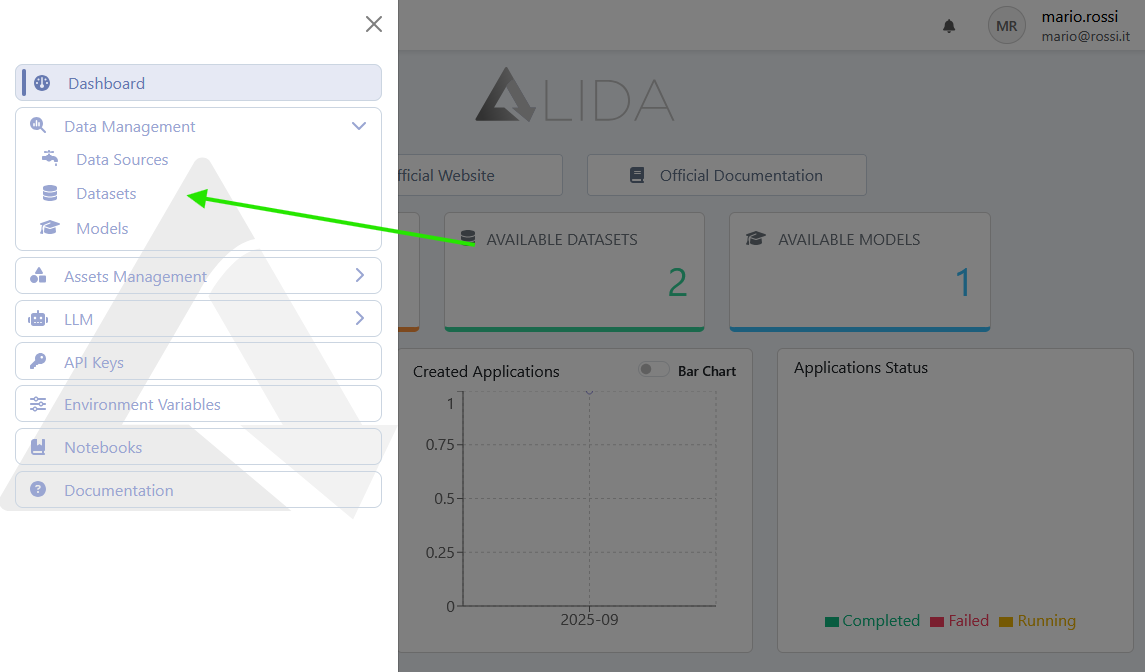
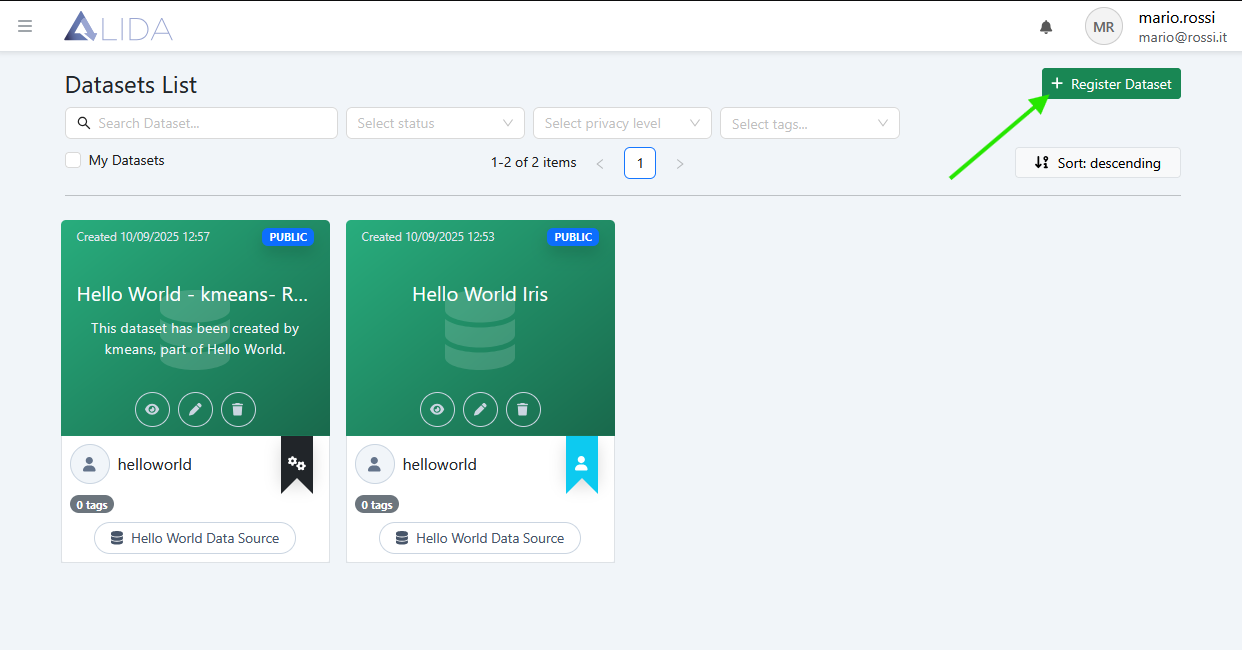
2.3 Fill in the form as indicated (see also figures):
- Name:
Quickstart Iris - Select the Datasource within which to upload the dataset:
<your username> -
Open the Dataset upload panel by clicking the button

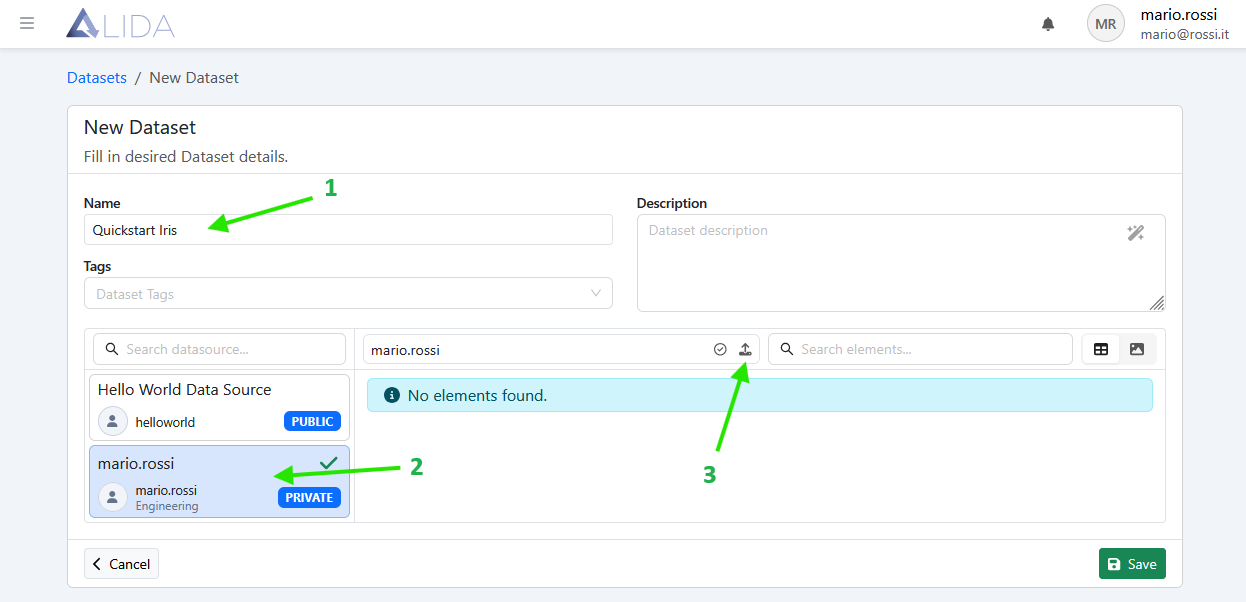
Dataset registration form -
In the panel that opens, enter the name of the new folder to create (A):
Quickstart Iris(the uploaded file will be saved within it) -
Select the Iris dataset downloaded in step 2.1 by clicking on "Upload files" (B)
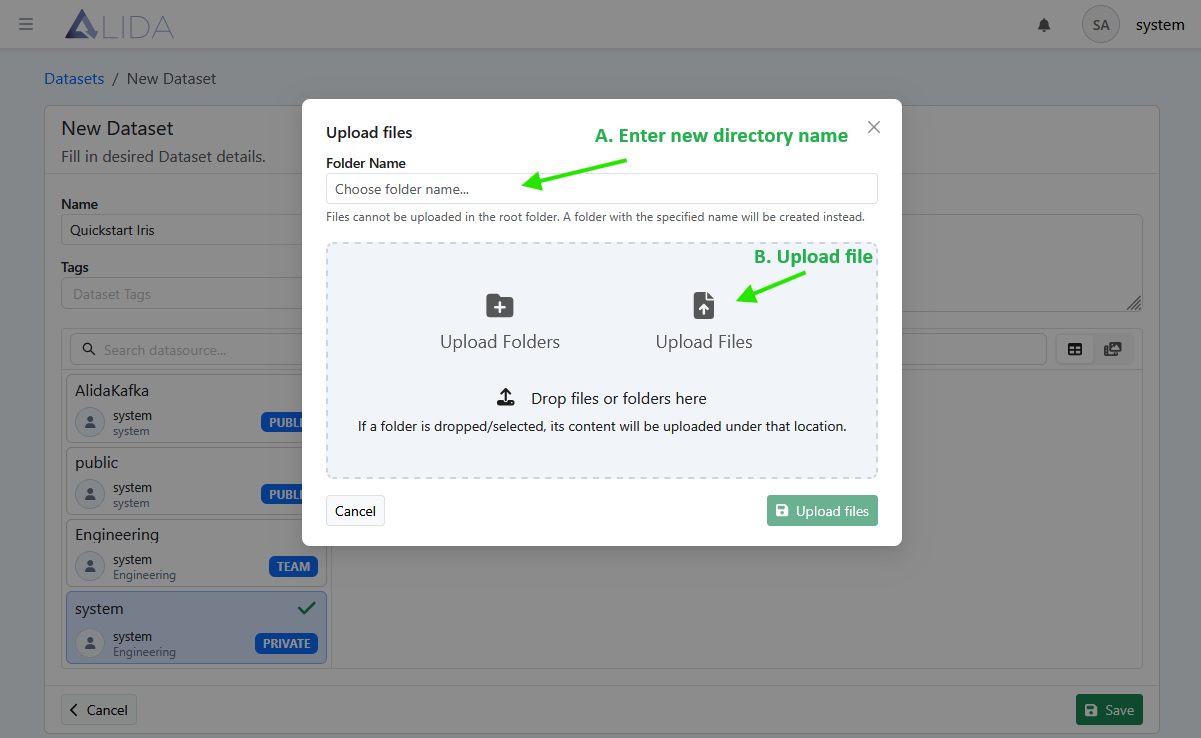
Dataset upload panel 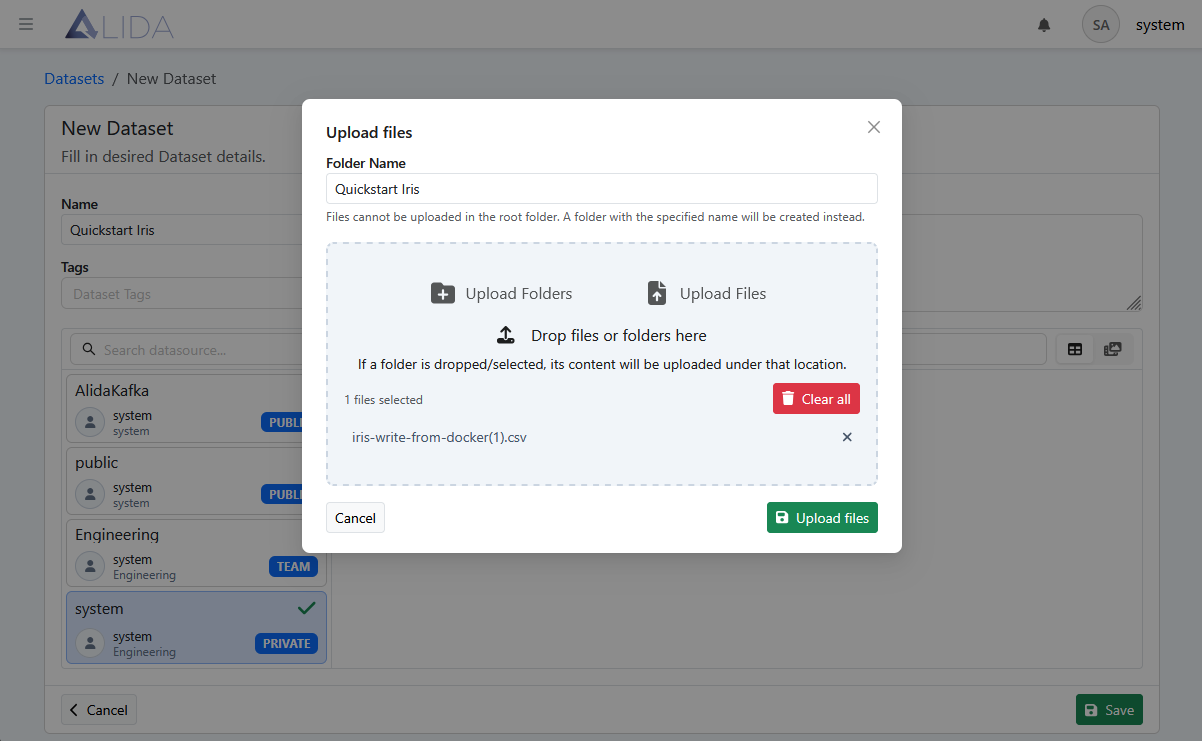
Selected files recap -
Upload the file by clicking on
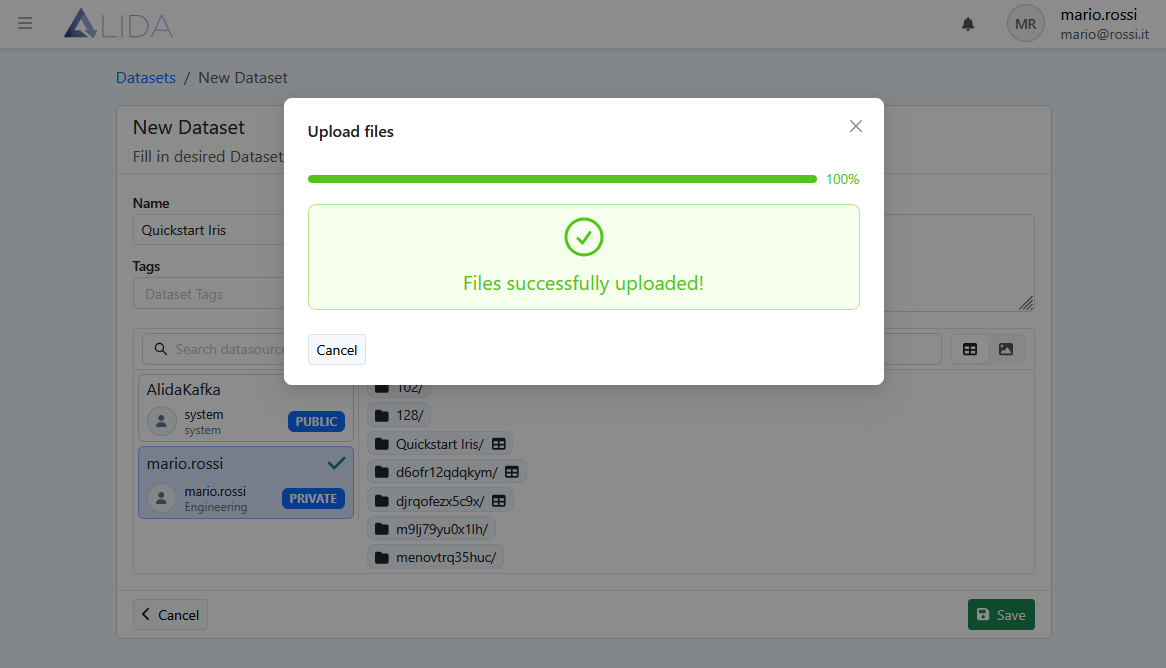
File/directory successfully uploaded -
Click on the newly created directory
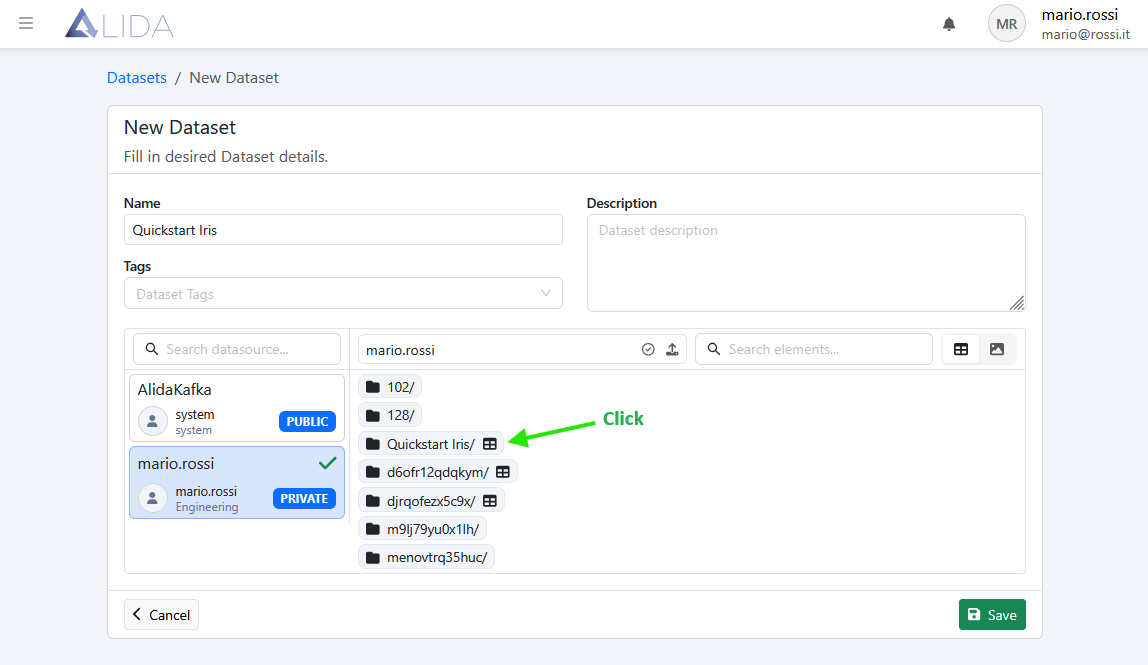
List of directories for datasource -
Select the dataset path by clicking on the
 icon as indicated in the figure: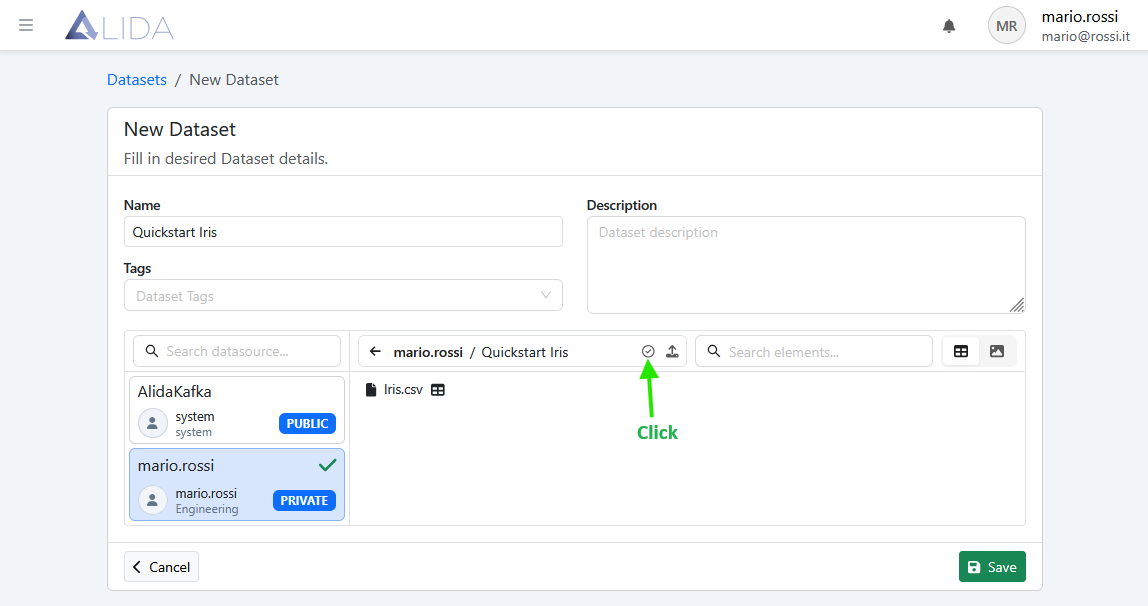
Select dataset path Upon clicking, the dataset schema will be displayed at the bottom of the same page.
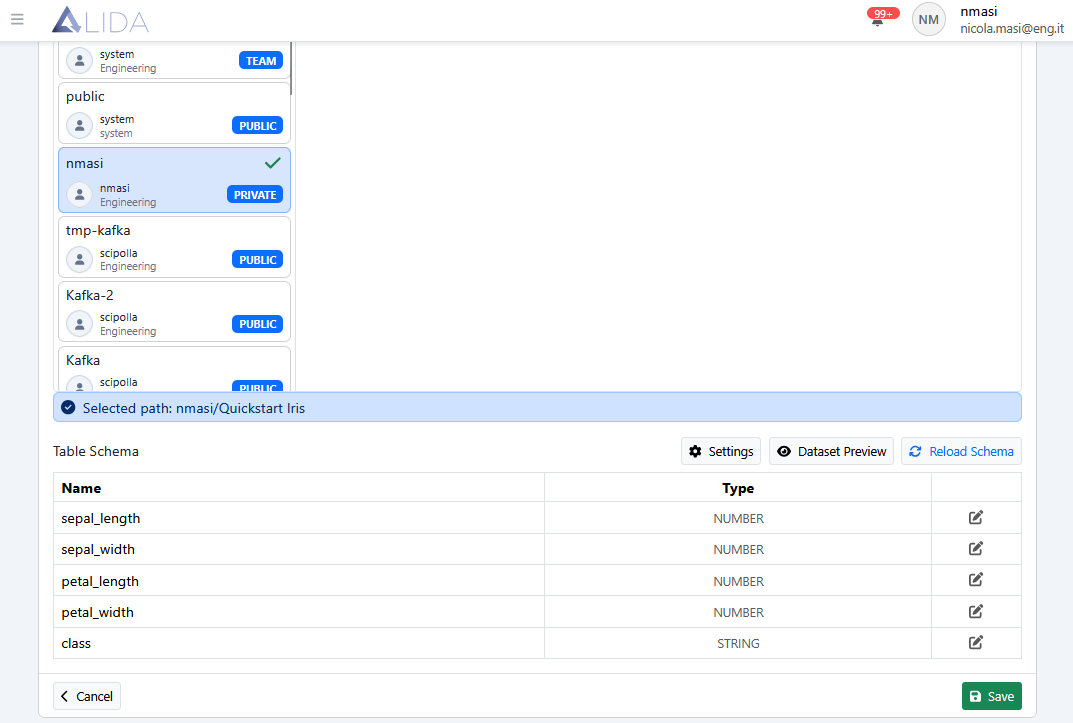
View selected dataset schema -
Click on Save. The dataset detail page will appear
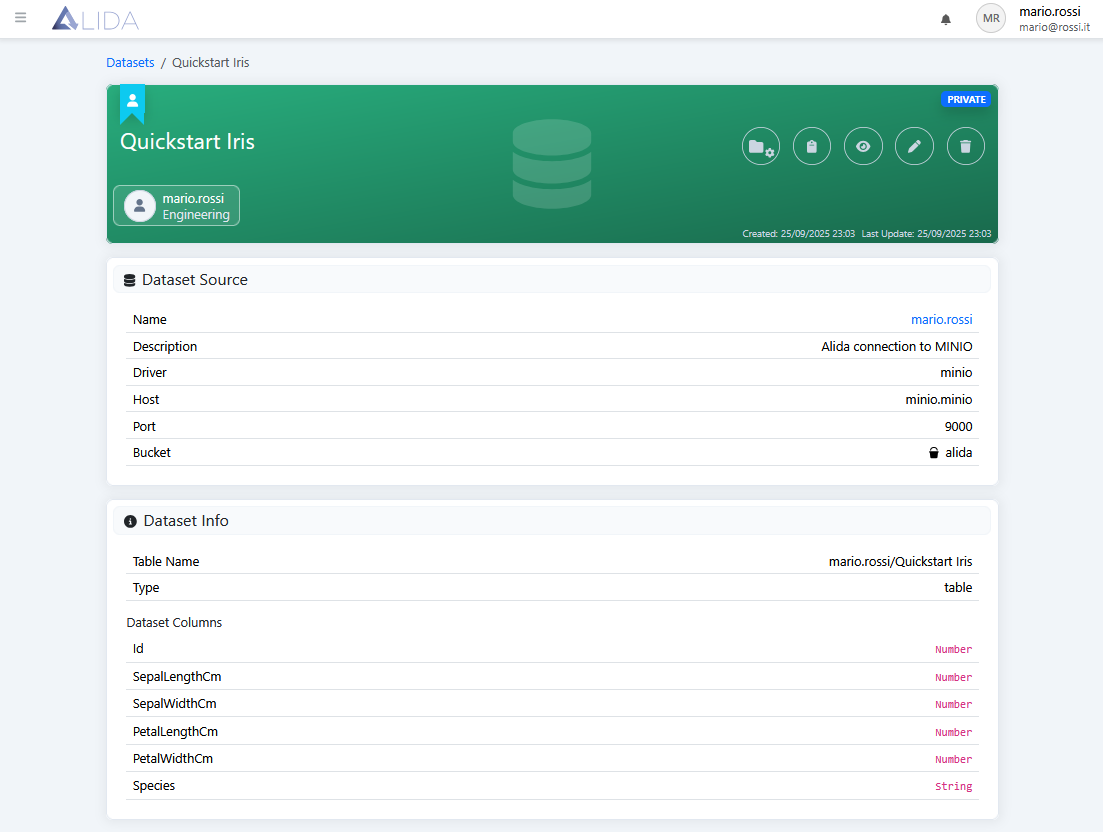
View newly created Dataset
3. Workflow Creation
3.1 At this point, access the Designer to create the Workflow as shown in the following figures:
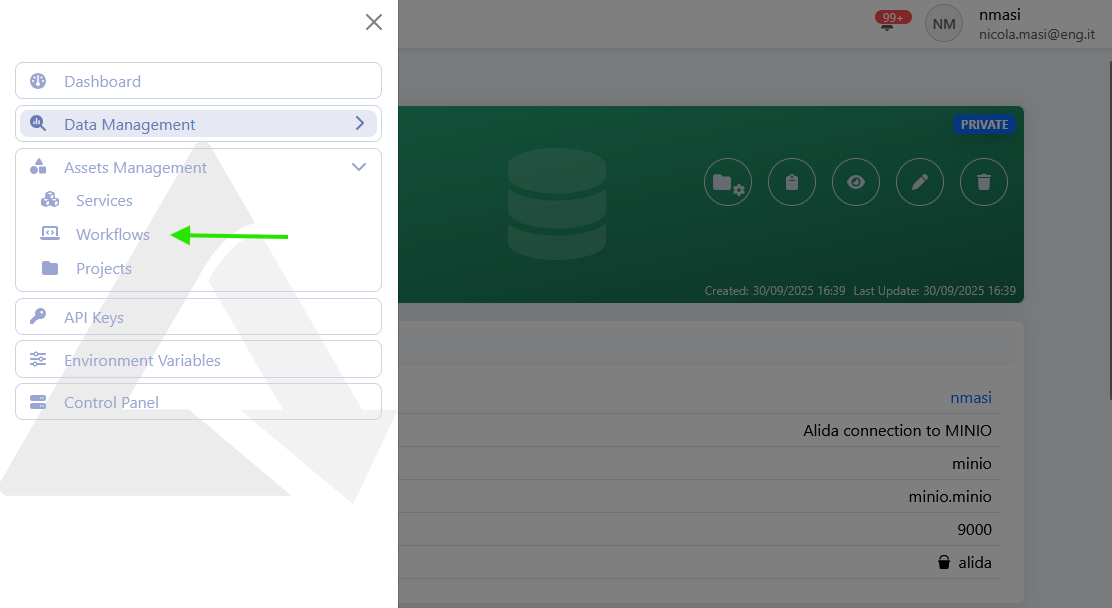
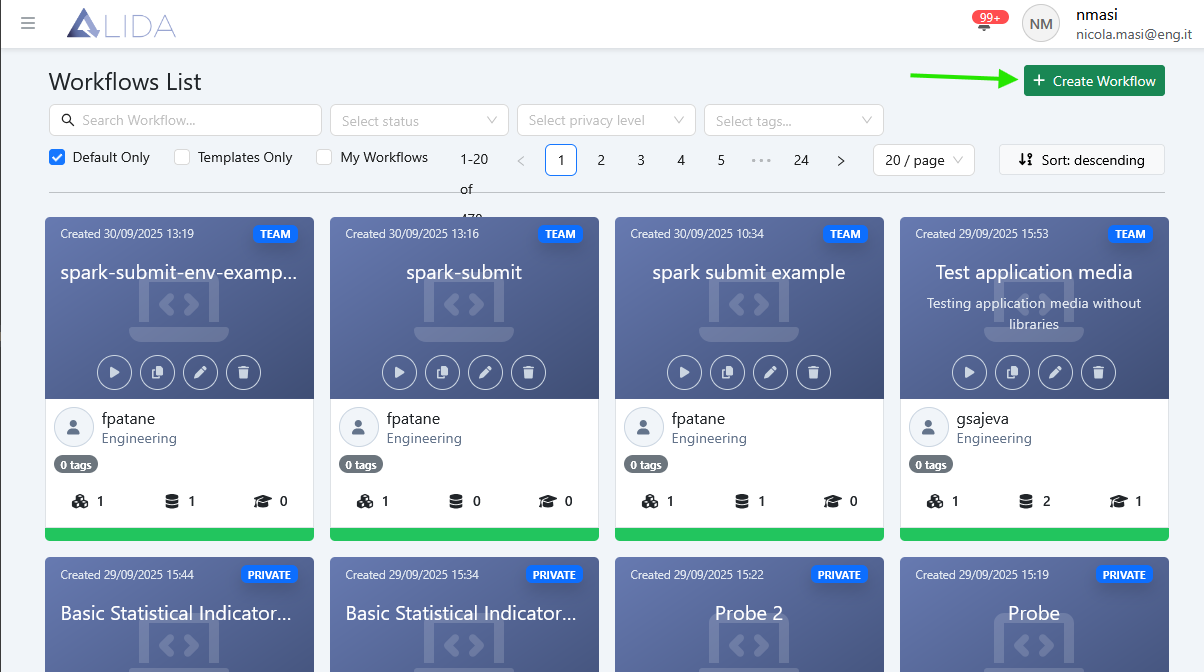
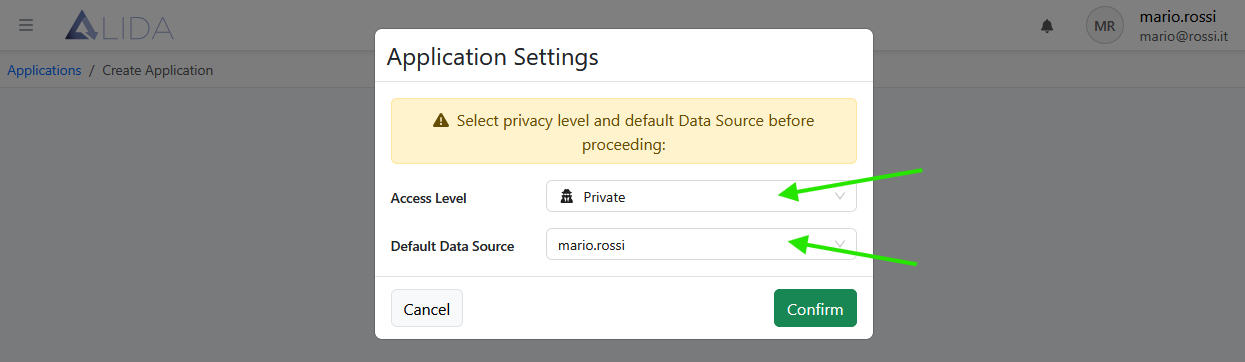
3.2 Fill in the Workflow settings form as indicated in the figure:
- Access Level:
Private - Default Data Source:
<your.username>
and click on Confirm:
You have reached the Workflow Designer, which will allow you to combine Datasets, Services and Models to create your Workflow:
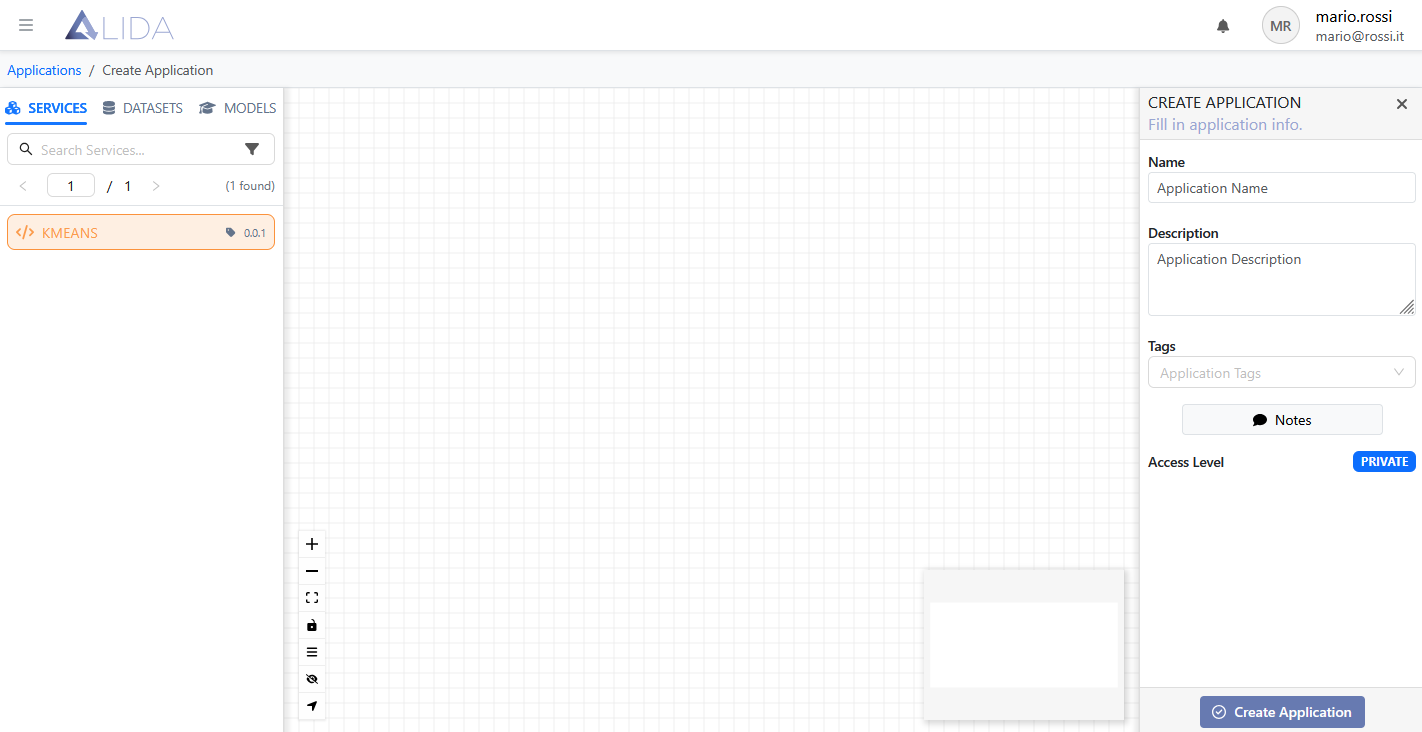
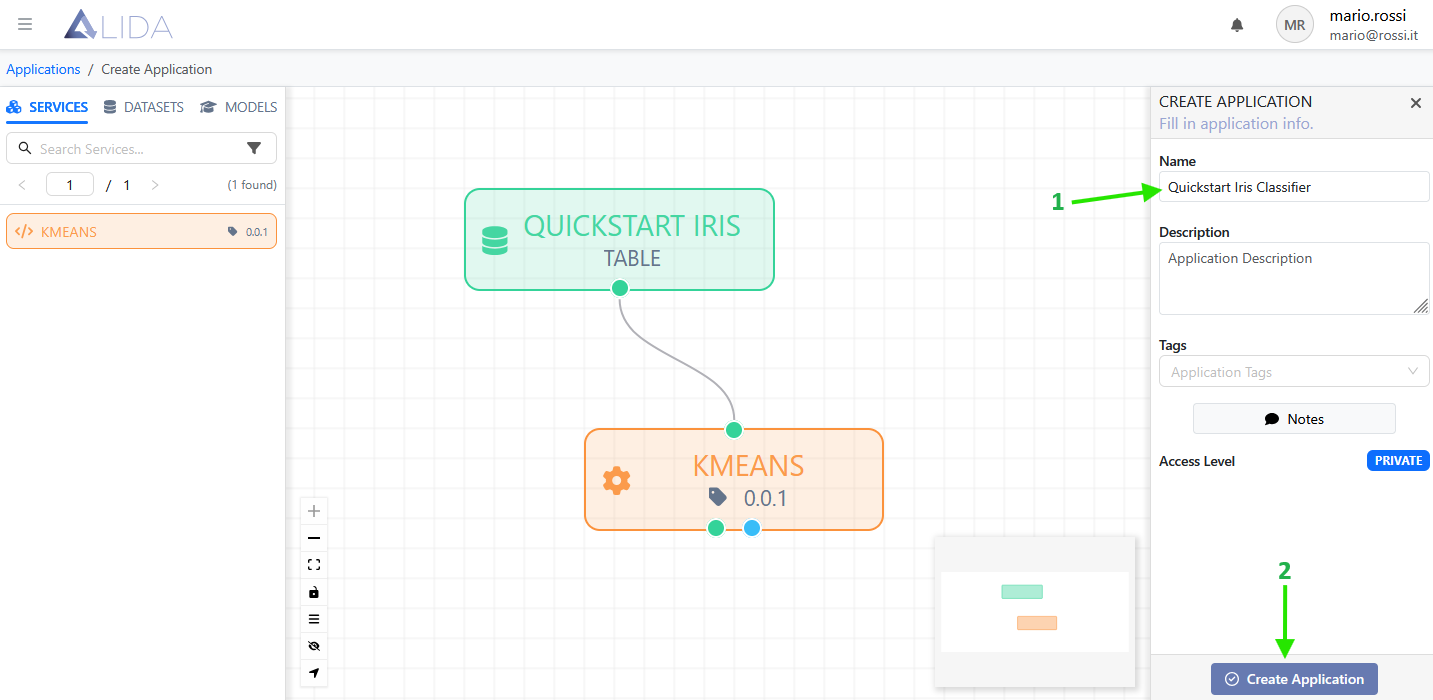
3.4 Assemble the Workflow by dragging onto the Designer:
- The KMeans Service
- The Iris Dataset previously uploaded (under Datasets tab)
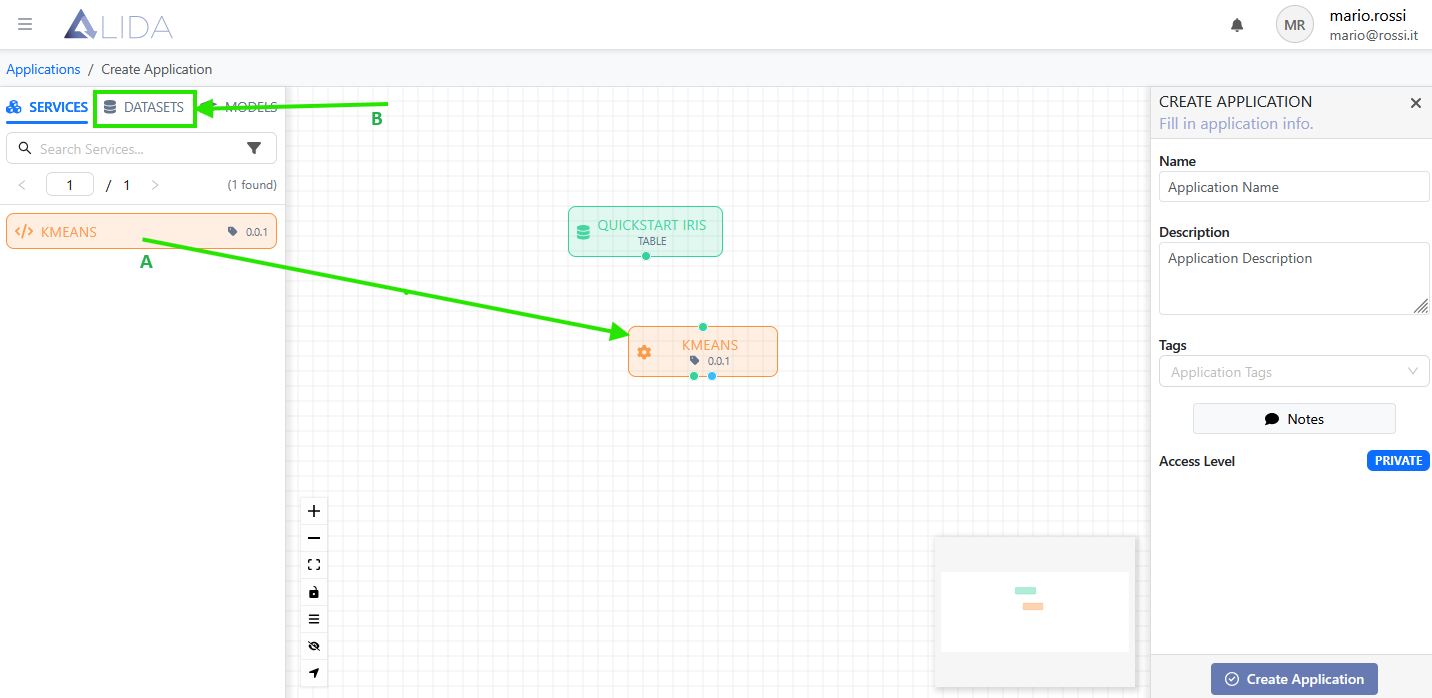
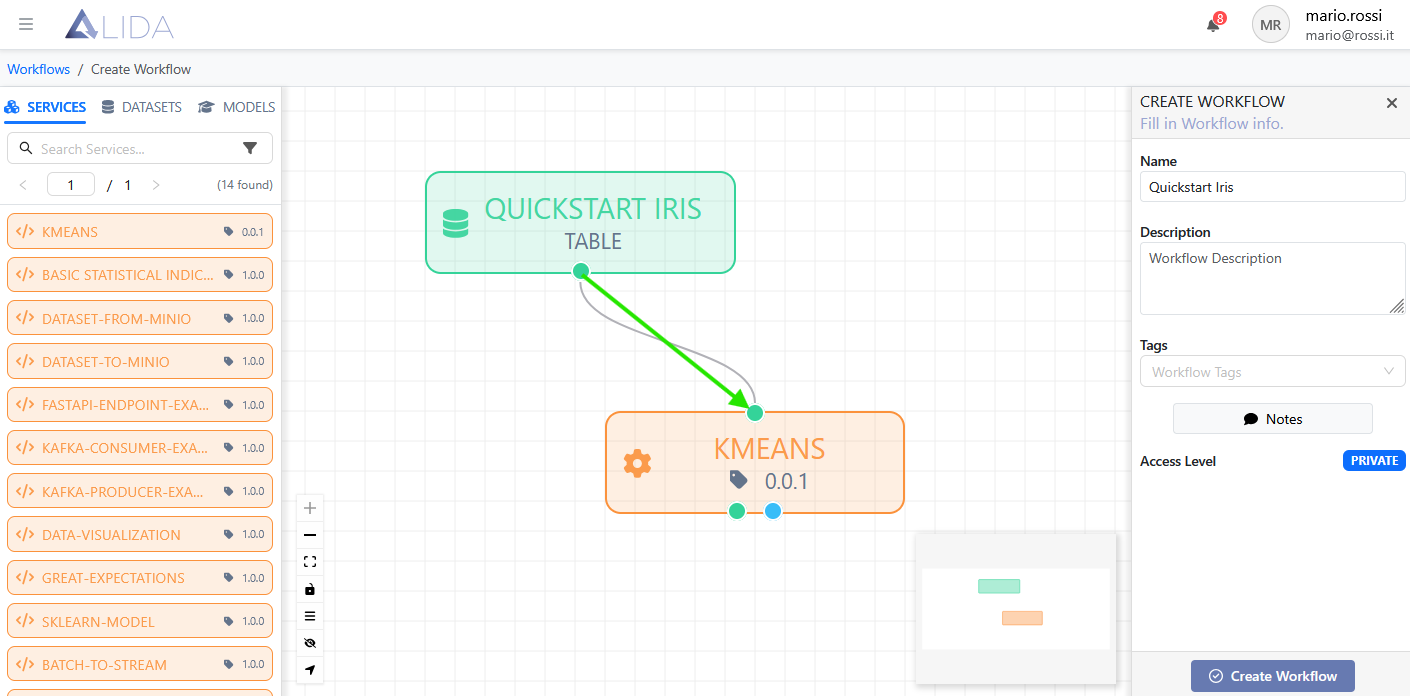
3.5 Connect the "Quickstart Iris" Dataset to the "KMeans" Service, dragging the Dataset port (🟢) and releasing it onto the service input port (🟢):
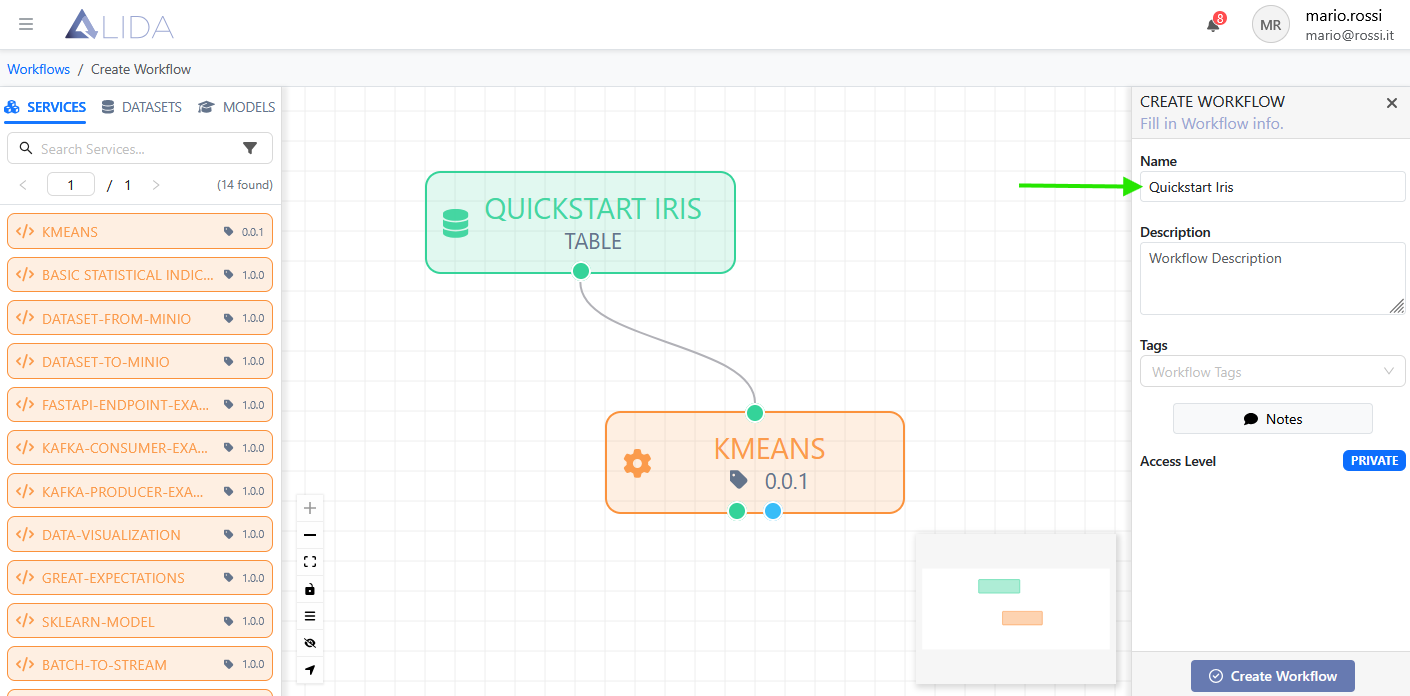
3.6 Assign a name to the Workflow from the right menu: Quickstart Iris
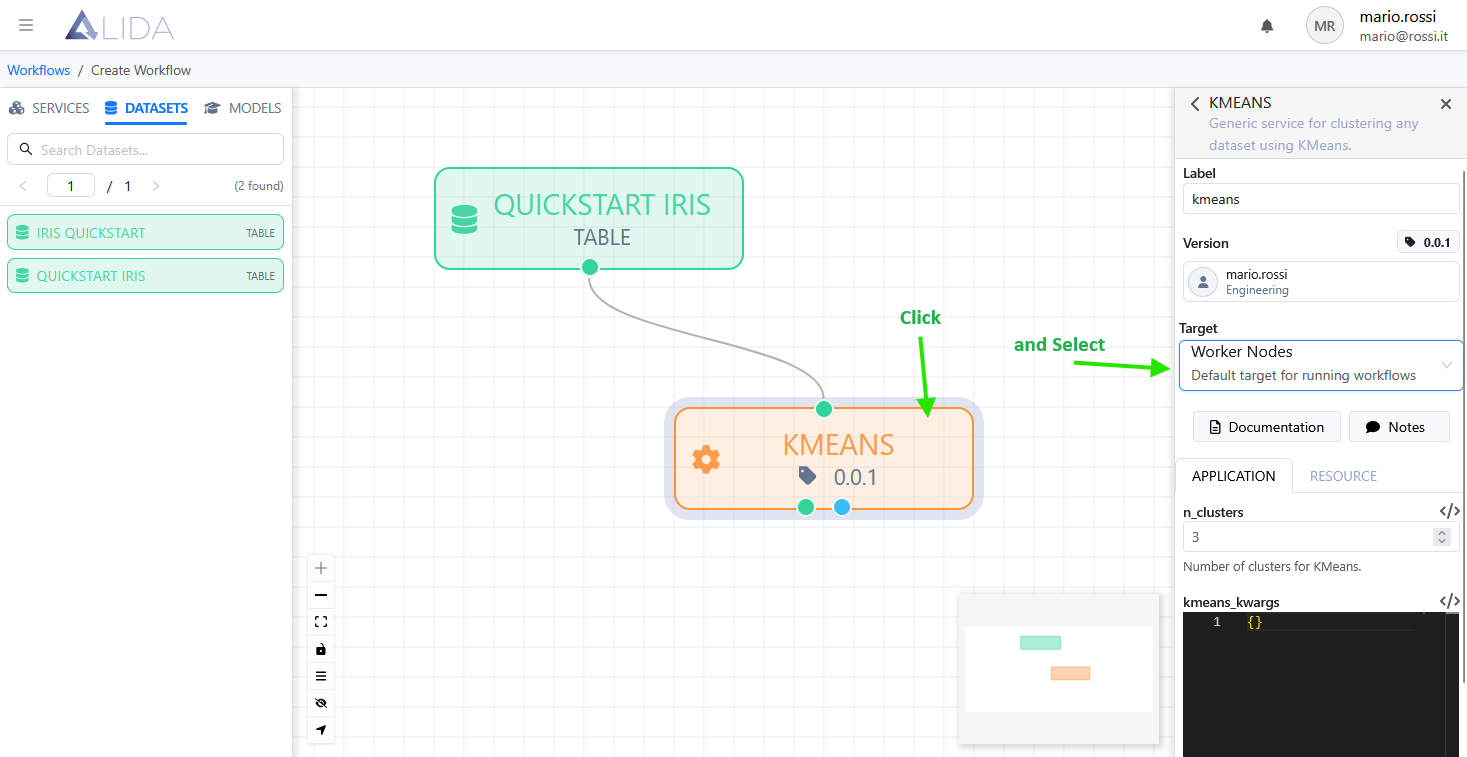
3.7 Click on the KMean Service on the canvas and select the default Target "Worker Nodes":
3.8 Finally, click on an empty point on the canvas and then on Create Workflow:
Note
Within this brief tutorial, we do not cover the numerous configuration features of the Workflow and individual Services offered by ALIDA. For these, we refer the reader to the respective sections of this manual.
4. Workflow Execution
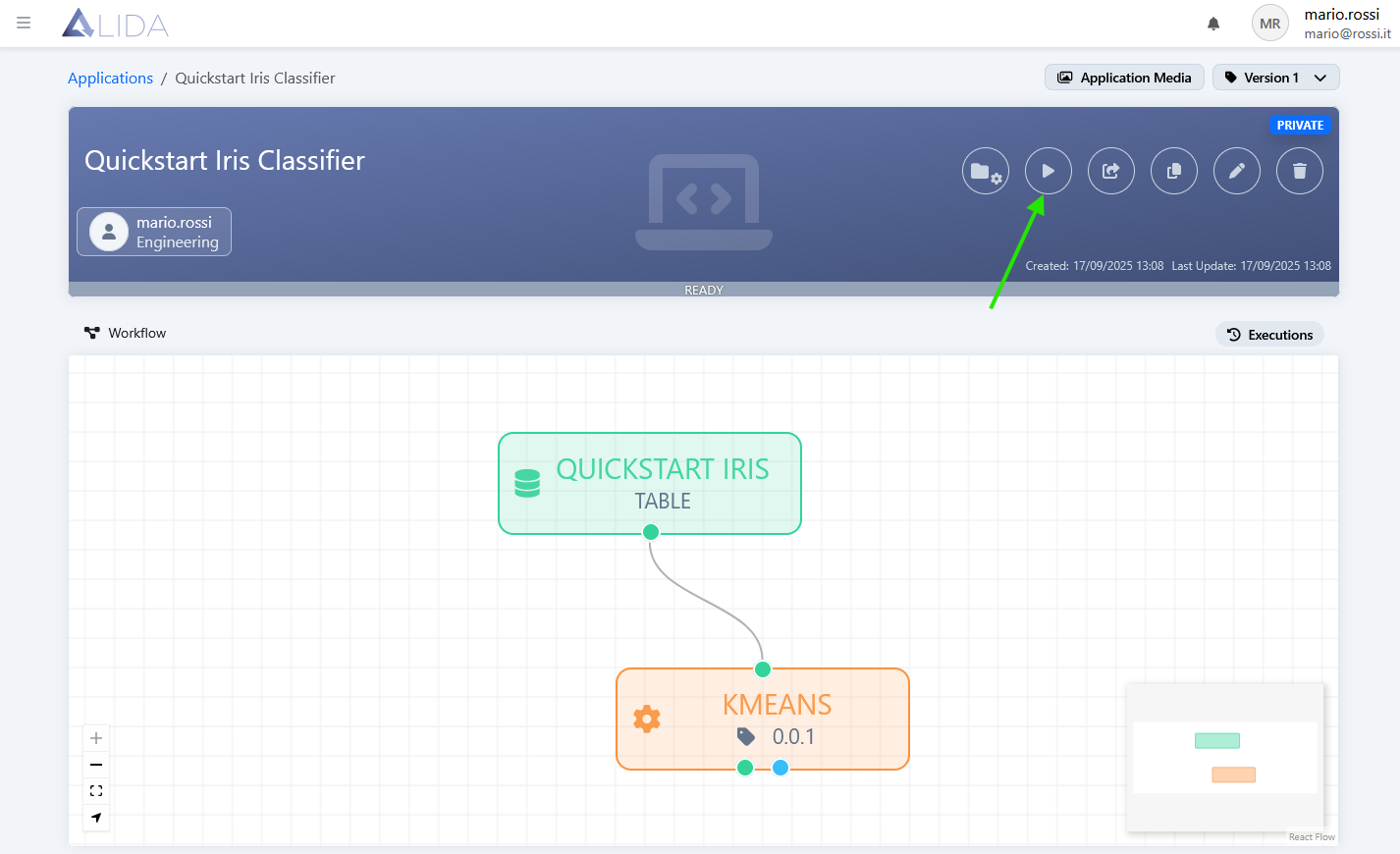
4.1 After creating the Workflow, on the resulting detail page, click on Run to execute it:
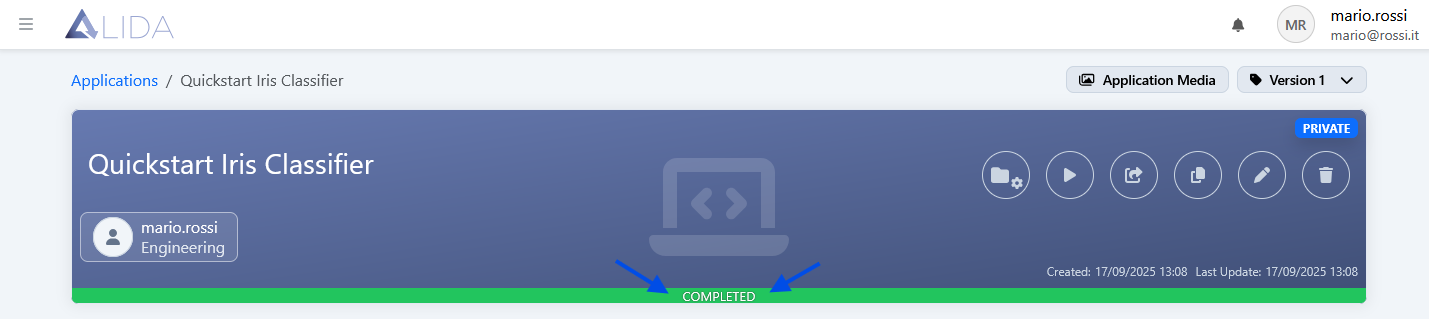
4.2 After the execution is complete, the status bar will automatically switch to Completed:
5. Viewing Results
The Kmeans Service in use generates two types of output:
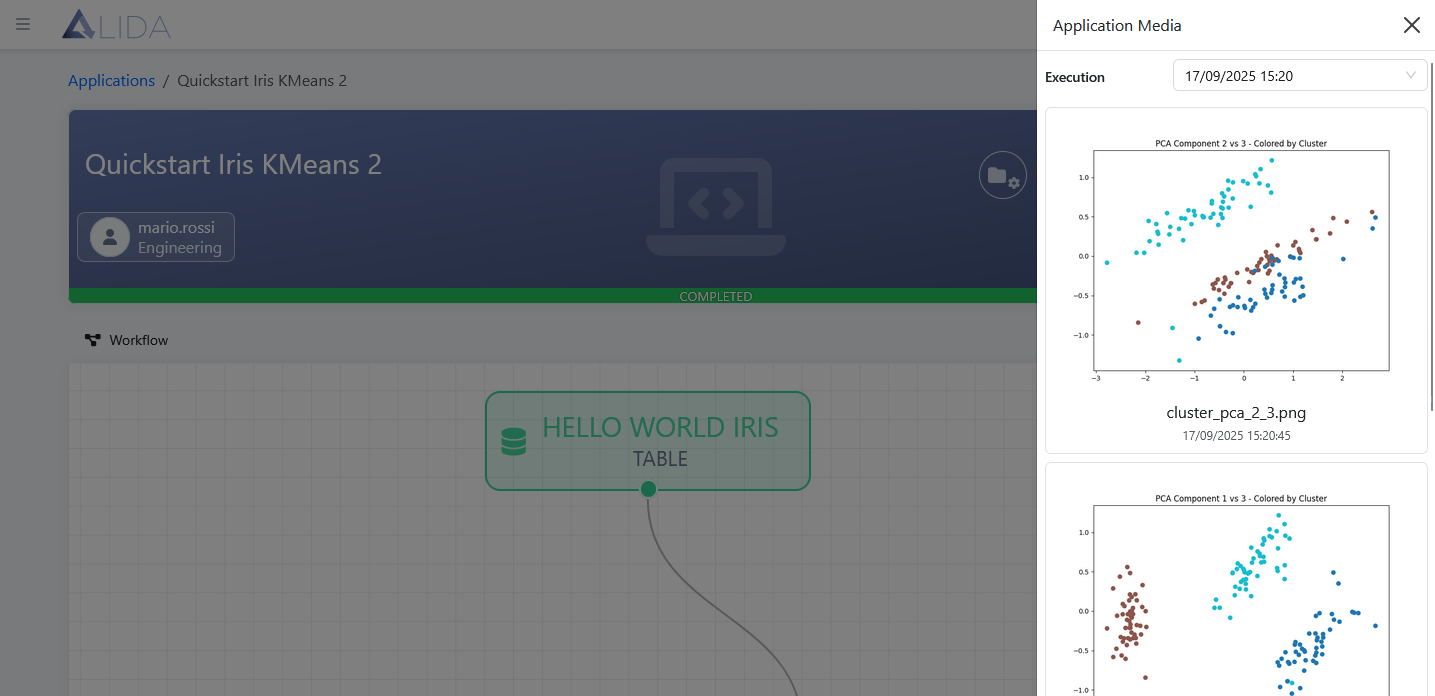
- A set of graphs
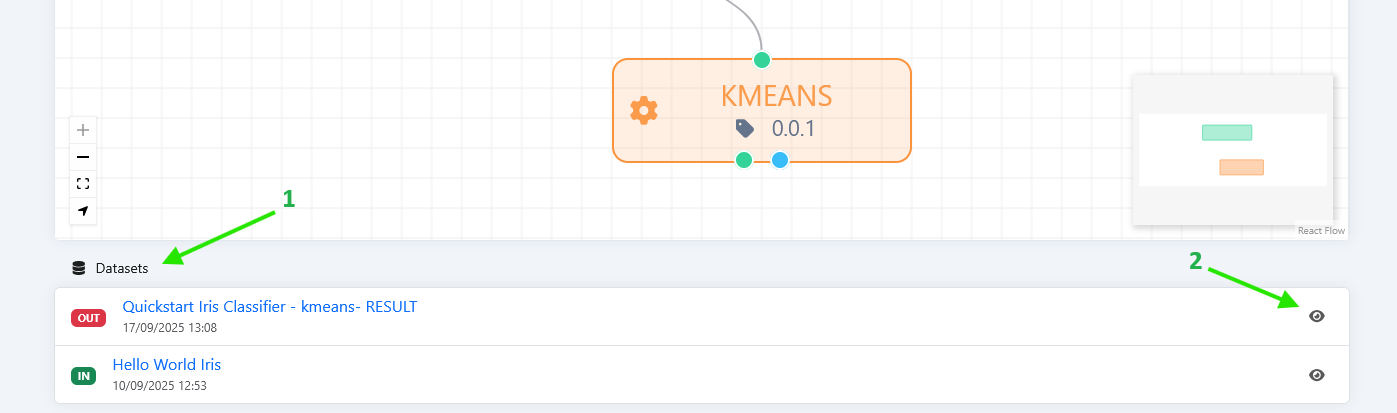
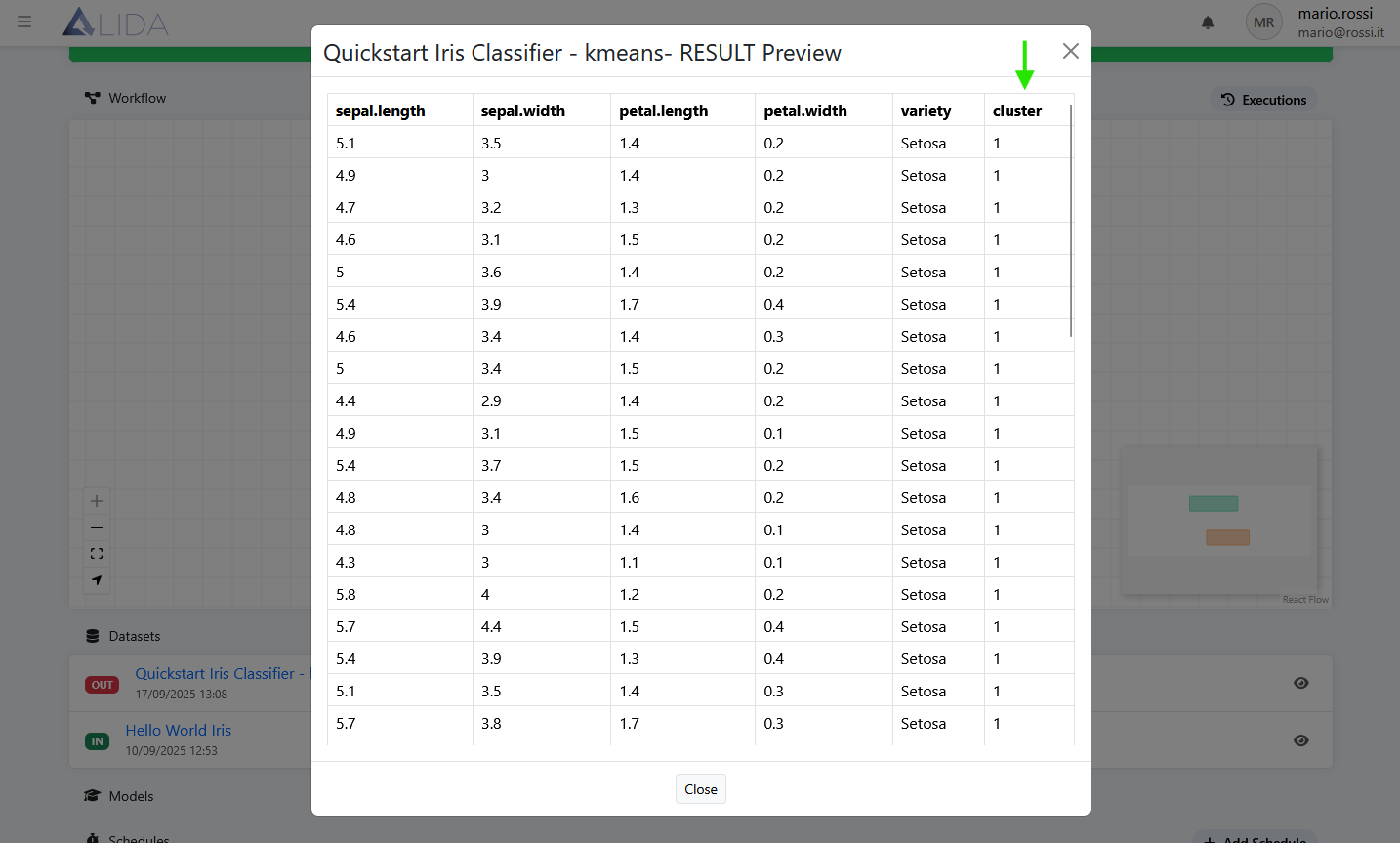
- A dataset that differs from the input dataset by adding a new column containing the result of the classification
5.1 Remaining on the Workflow detail page, view the graphs by clicking on Workflow Media:
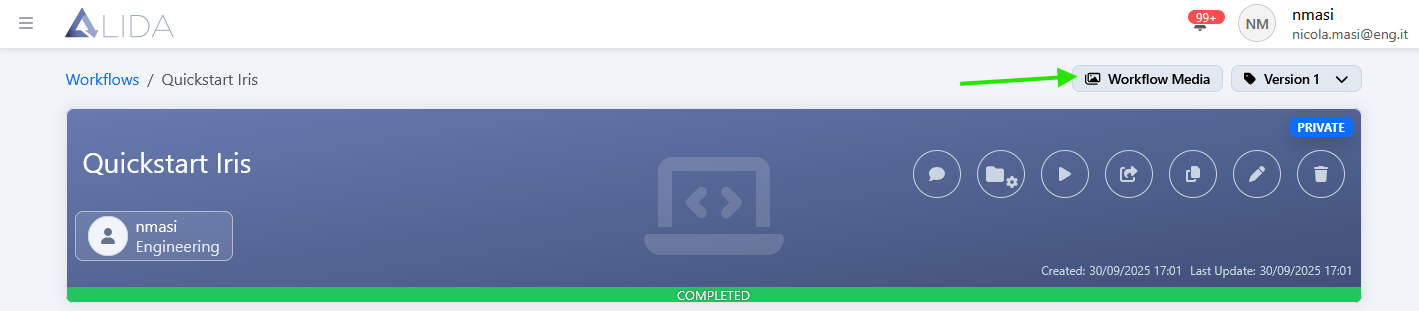
A panel with the graphs generated by the Workflow will open on the right:
5.1 View the output dataset as follows:
- Scroll down the current Workflow detail page
- Open the Datasets section, and
- Click the Preview button (
 ) next to the output Dataset (
 )
)
A dialog will open, with a preview of the resulting Dataset. Note the new cluster column containing the processing results.
6. Next Steps
Congratulations! You have just created and executed your first Workflow.
Continue exploring the concepts and features of ALIDA:
- Visit the The Platform section to explore the ALIDA graphical interface
- Visit the Assets section to learn more about the essential components of ALIDA
- Visit the Service section and the tutorial on creating custom Services