Workflow
The Workflow is the component that allows you to create your Data Science & Machine Learning pipeline.
Workflow Management
To access the Workflow management screen, use the sidebar menu:
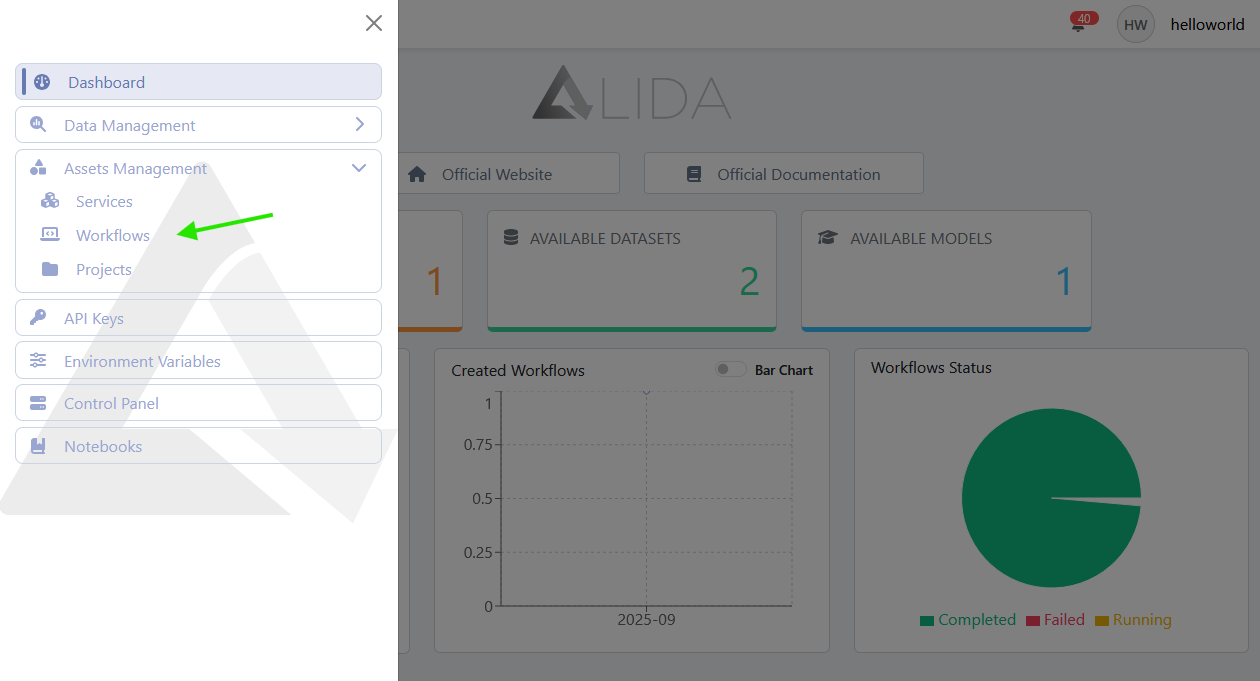
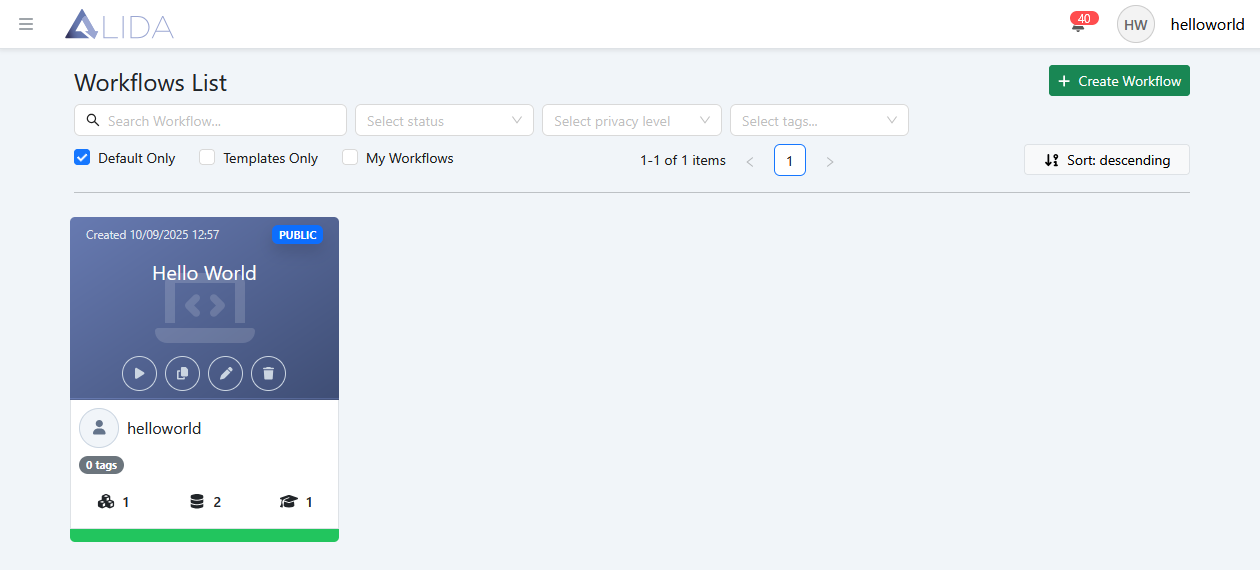
Viewing Workflows
From the Workflow management page, you can view public workflows, those belonging to your team, and your private ones.
For each of these, the following functions are available:
| Function | Button |
|---|---|
| Execute |  |
| Create Template |  |
| Edit |  |
| Delete |  |
Report workflow  |
Clicking on the card itself will instead open the Workflow details panel.
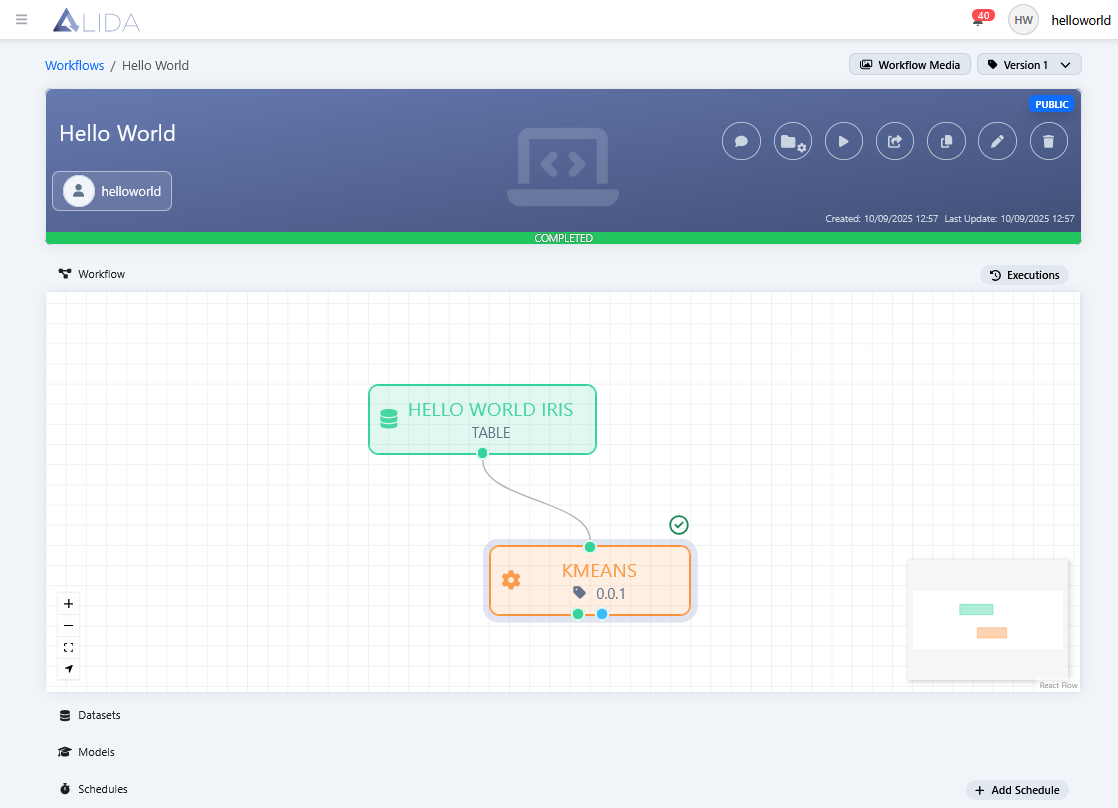
Where, in the top right, additional functions will be available:
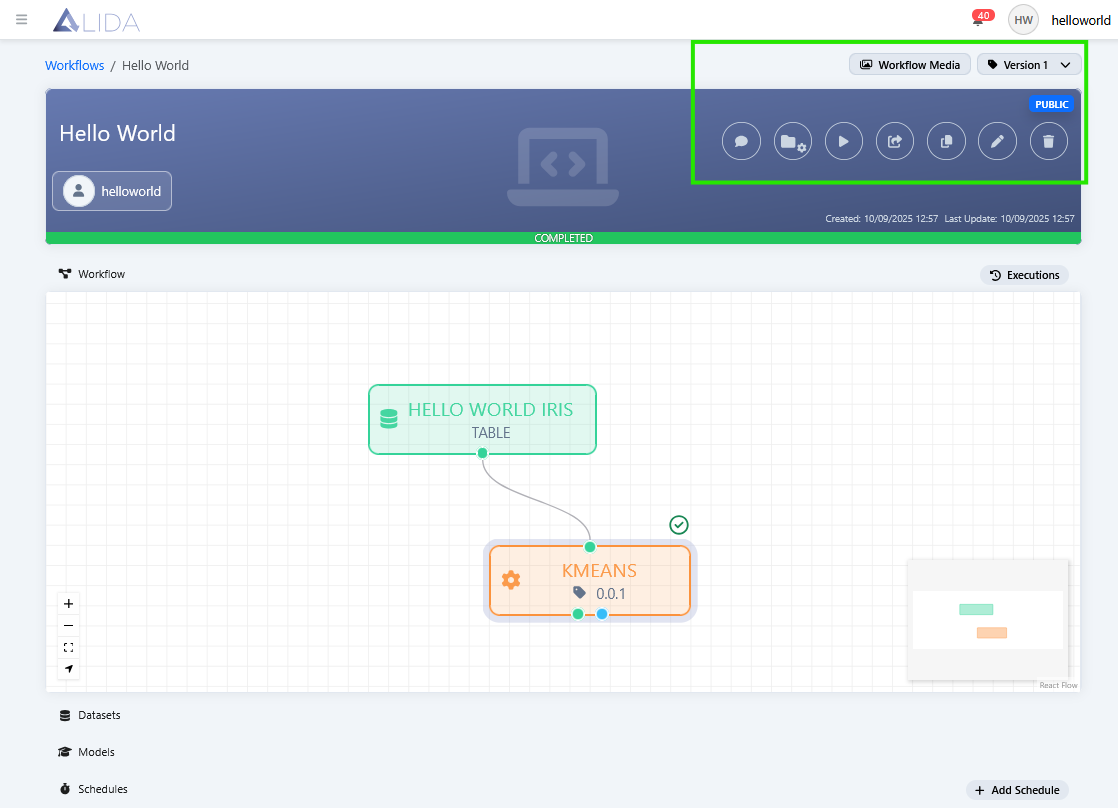
such as:
| Function | Button |
|---|---|
| View media generated by the Service of the Workflow |  |
| Select Workflow version | 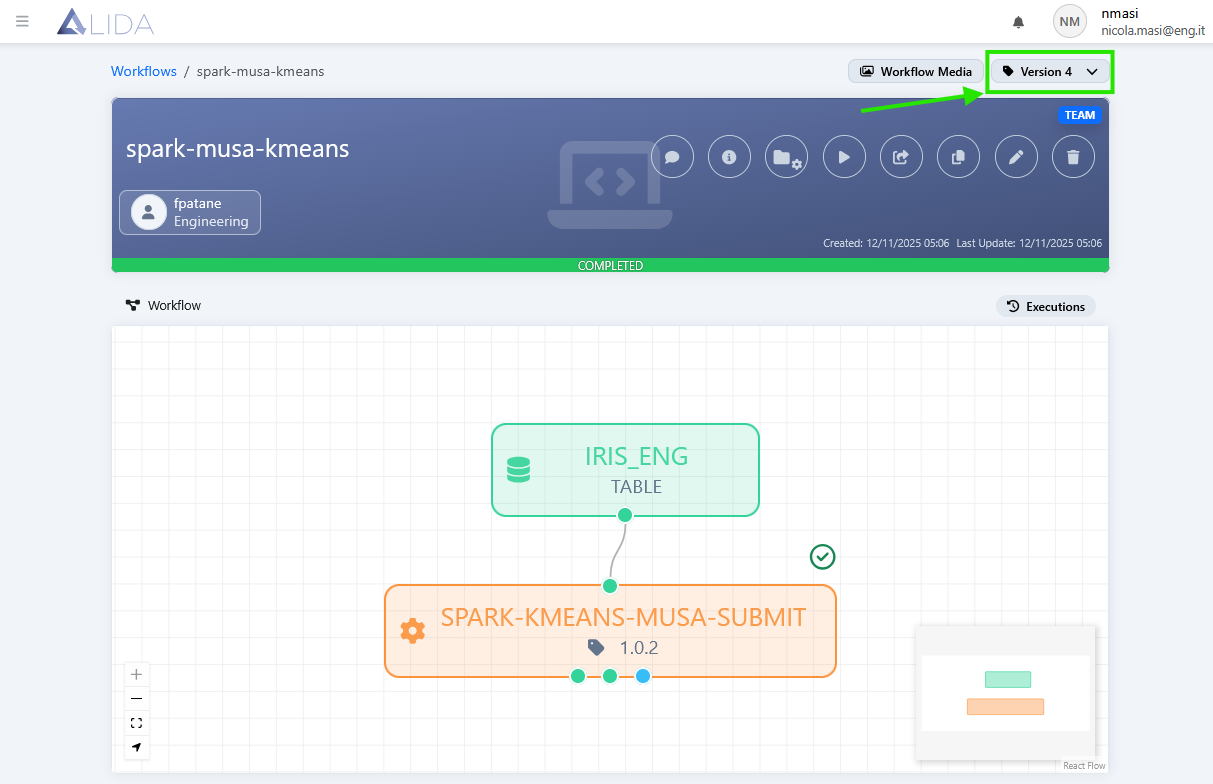 |
| View annotations for the Workflow |  |
| Add the Workflow to a Project |  |
| Export the Workflow |  |
Within the same page, at the bottom, the following collapsible sections are also available:
- Workflow: to interact with the components of the Workflow
-
Datasets: to view the list of input and output datasets along with a preview (
 )
)
Workflow Details - datasets section -
Models: to view the list of input and output models, and download them (
 )
)
Workflow Details - models section -
Schedules: to set and view the Workflow execution schedules

Workflow Details - schedules section
The following sections describe these features in more detail.
Workflow Media (Multimedia Content)
Clicking on will open the screen to view the multimedia content created by the Service components of the Workflow (see also Service - Workflow Media):
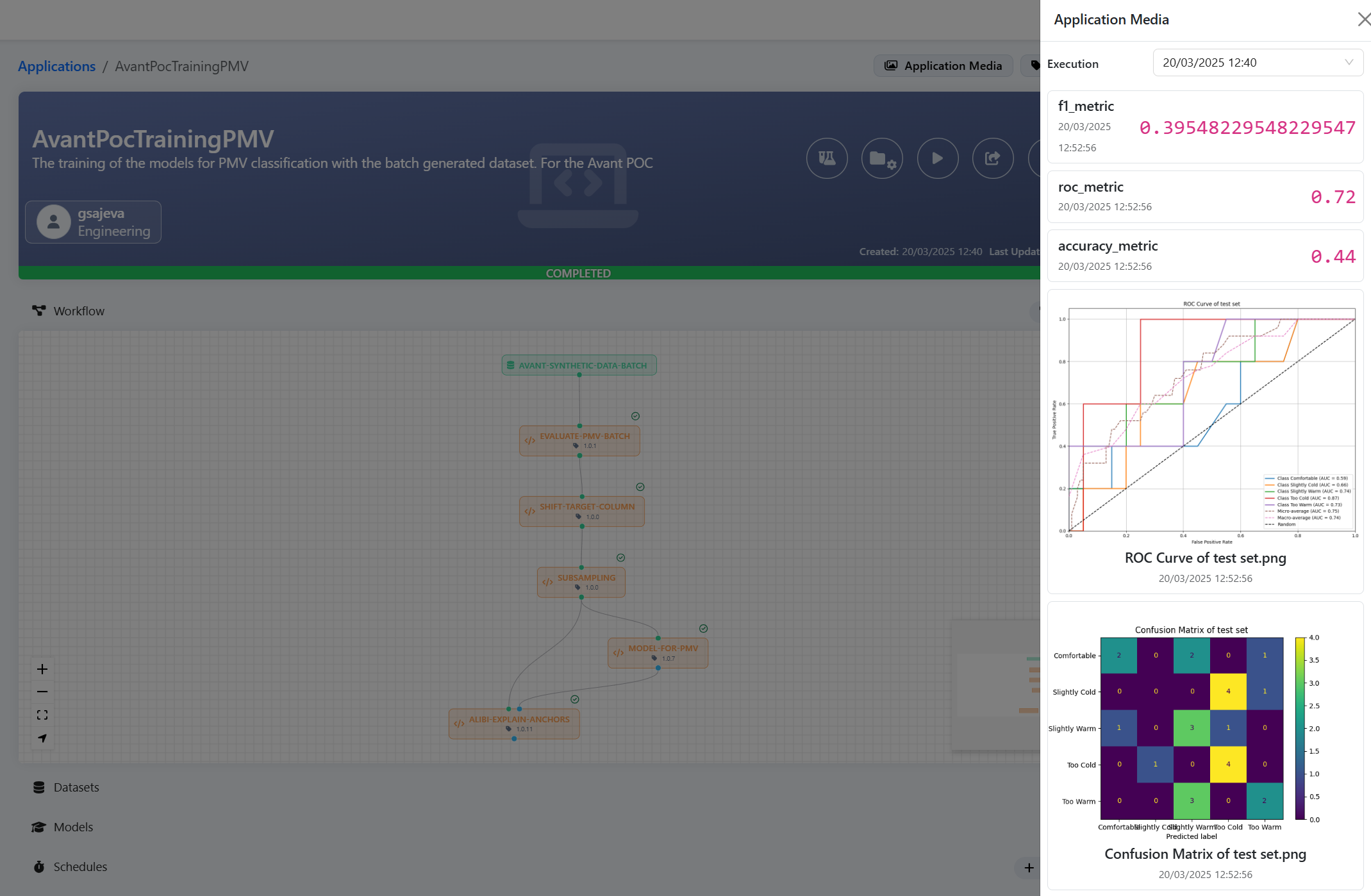
From here you can:
- View the multimedia content generated by each Service
- Select the specific execution to view the content for
Version Selection
From the Workflow details page, you can access the version selector:
From there, you can select a specific version and perform various operations on it: executions, modifications, etc.
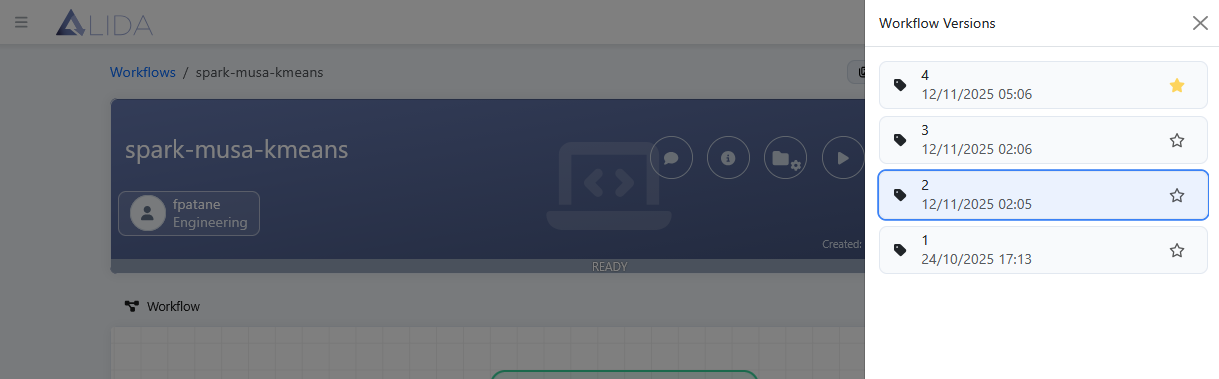
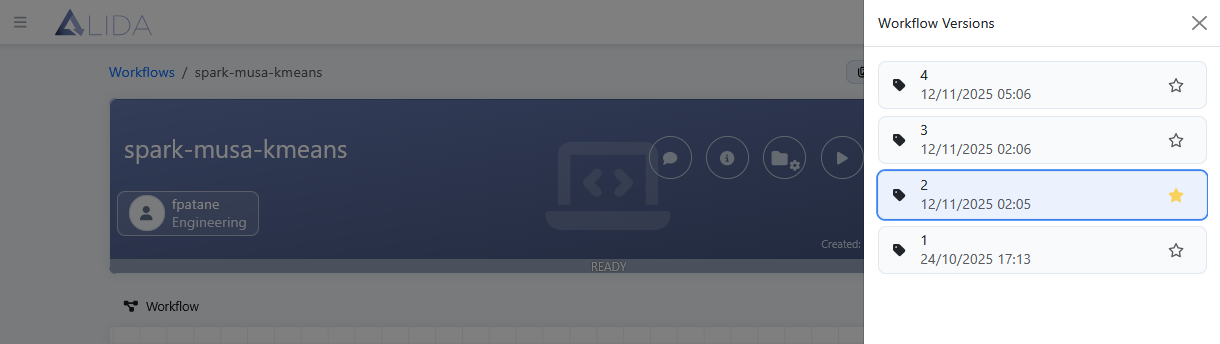
The selection will be temporary. If you want to set a specific version as default, click on the  . From that moment on, the card of the Workflow in the catalog will point to this version.
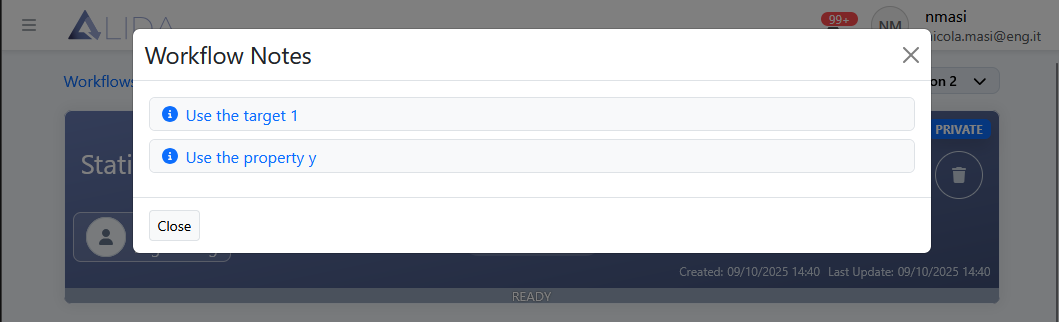
Viewing Annotations
Clicking on will open the list of annotations assigned to the Workflow:
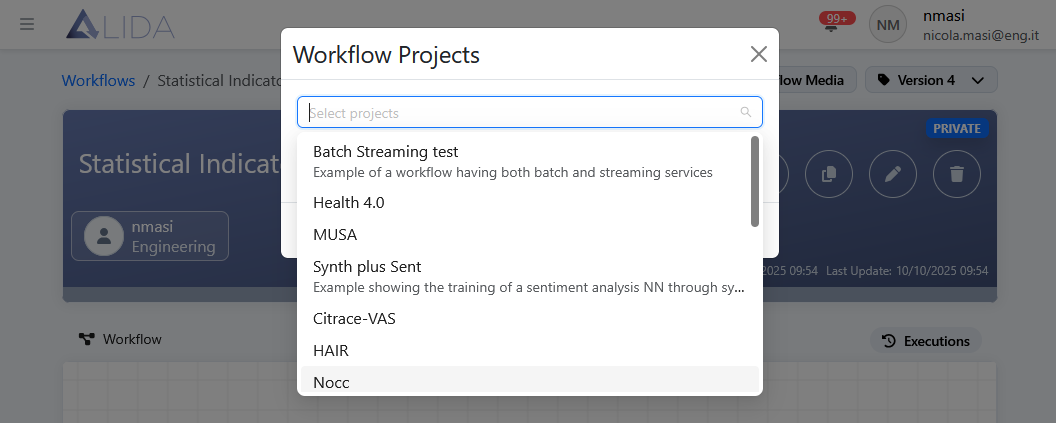
Adding to a Project
Clicking on will open the dialog that allows you to add the Workflow to a Project.
The available Projects are those previously created from the dedicated section (see Asset -> Projects)
Exporting
Clicking on will allow you to export the Workflow in various formats:
- Standalone
- Manifest
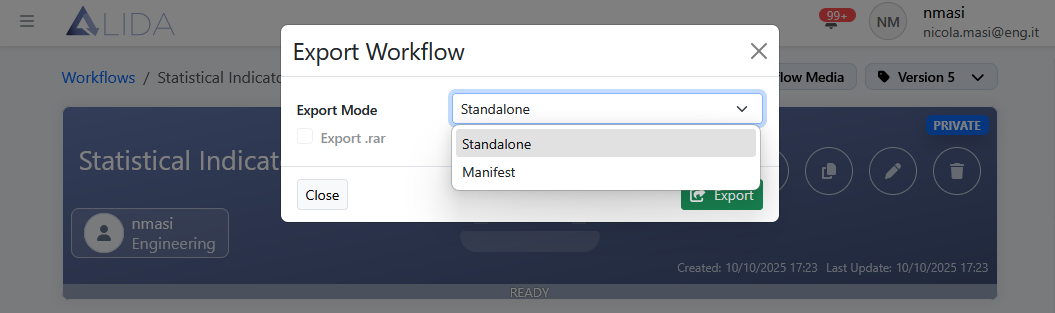
Selecting the Standalone mode will allow you to download a Docker Compose stack implementing the Workflow and designed for execution locally or on systems other than ALIDA.
Selecting the Manifest mode will instead allow you to download the equivalent Kubernetes version in manifest JSON format.
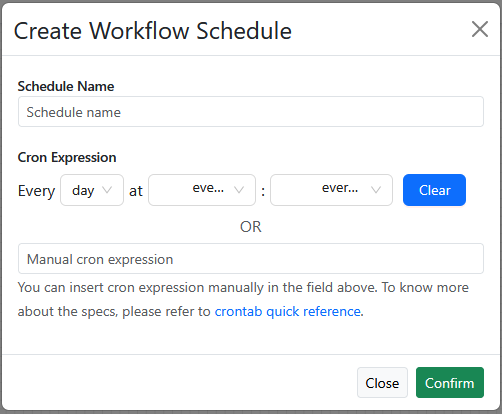
Scheduling
From the Schedules section, you can schedule the Workflow execution through Cron expressions.
Creating a Workflow
-
For instructions on creating a Workflow, please refer to the Create Workflow section of the Quickstart.
-
For the features available in the Workflow Designer, please refer to the Designer section.
In this section, we will illustrate some additional functions useful in the creation and modification phases of a Workflow.
For the examples, we will take as reference the Workflow created during the Quickstart.

Preliminary Settings
Immediately after clicking the Create Workflow button, the following form for preliminary settings will open:
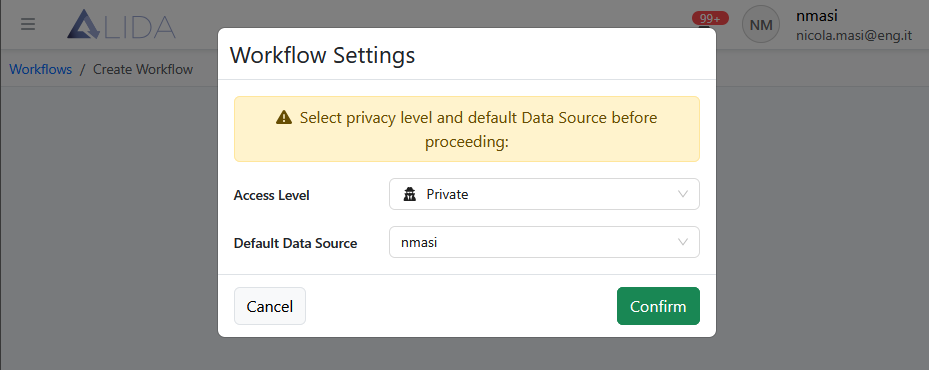
containing the following fields:
- Access Level
- Default Data Source
Access Level determines the visibility level of the Workflow asset (as seen in Basic Concepts)
Default Data Source allows you to select the default Datasource to which all Service components of the Workflow will point for saving results. This default configuration can then be changed for each Service from within the Workflow Designer (see I/O Ports Settings section below).
General Information
- The Workflow Designer will only allow the connection of compatible ports.
I/O Ports Settings
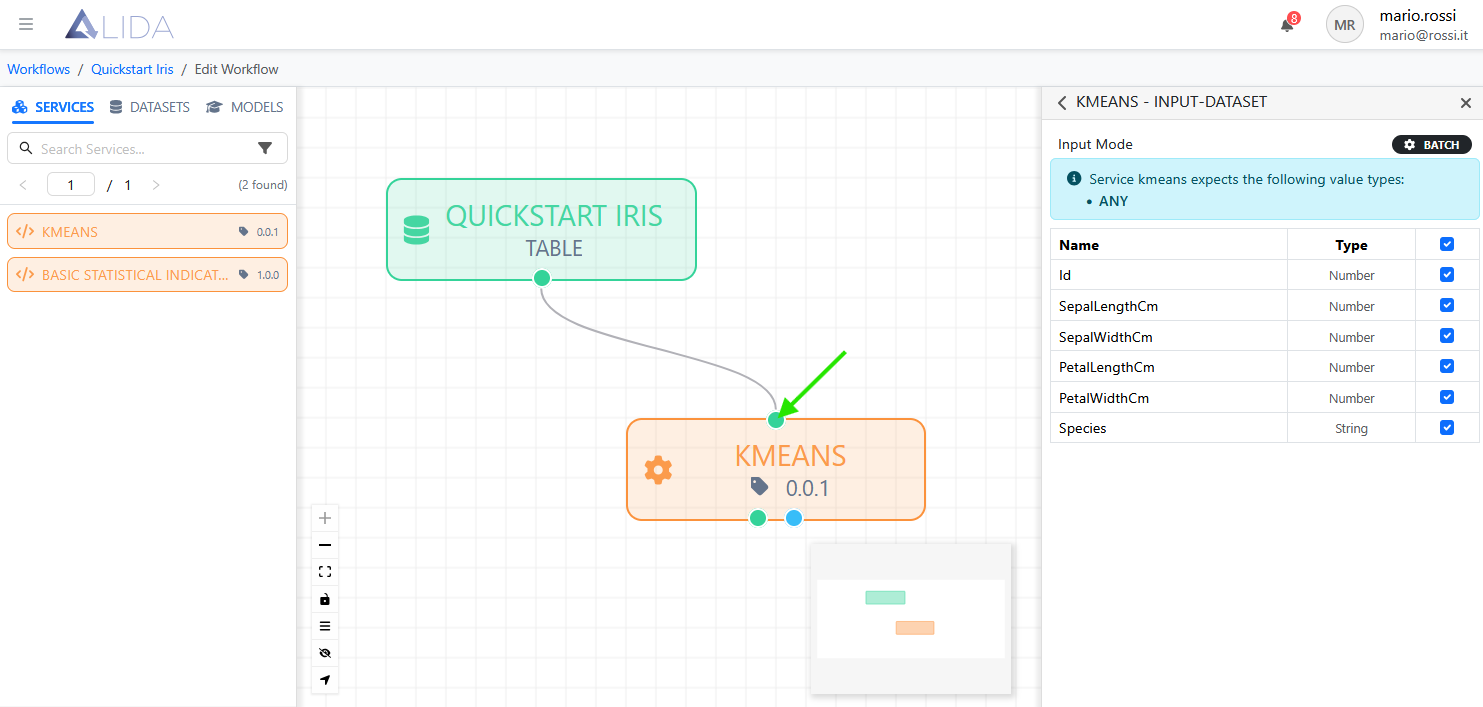
Clicking on one of the ports of the blocks on the canvas will open a configuration form on the Element Details panel, whose content will depend not only on the port type but also on the block type (service, dataset, ...).
For example, clicking on the input port of the dataset type of the KMeans Service, we find the possibility of selecting - through the relative checkboxes - which columns of the dataset actually pass to the Service.
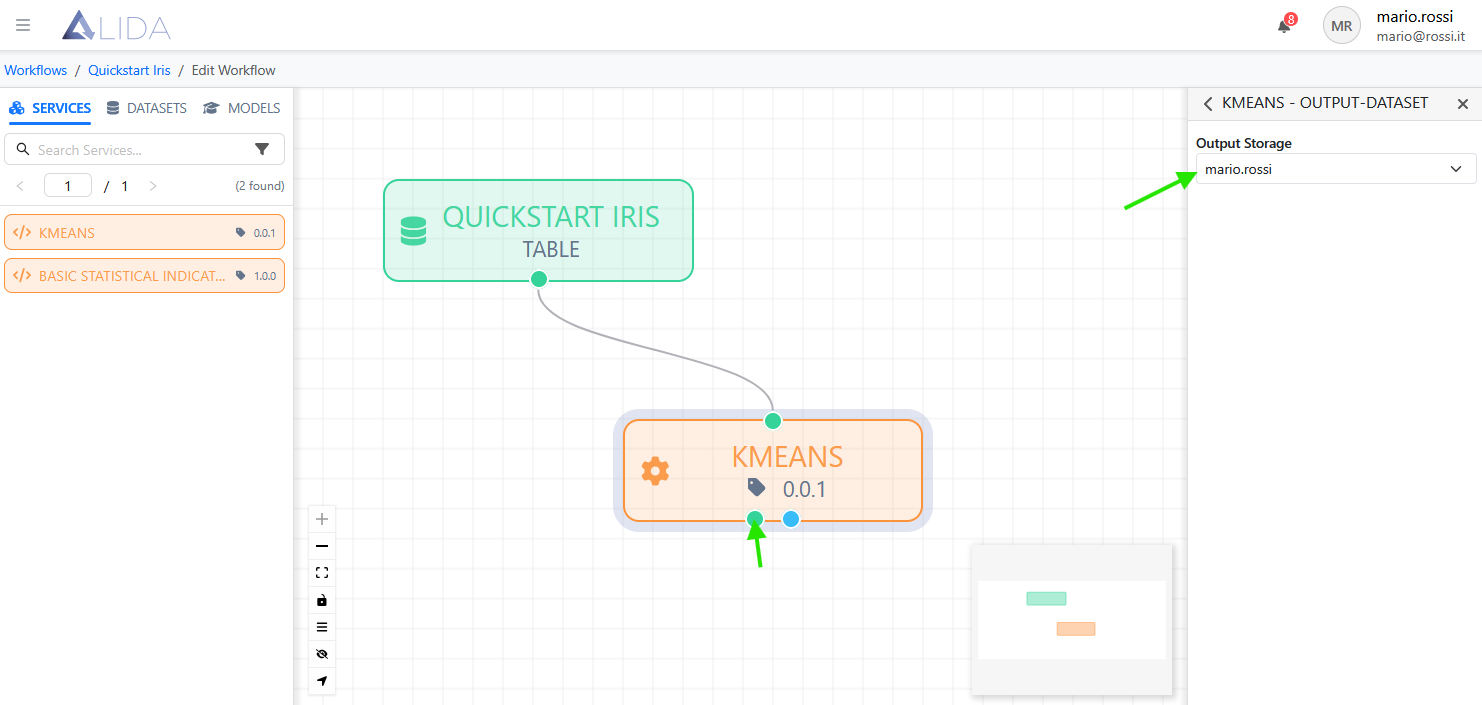
Clicking instead on the output port of the dataset type of the Service, we can on the right select the destination datasource
for the dataset output.
Selection of execution Target for Services
For each Service that composes the Workflow it is possible to set a Target.
The Target determines the set of nodes in the cluster that are candidates to host the execution of the Services that have been assigned to them.
The possible Targets must be previously defined by the system administrator from the control panel (see Managing Targets)
Annotating the Workflow
ALIDA allows, from Workflow Designer, to assign a set of structured notes to the Workflow. Notes that must be previously defined by an administrator from Control Panel (see Defining Annotations).
To associate structured notes to the Workflow, open the management panel
by clicking on  .
.
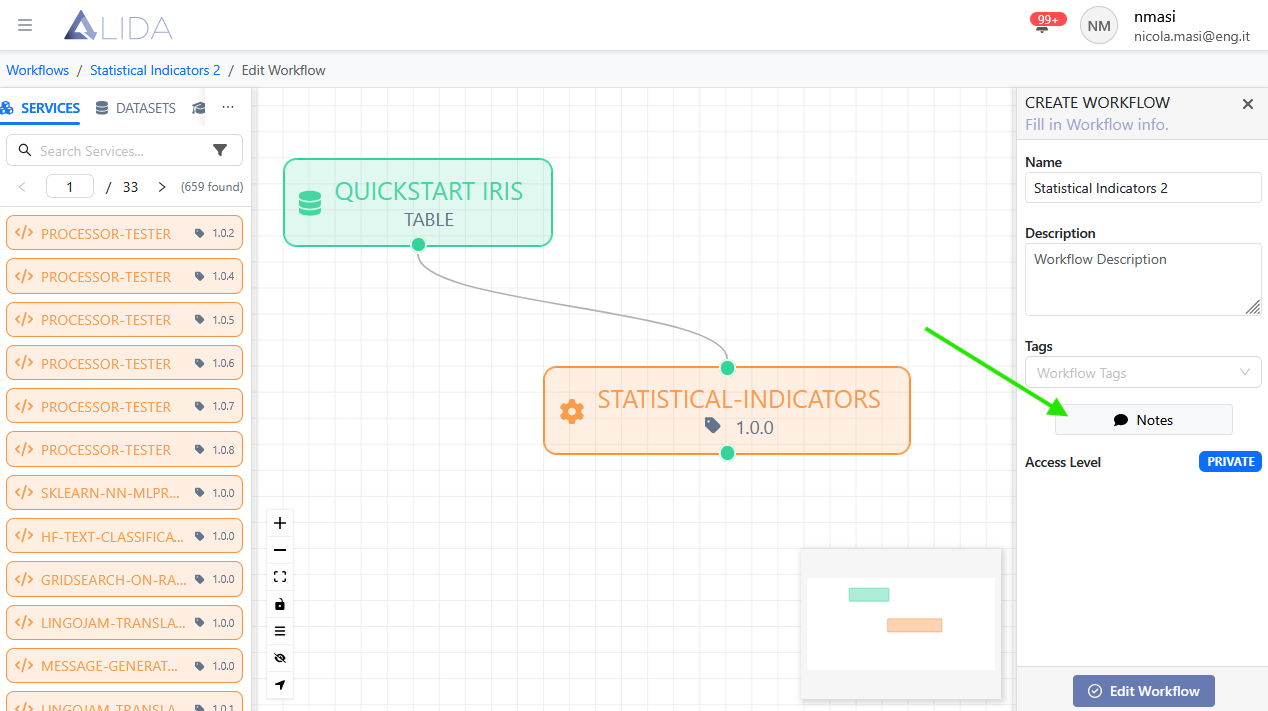
At that point, the procedure for adding and managing notes is identical to that described for the Services (Annotating Services).
Automatic Valorization of Port Parameters
When connecting Services to each other, ALIDA will assign the values of the arguments (those defined in the metamodel) of the output port of a Service to the corresponding ones of the input port of the next Service in the Workflow.
Example
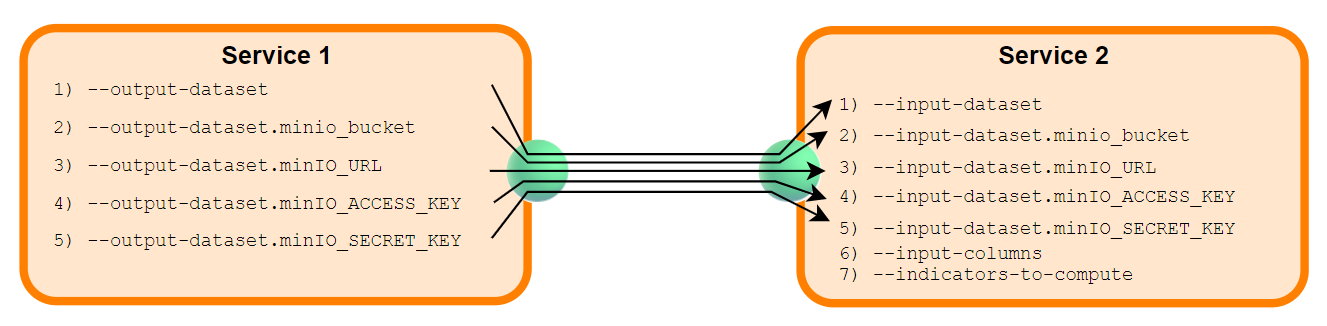
Modifying a Workflow
It is possible to modify a Workflow, or quickly modify the properties of a Service that composes it, by clicking on the .
Versioning
Each time a modification is made, the Workflow will be versioned:
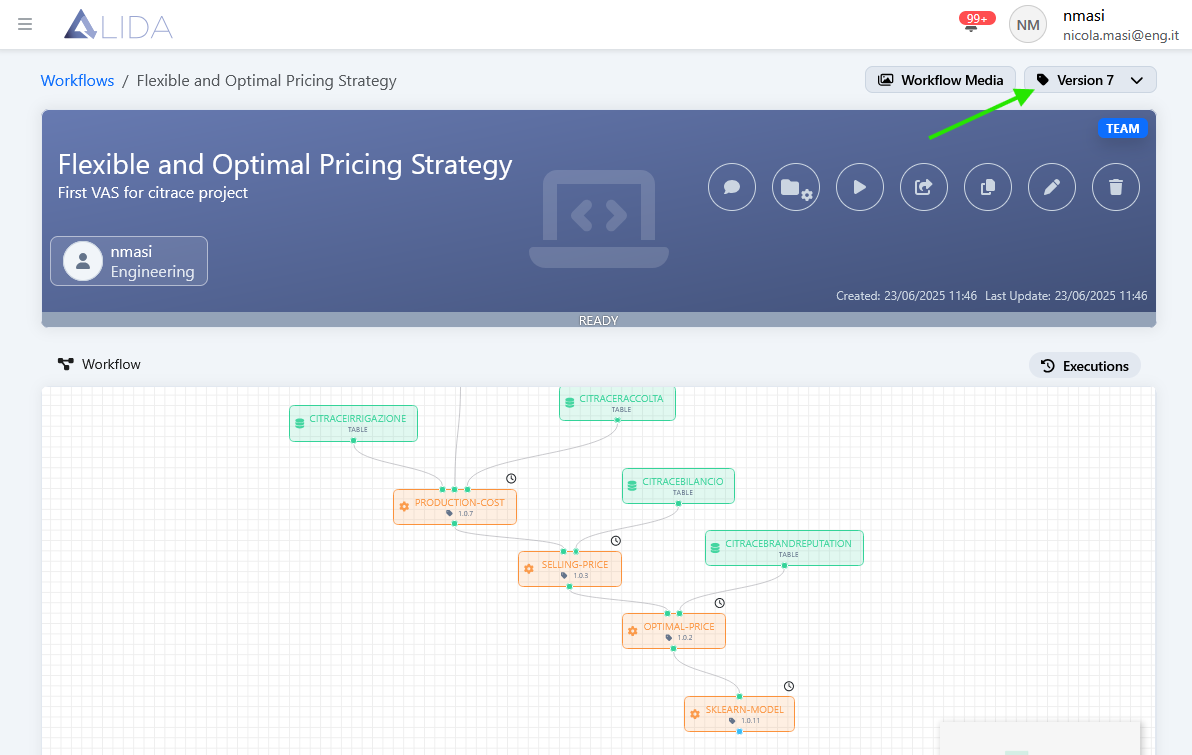
and it will be possible to set a previous version as default
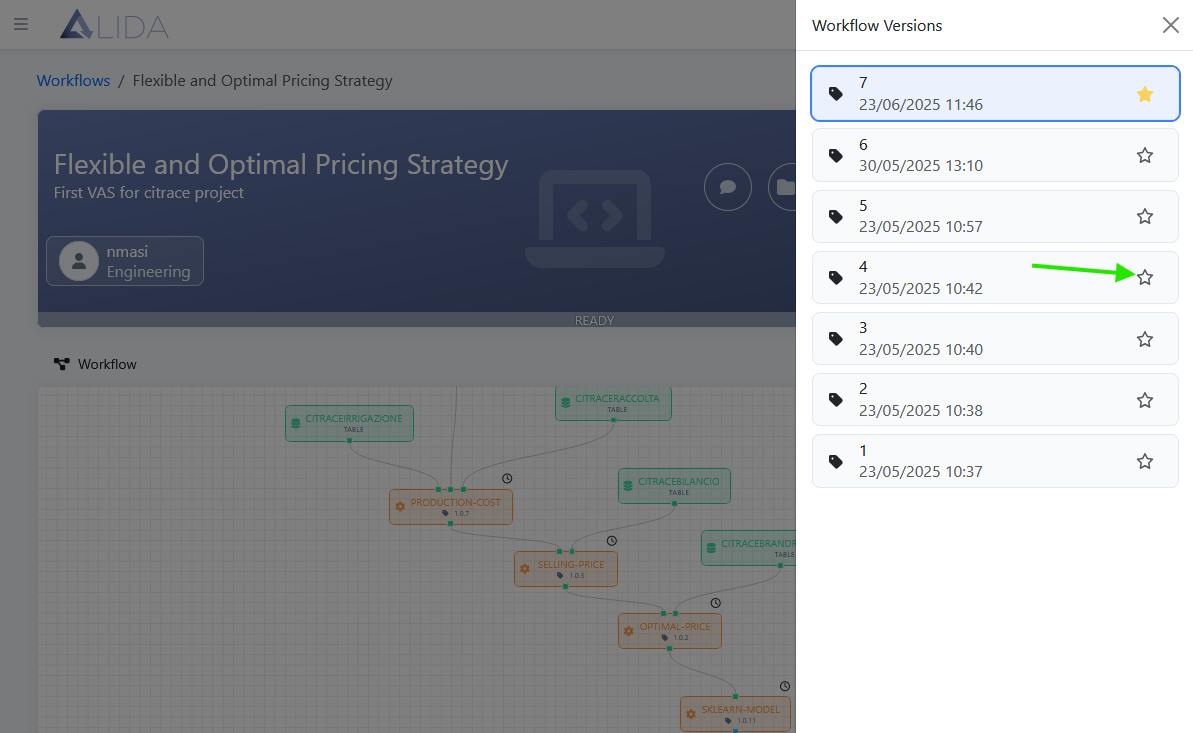
Executing a Workflow
Once the Workflow has been configured and created, it can be executed or scheduled for execution. If configured, ALIDA will also send the relevant notifications about its execution status.
Namespace Selection
Clicking on , if the system administrator has defined additional namespaces from Control Panel, a popup will open for namespace selection.
Here, it is worth knowing that a namespace refers to an area of the cluster dedicated to the execution of the Workflow. Multiple namespaces can differ in security policies, available computing resources, and more (Consult your system administrator for more information).
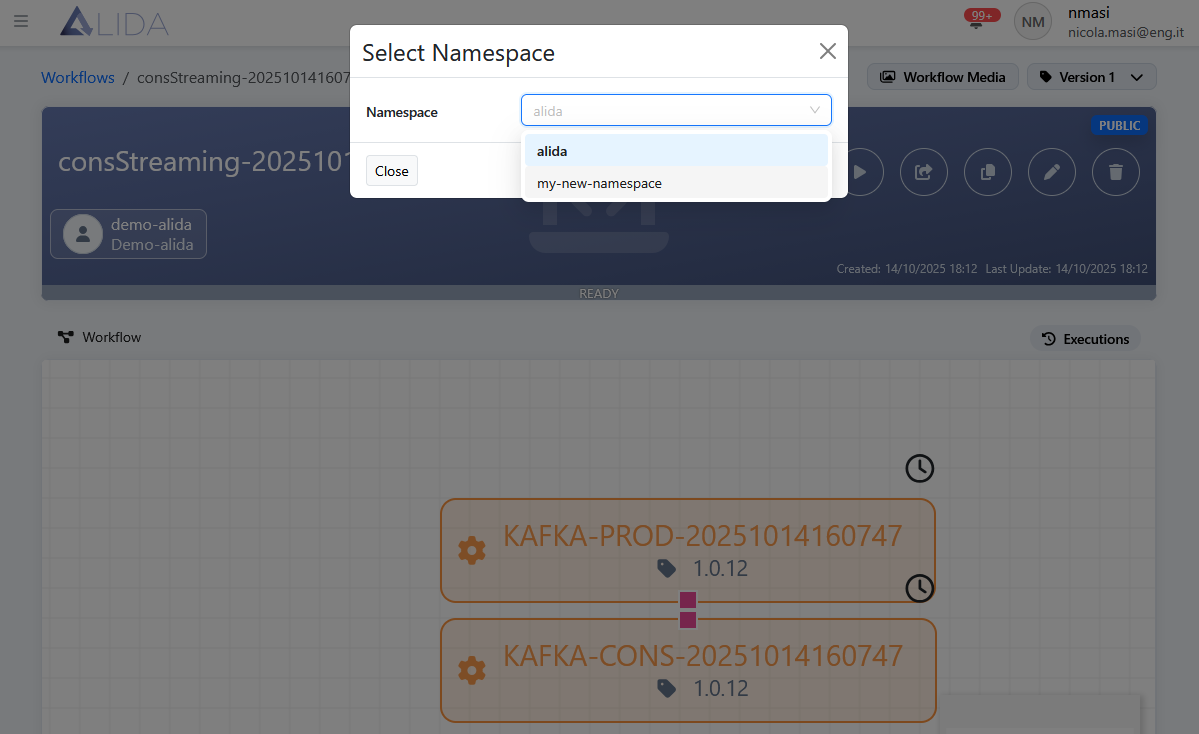
Workflow Statuses
READY: The Workflow has just been created and is ready for executionSTARTING: The Workflow is in the initialization phase. Resources are being allocated for itRUNNING: The Workflow is currently runningCOMPLETED: The Workflow has completed execution. Results are availableSTOPPED: The Workflow has been manually stopped by the userERROR: The Workflow has failed due to an error
Service Logs of the Workflow
From the Workflow details page of an executed or running Workflow, you can access the logs of the individual Services
that have passed the initialization phase (status STARTING).
As indicated in the figure, clicking on  will open the log viewing panel.
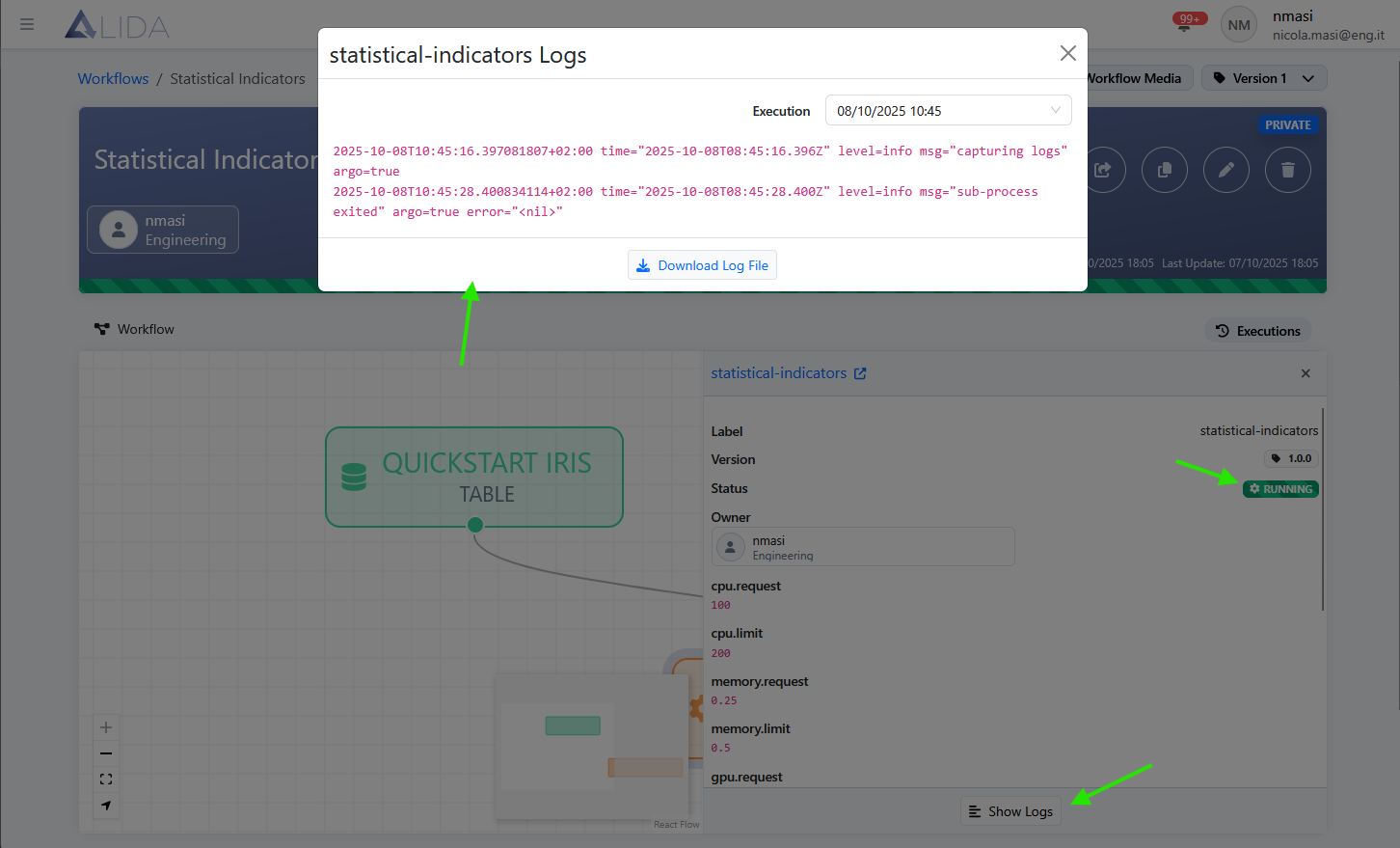
From here, clicking on  will also allow you to
download a copy of the logs locally.
will also allow you to
download a copy of the logs locally.
Deleting a Workflow
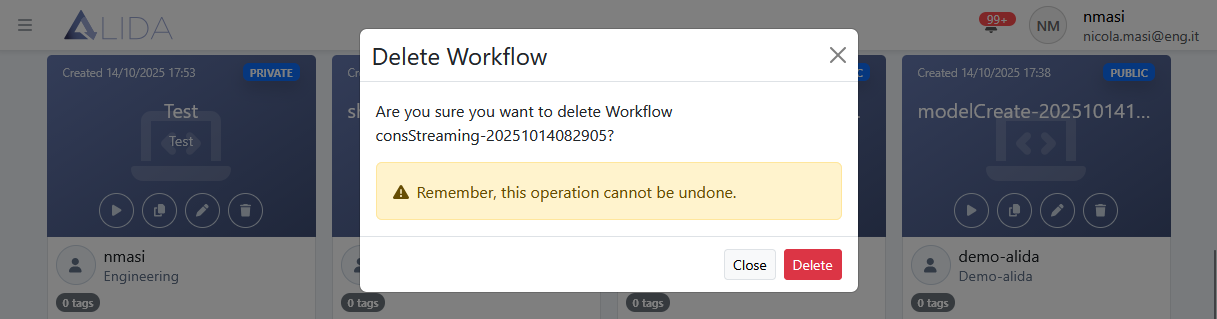
Clicking on will allow you to delete a Workflow from the catalog.
ALIDA will ask for confirmation:
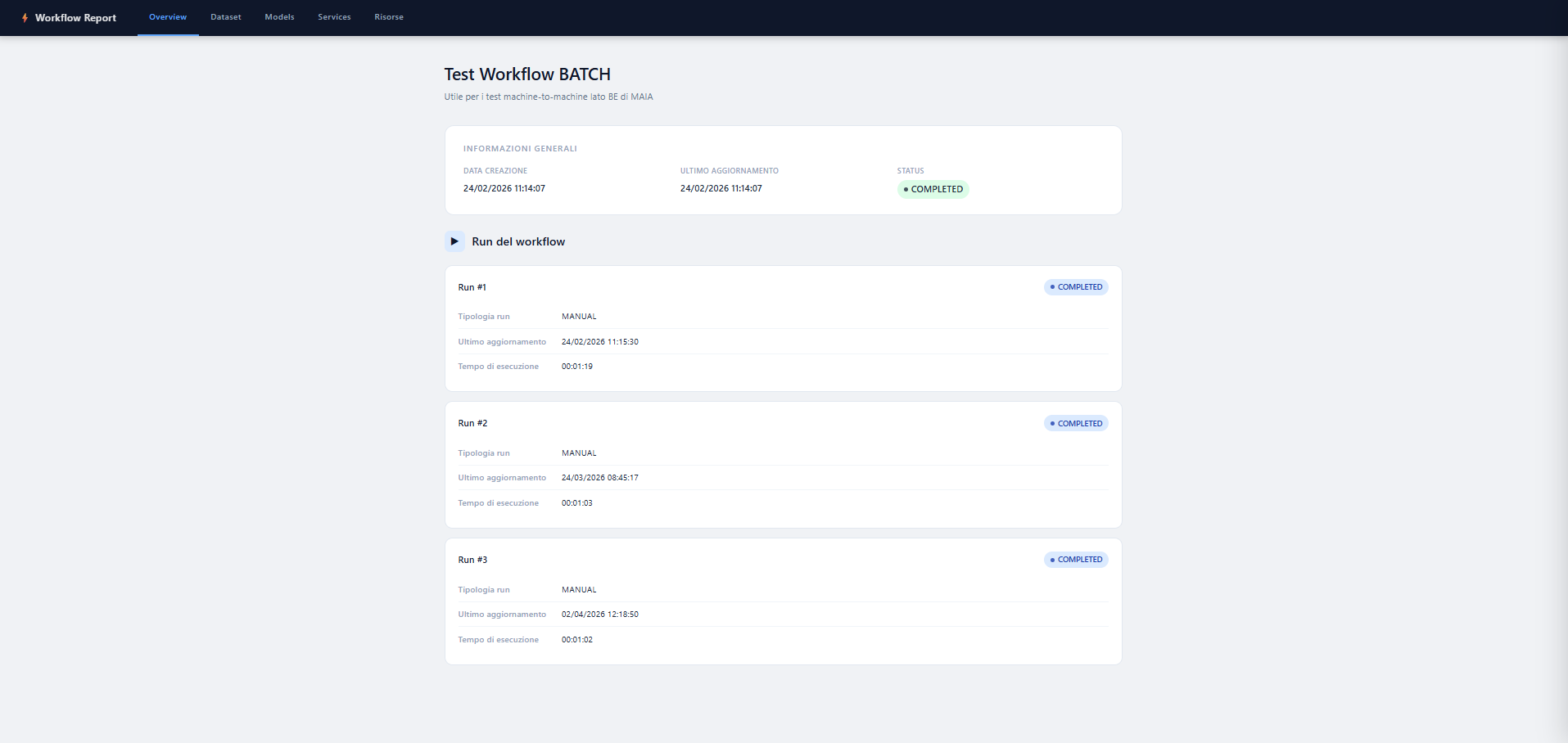
Workflow Report
By clicking on it will be possible to download a report on the Workflow in ZIP format.
This archive will contain:
- report.html: an HTML file with information about the Workflow and in particular about each Run, Dataset, Model, Datasource and Service used.
- media: a folder containing any files generated by the Services of the Workflow.
Additionally, this will contain a subfolder for each Service that has generated a file. The subfolder will be identified by the
idof the Service and will contain the generated data by it.
Creating a Template
Clicking on
will allow you to create a Template from an existing Workflow.
Visit Workflow Templates Management for more information.